Build and Manage Scenarios
Build What-If Scenario enables business users, actuarial teams, and pricing analysts to create, configure, execute, and analyse rate impact scenarios against a selected Book of Business. The feature provides a guided multi-step workflow for selecting products, defining portfolios, modifying rate tables, and generating analytical reports for premium displacement and portfolio impact analysis. The workflow standardizes scenario creation and enables controlled simulation of pricing, rate, and coverage changes before production deployment.
Start Scenario Creation
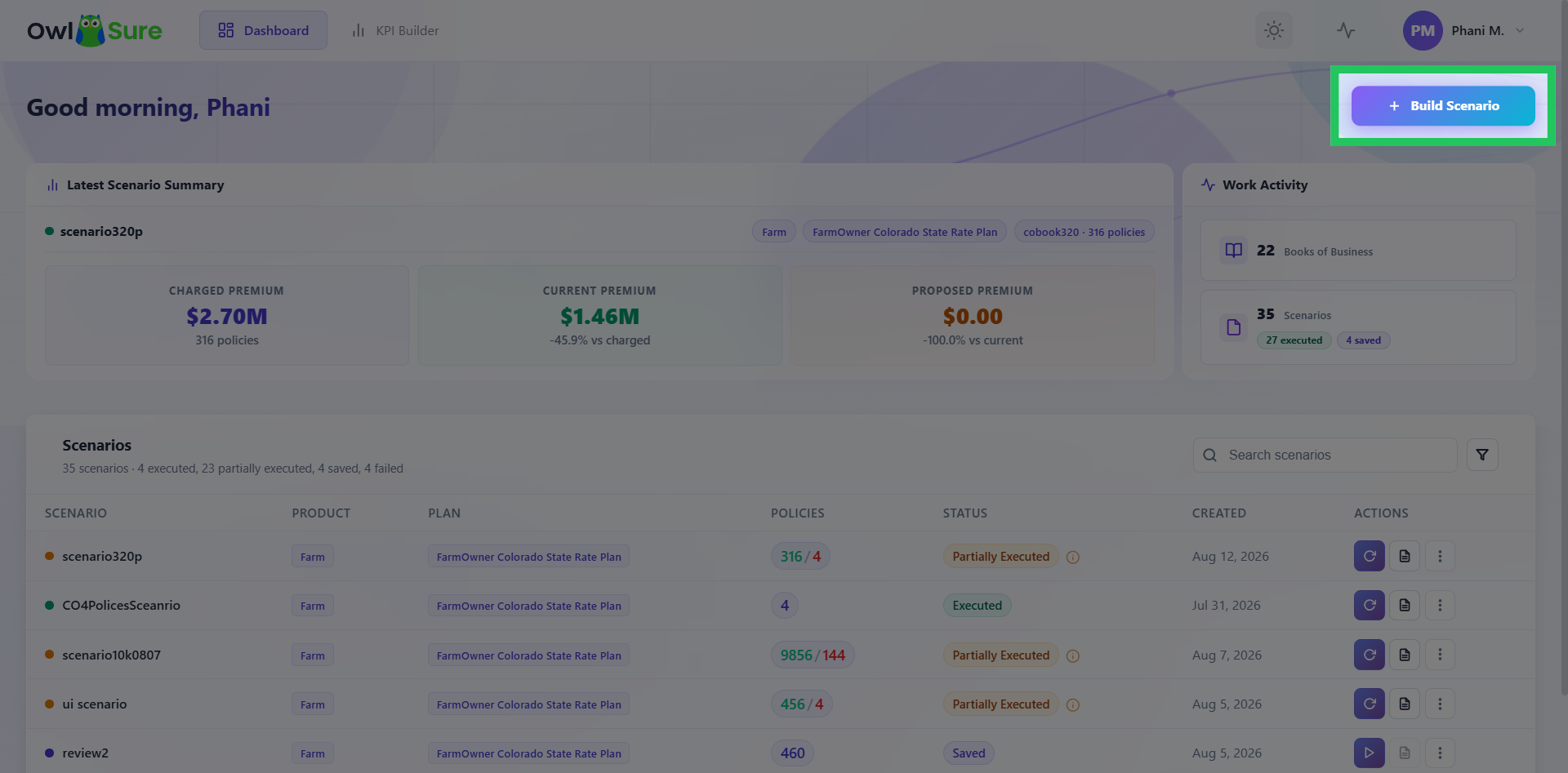
Click "Build Scenario" to begin creating a new scenario. This opens the scenario creation workflow, where you can define the information required to set up the analysis.
Select a Product
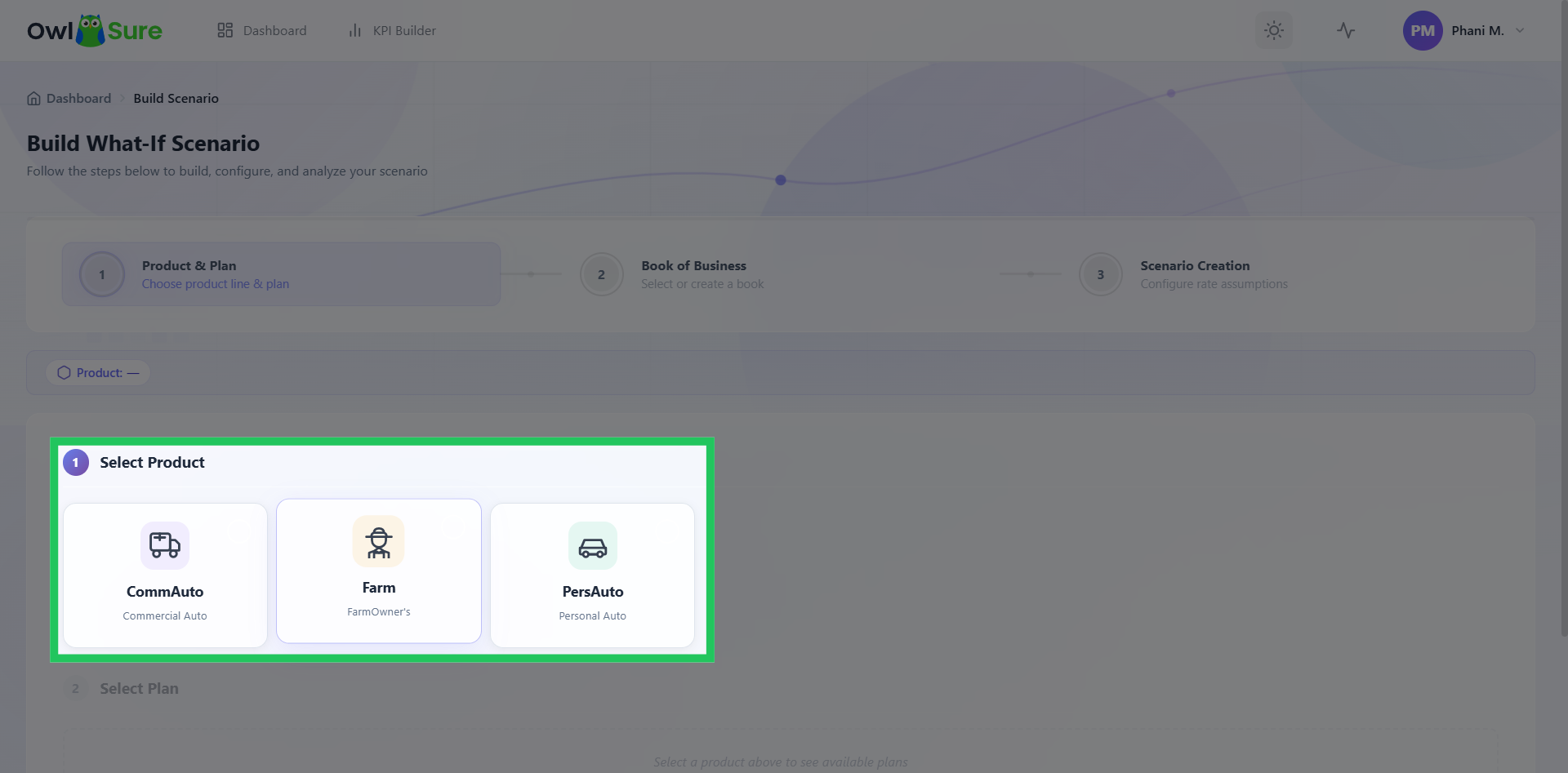
Depending on the products configured for your environment, select the relevant product to continue with the scenario setup. The selected product determines the plans and other options available in the subsequent steps.
Select a Rate Plan
Choose the applicable Rate Plan for the selected product. The rate plan establishes the rating context for the scenario and determines the relevant configuration available for analysis.
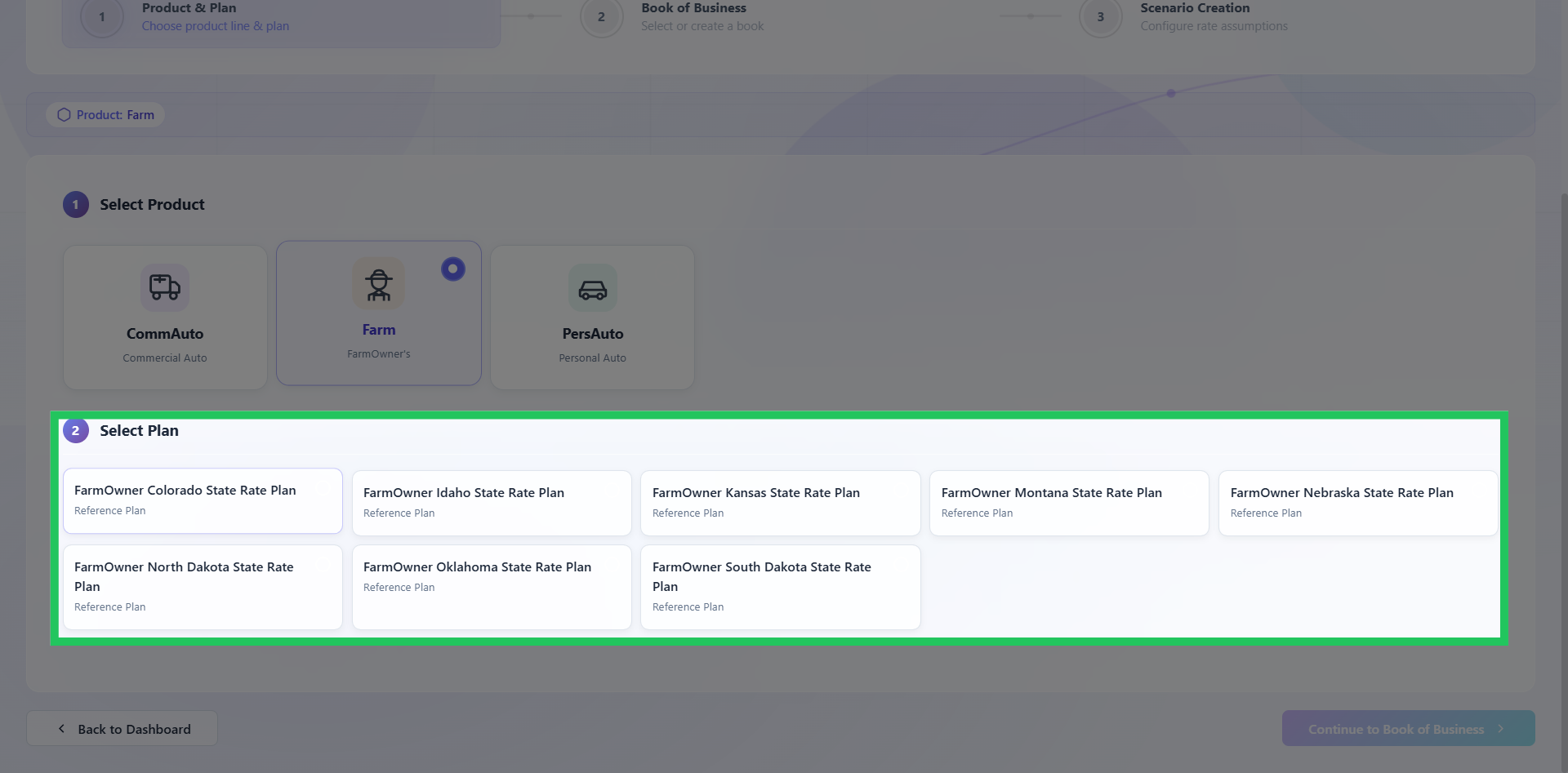
Proceed to Book of Business
Click "Continue to Book of Business" to move to the next stage of the scenario setup. This allows you to identify the set of business and policies against which the scenario will be evaluated.
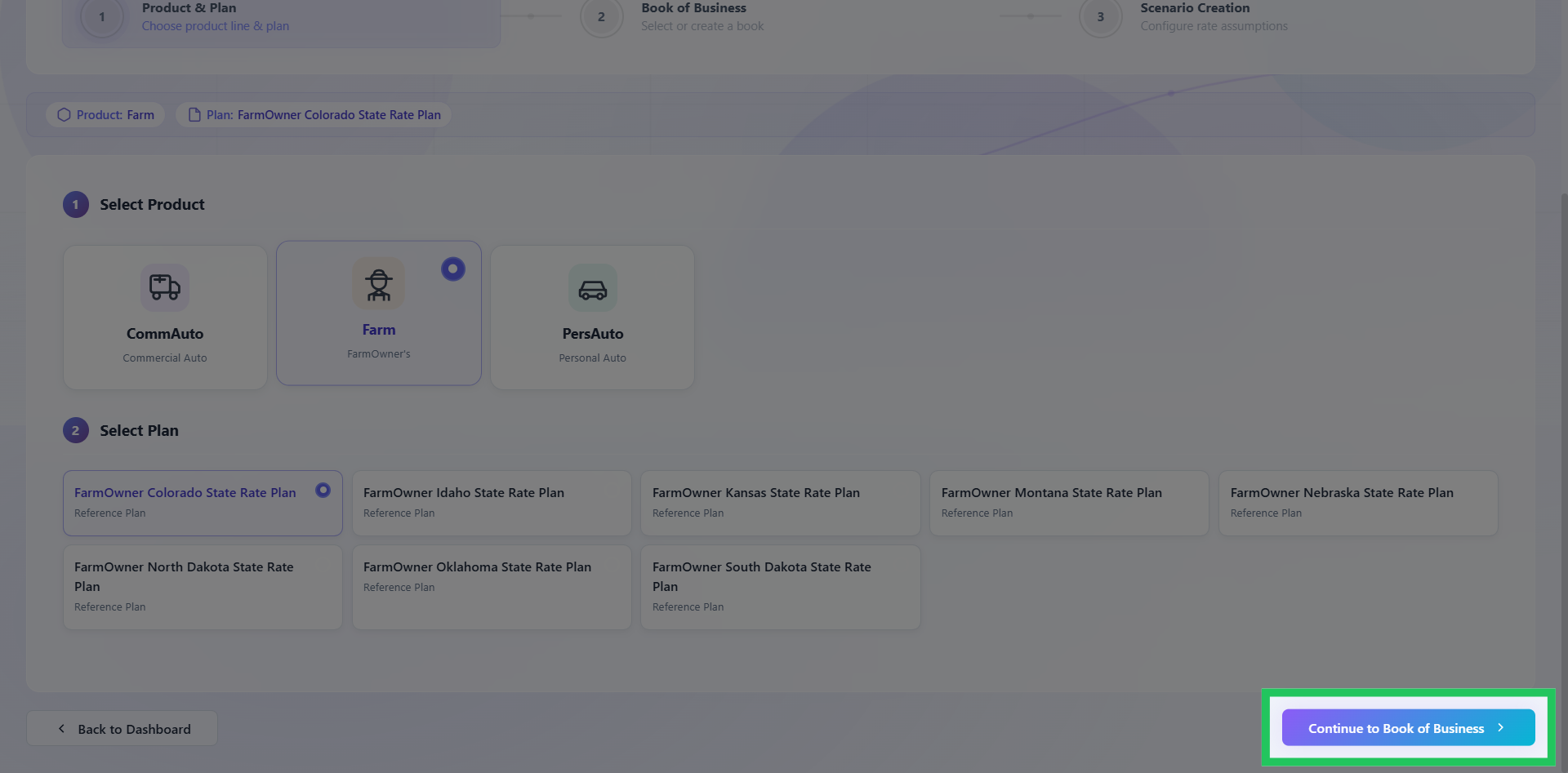
Select or Add a Book of Business
Select an existing Book of Business from the available list by choosing the appropriate entry in the grid. After making your selection, click "Continue to Scenario Creation" to proceed with configuring the scenario. If an appropriate book of business is not available, use the available option to add one before continuing.
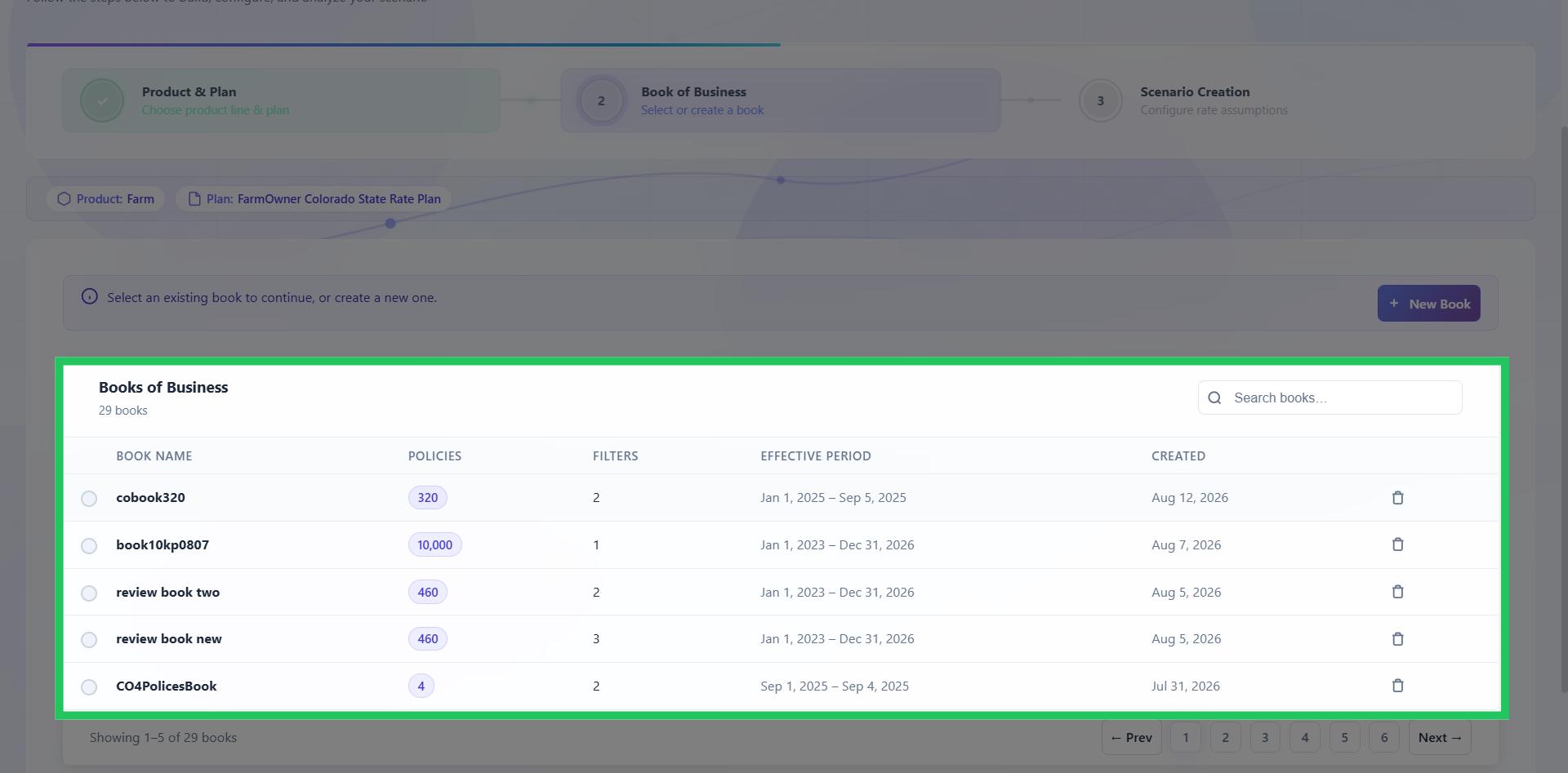
Create a New Scenario
Click "Add Scenario" to create a new scenario within the selected book of business. This opens the scenario details required to define and save the new analysis.
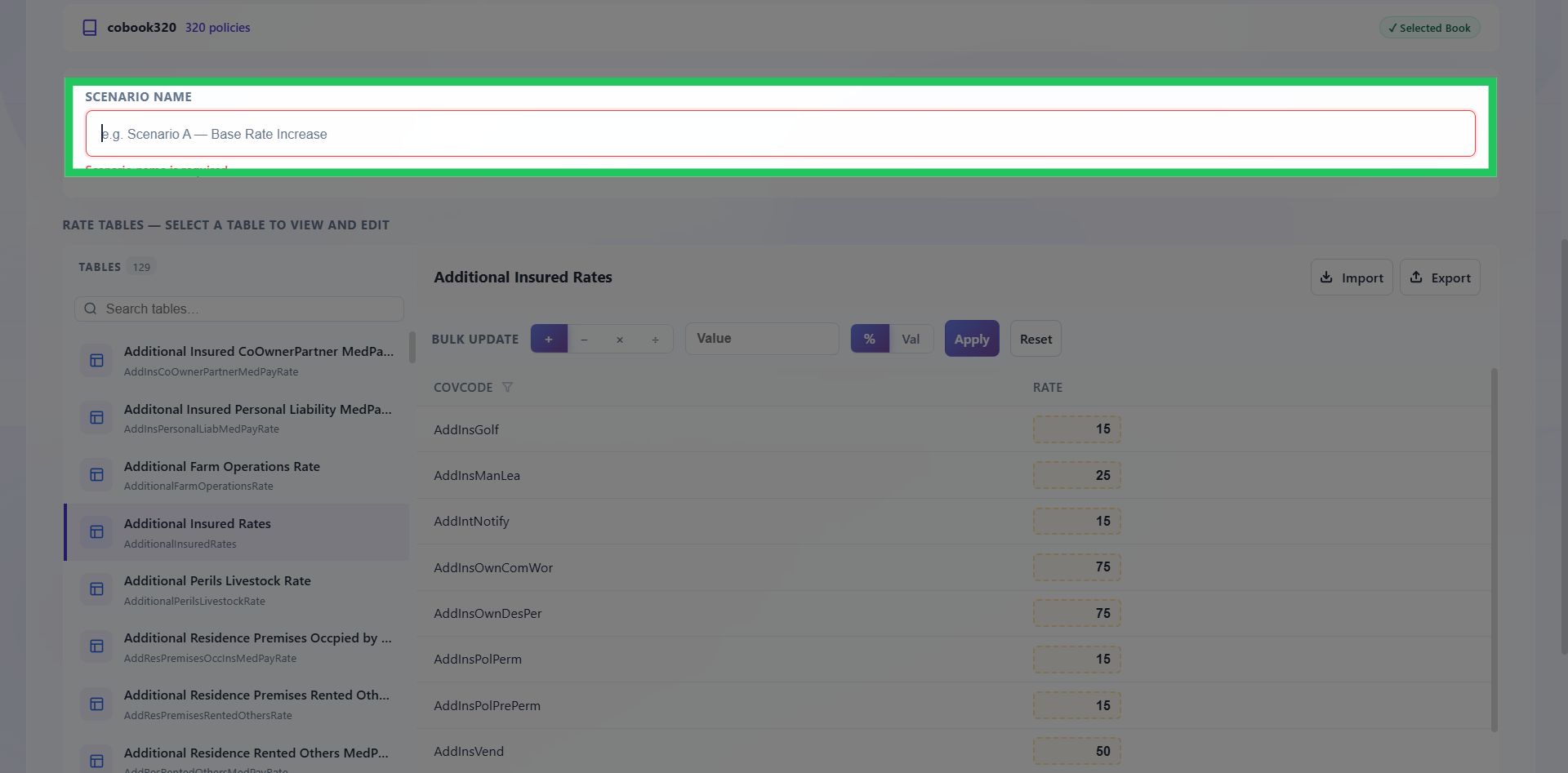
Enter a Scenario Name
Enter a relevant Scenario Name that clearly identifies the purpose or nature of the analysis. Use a descriptive name that makes the scenario easy to recognize when reviewing the scenario list or its results later.
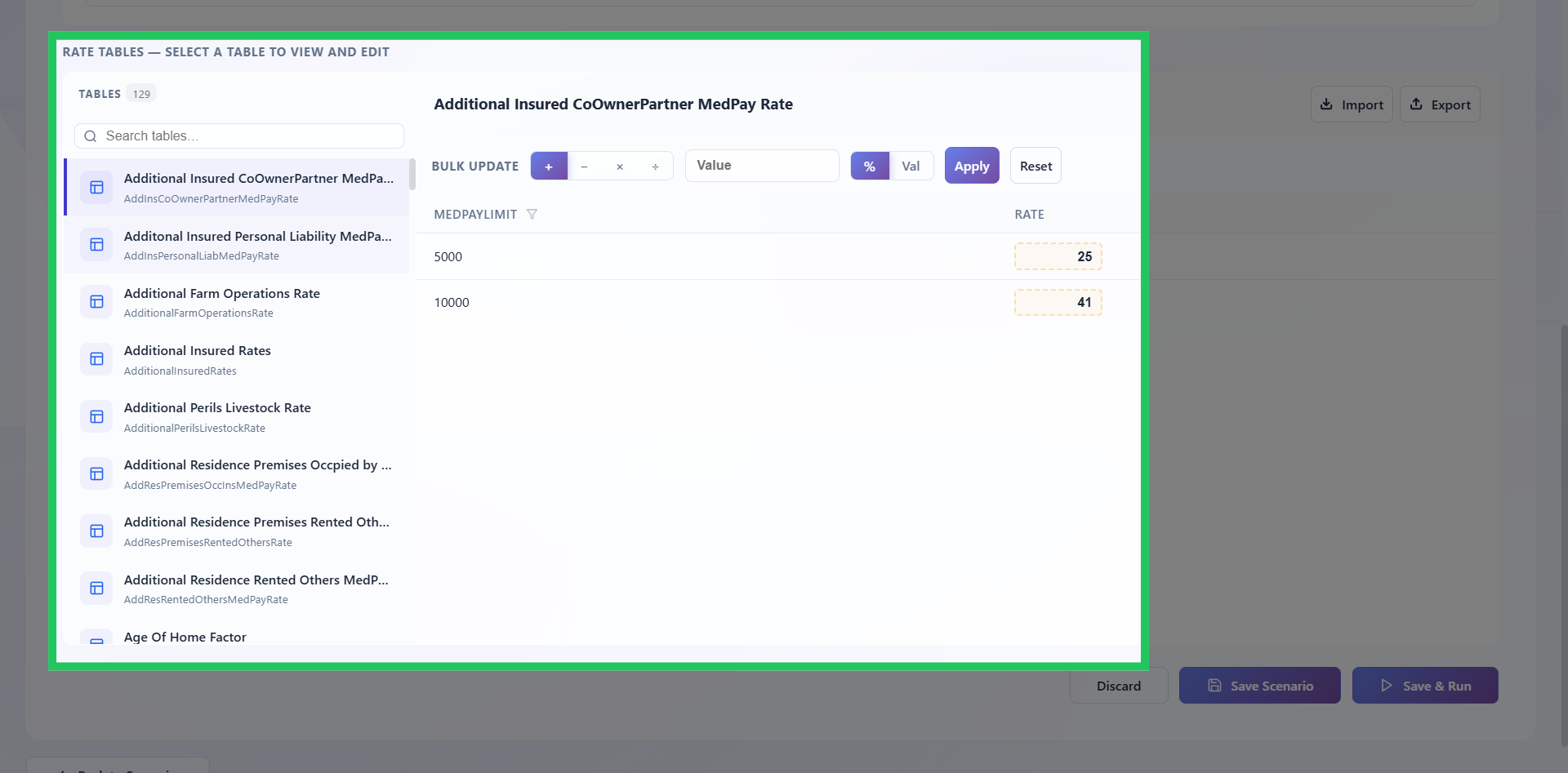
Select a Rate Table
Select the most appropriate Rate Table from the available list. The selected rate table provides the rating basis that will be applied when the scenario is evaluated.
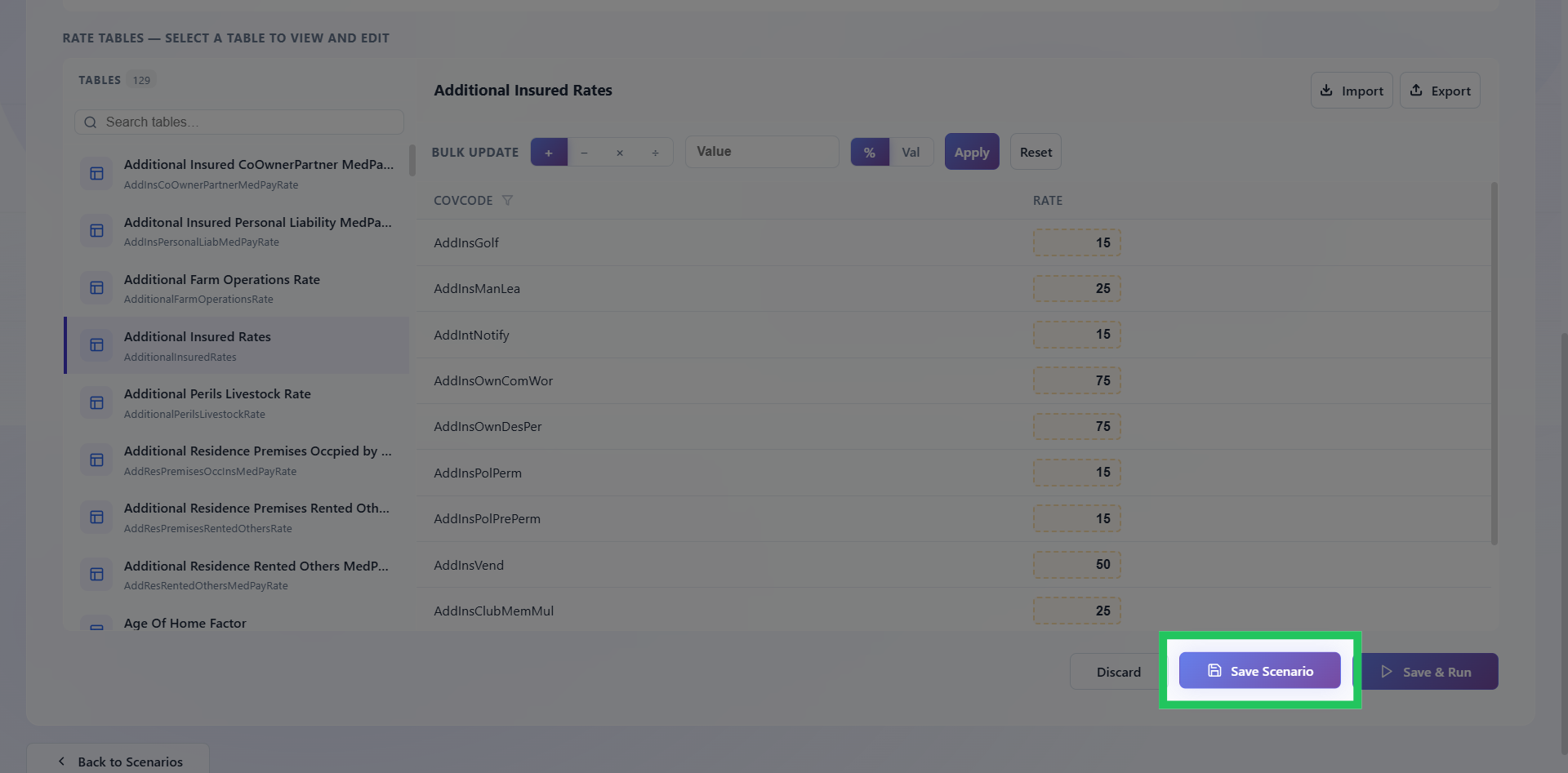
Save the Scenario Configuration
Review the scenario details and confirm that the selected product, plan, book of business, scenario name, and rate table are correct. Click Save Scenario to save the configuration and retain the scenario for further processing or execution.
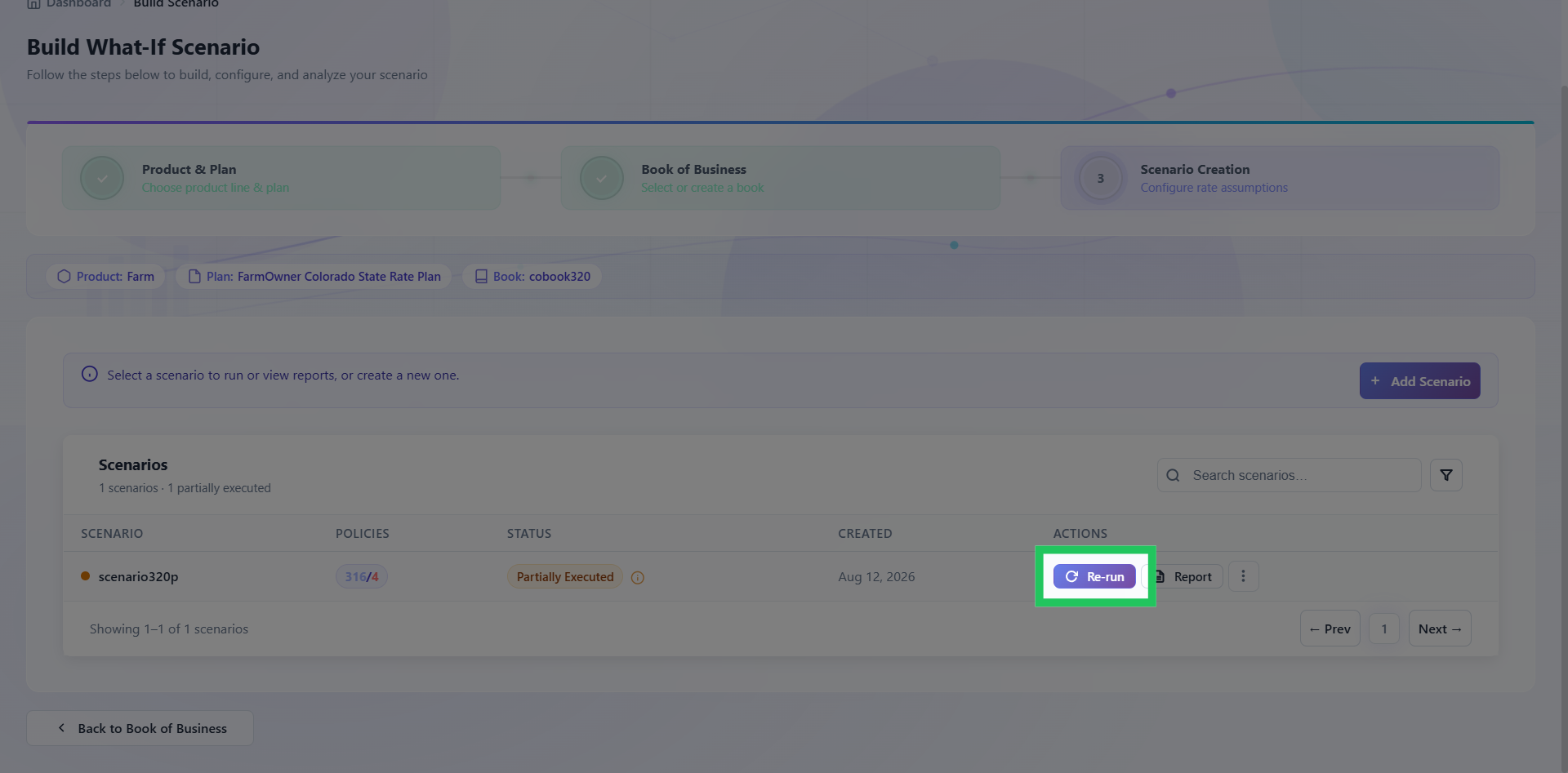
Run an Existing Scenario
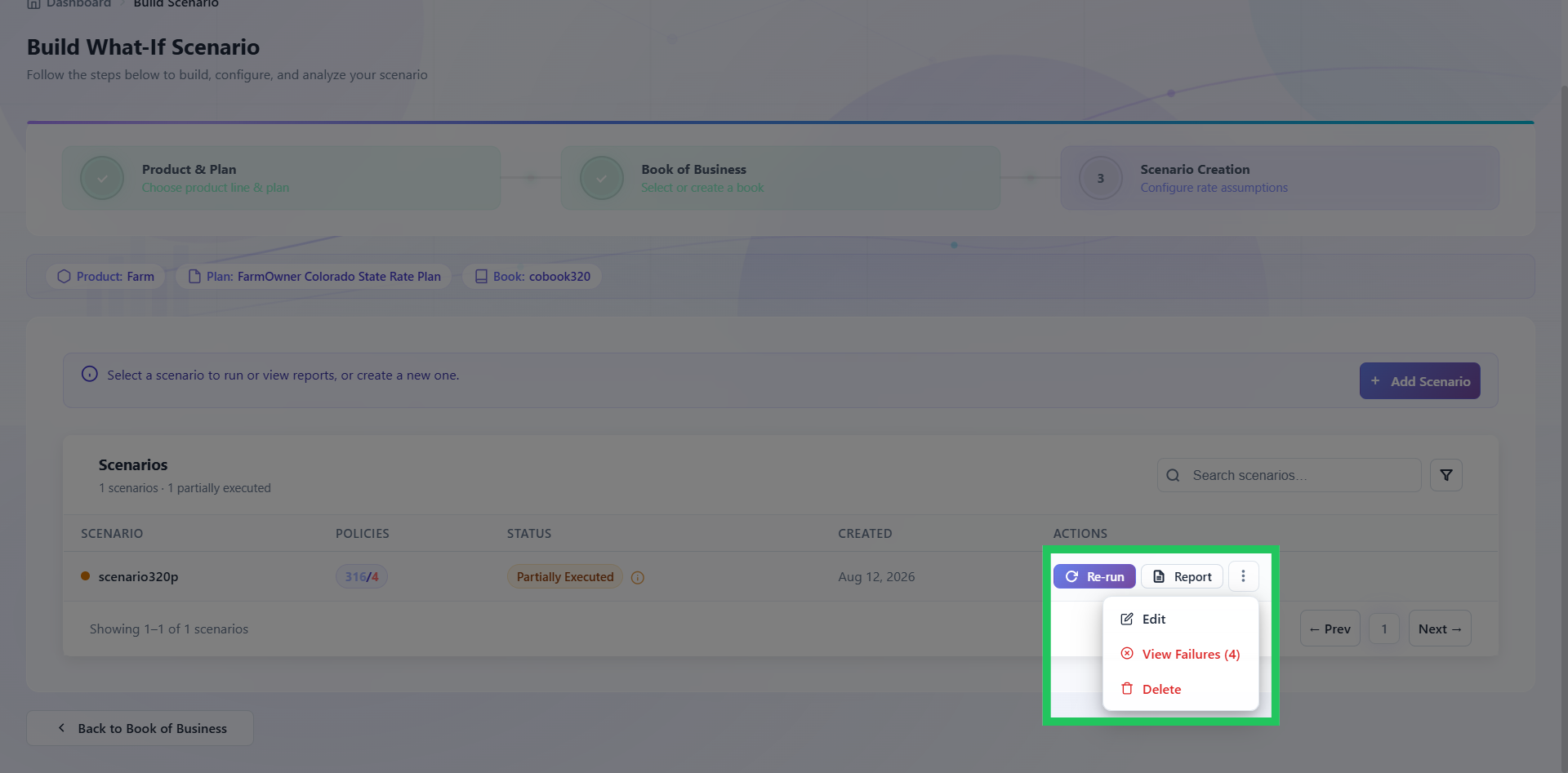
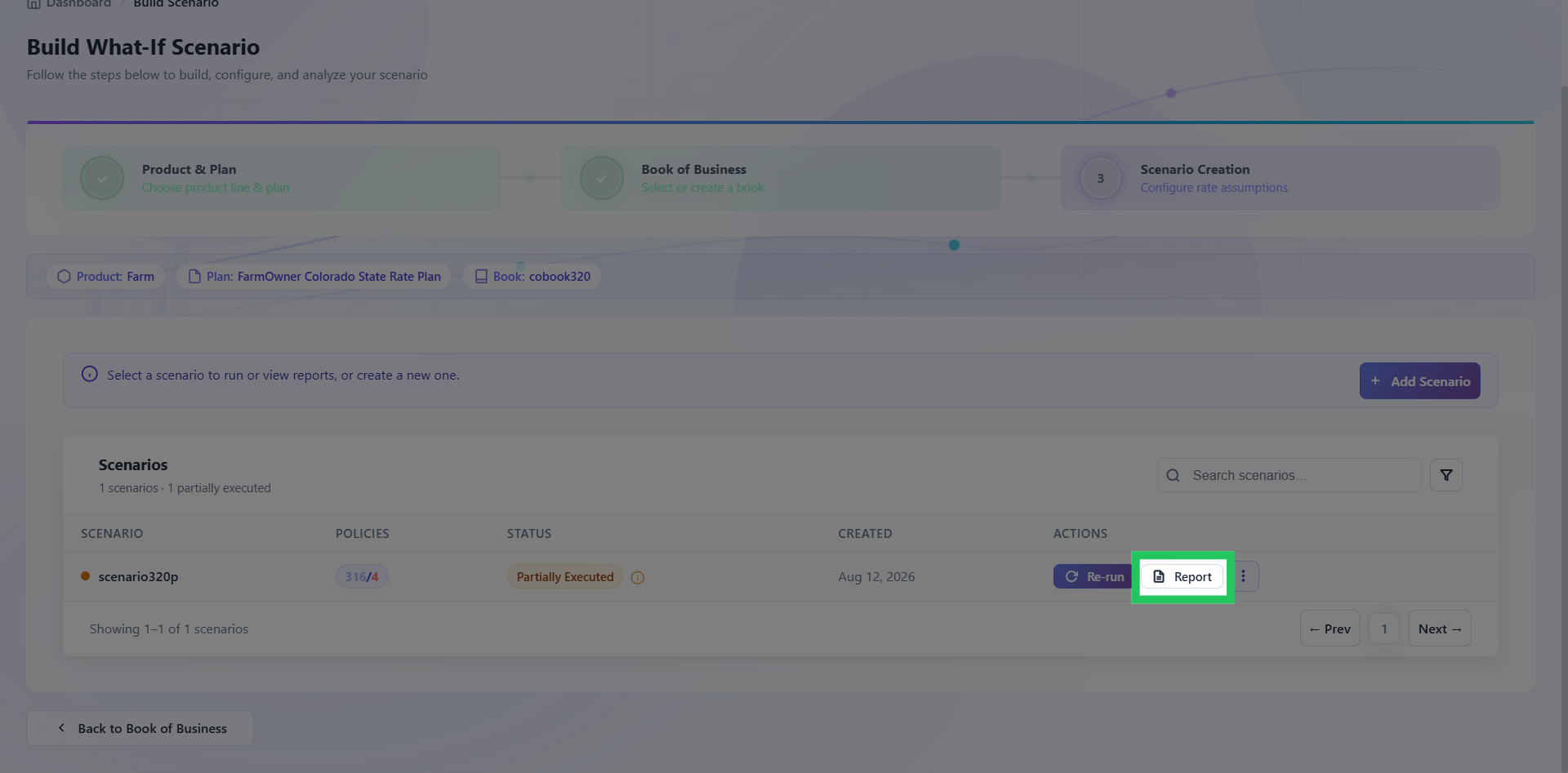
To execute an existing scenario, locate the required scenario in the scenario list and go to the Actions column. Click Re-Run to initiate another execution using the scenario's existing configuration.
Access Reports for Scenario
After a scenario has been executed, click Report to access the reports generated for that scenario. These reports provide the results and relevant analysis outputs produced during scenario execution.
Manage Scenario Options
Edit, view failures, or delete the scenario by clicking on the ellipsis menu. Use the kebab menu (⋮) in the scenario's Actions column to access additional management options. Depending on the available functionality, you can edit the scenario, review execution failures, or delete the scenario.