Creating an Environment
Environment Management enables administrators to configure and maintain the environments (such as Development, UAT, and Production) that the What-If platform connects to. Environments are managed centrally, with support for API endpoint configuration, status monitoring, and lifecycle actions including add, edit, refresh, and delete.
Administrators can:
- Create new environments
- Set environment names, types (Design or Deploy), and host addresses
- Associate products and deploy environment names
- Configure default environment and basic authentication settings
- Activate or deactivate environments
Access Environments Section
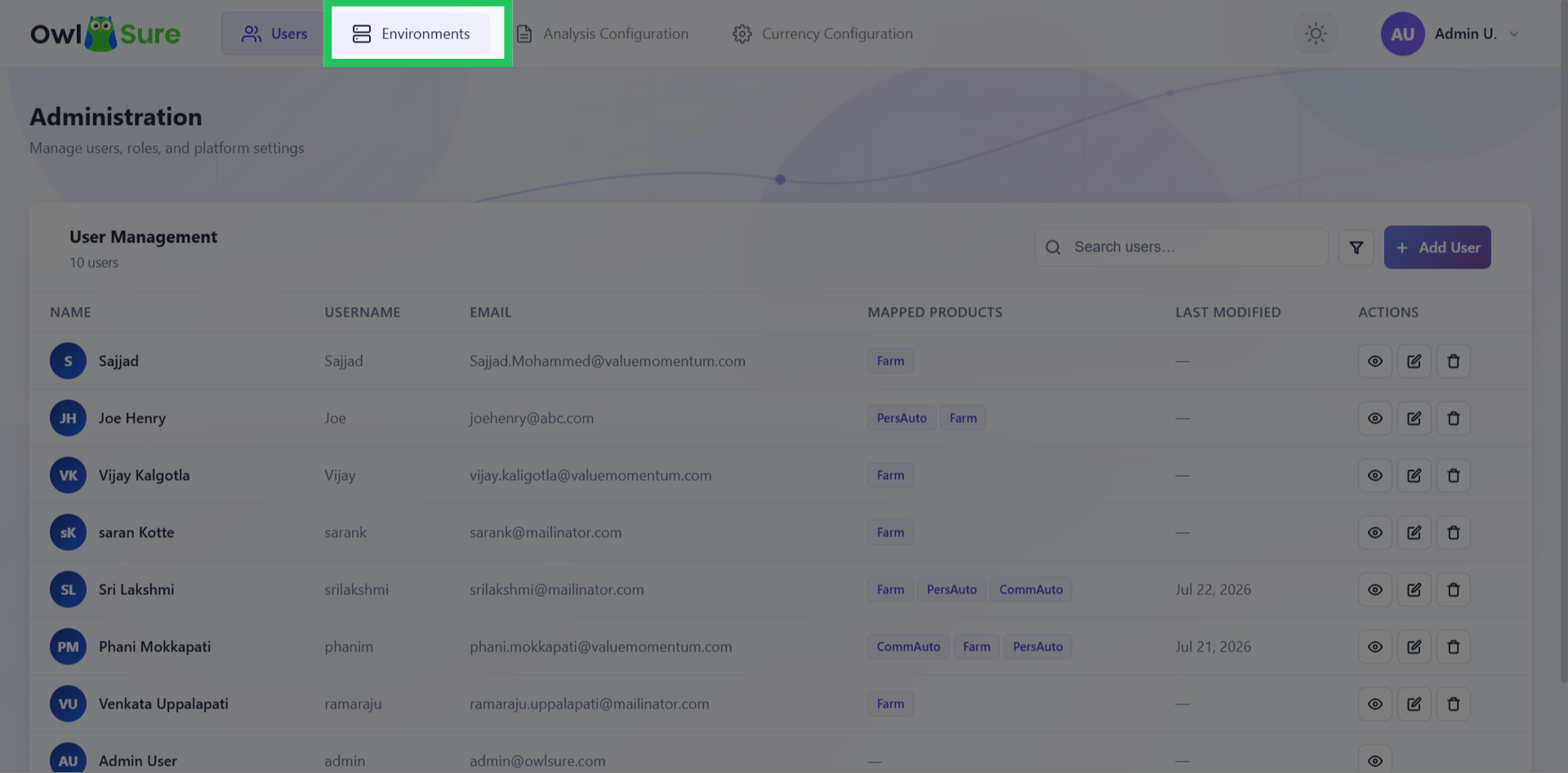
On the homepage, click "Environments" in the top navigation bar to access the environments management section within the WhatIF admin panel.
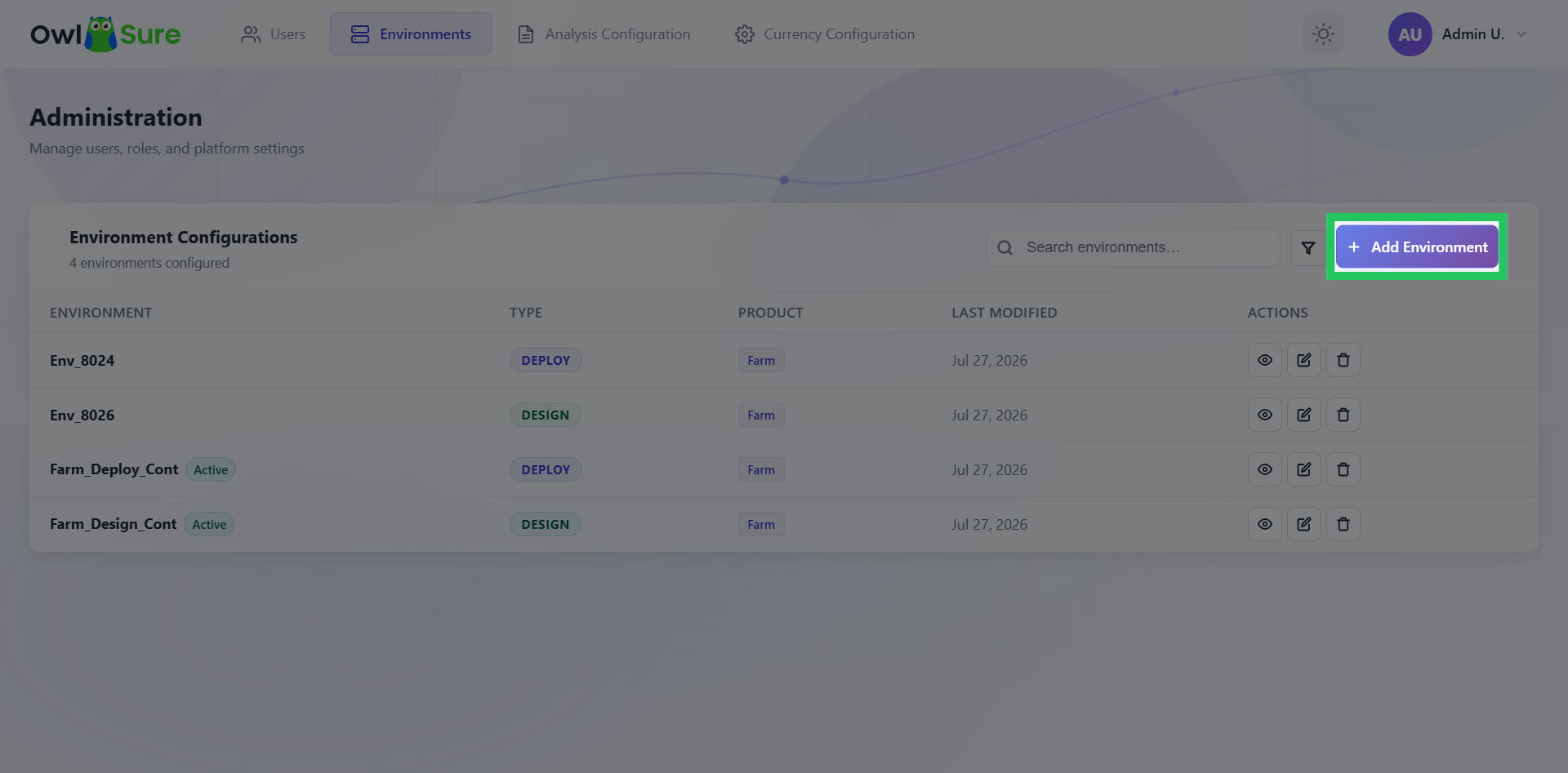
Creating a New Environment
Click "Add Environment" located in the top right section of the grid to begin creating a new environment configuration.
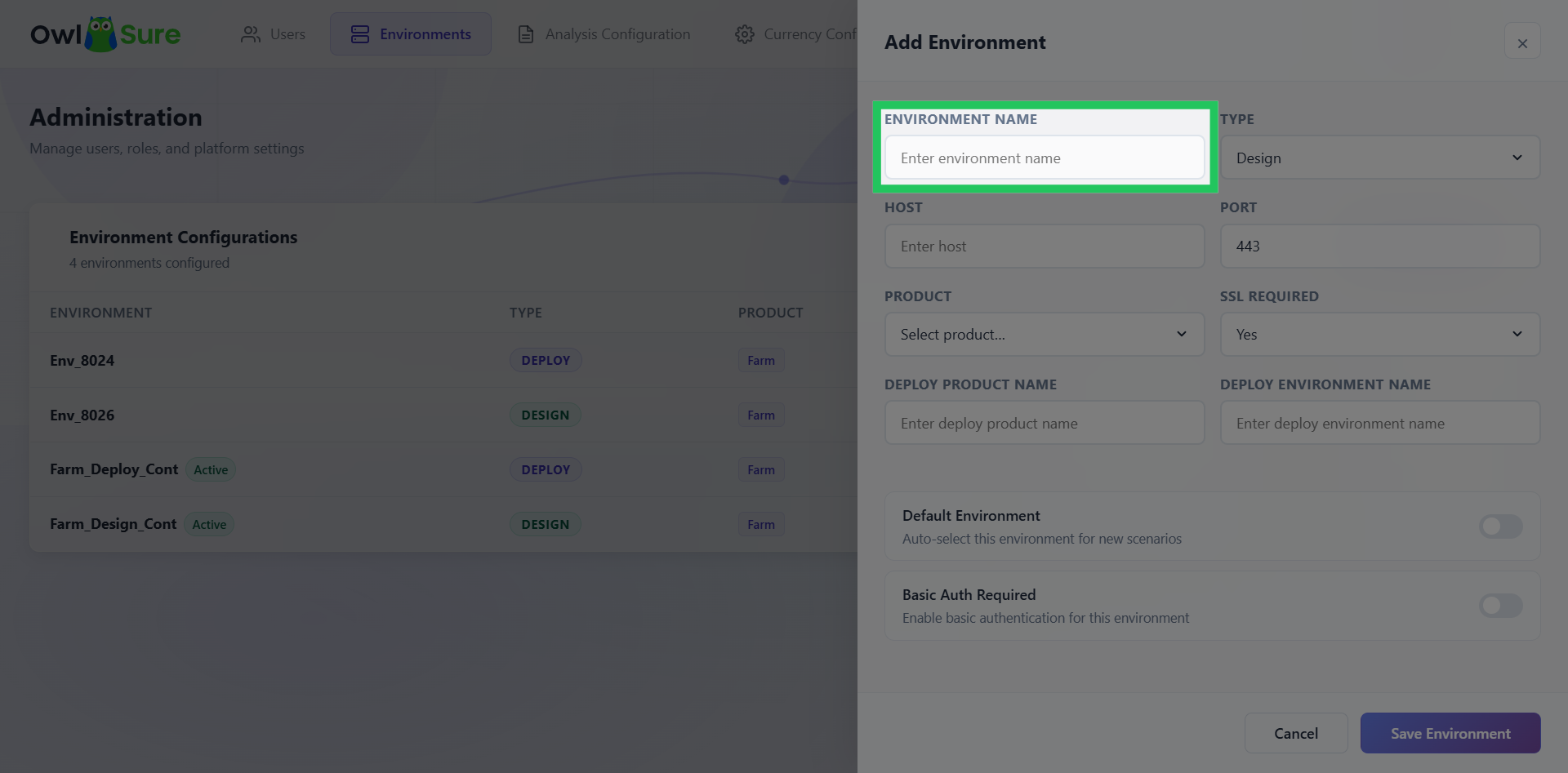
Input Environment Name
In the input field, please enter the name for the new environment to be configured.
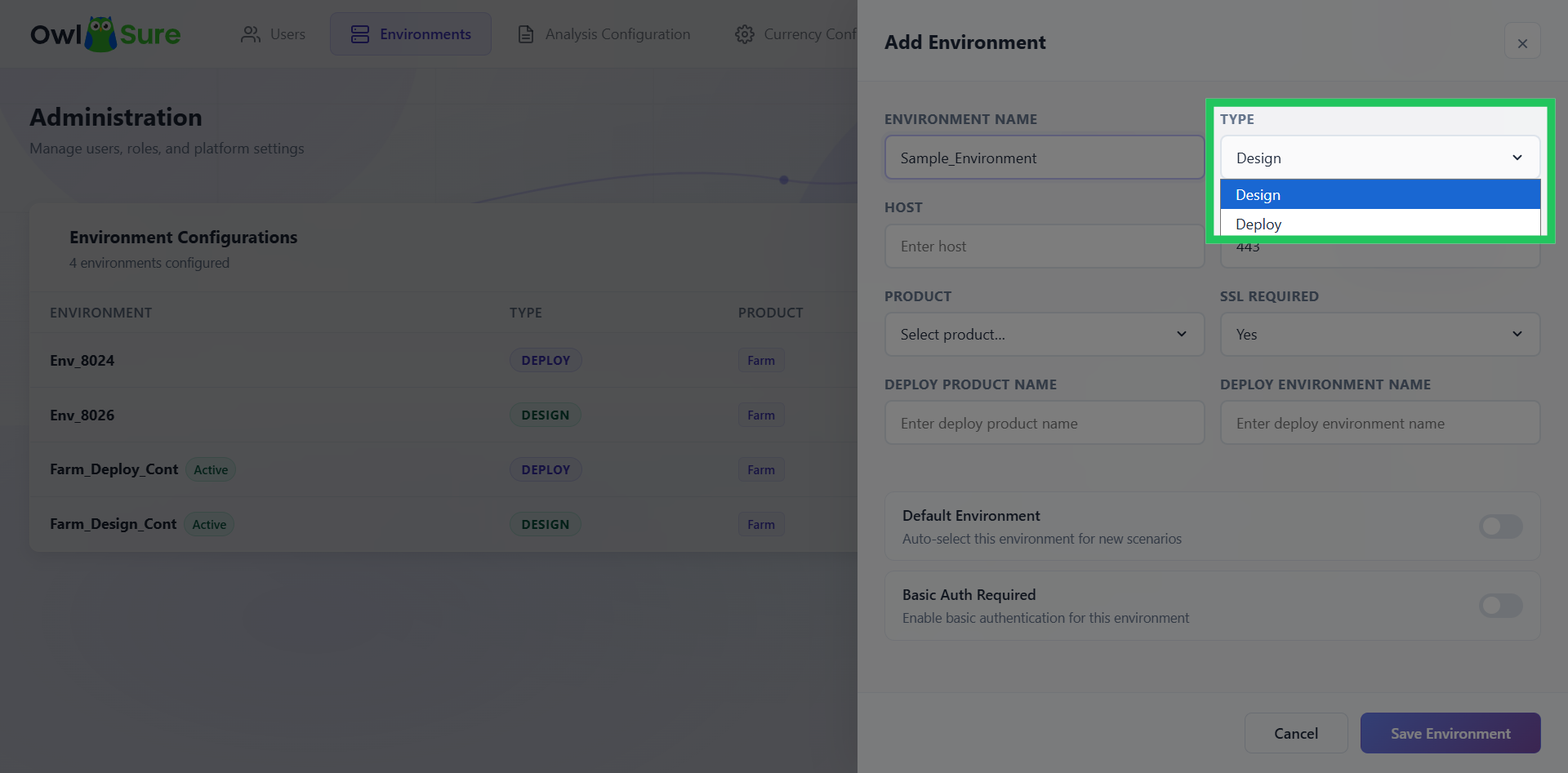
Select Environment Type
Choose the environment type, i.e., Design or Deploy, from the drop-down menu.
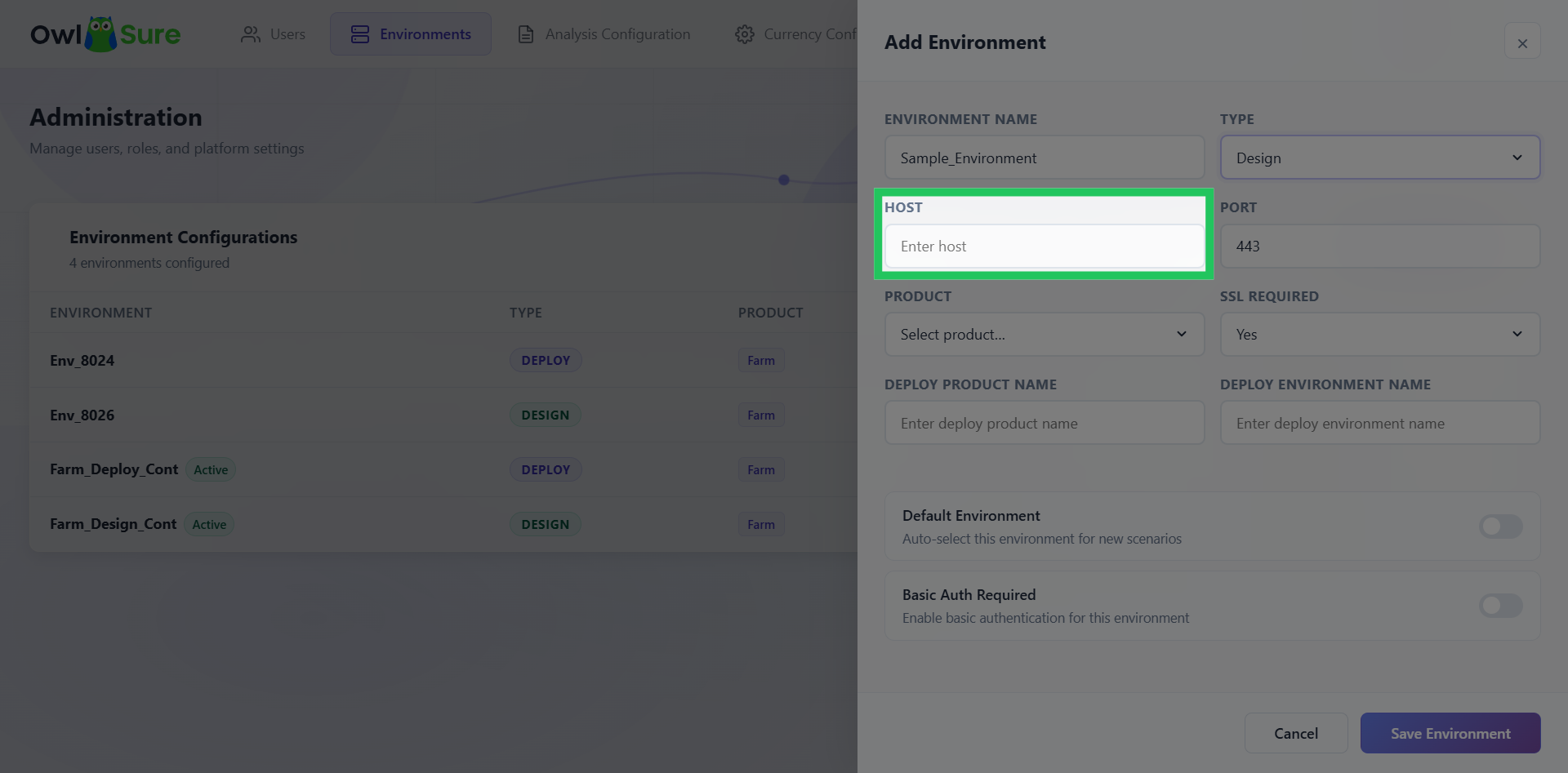
Input Host Address
Specify the host address required for connection.
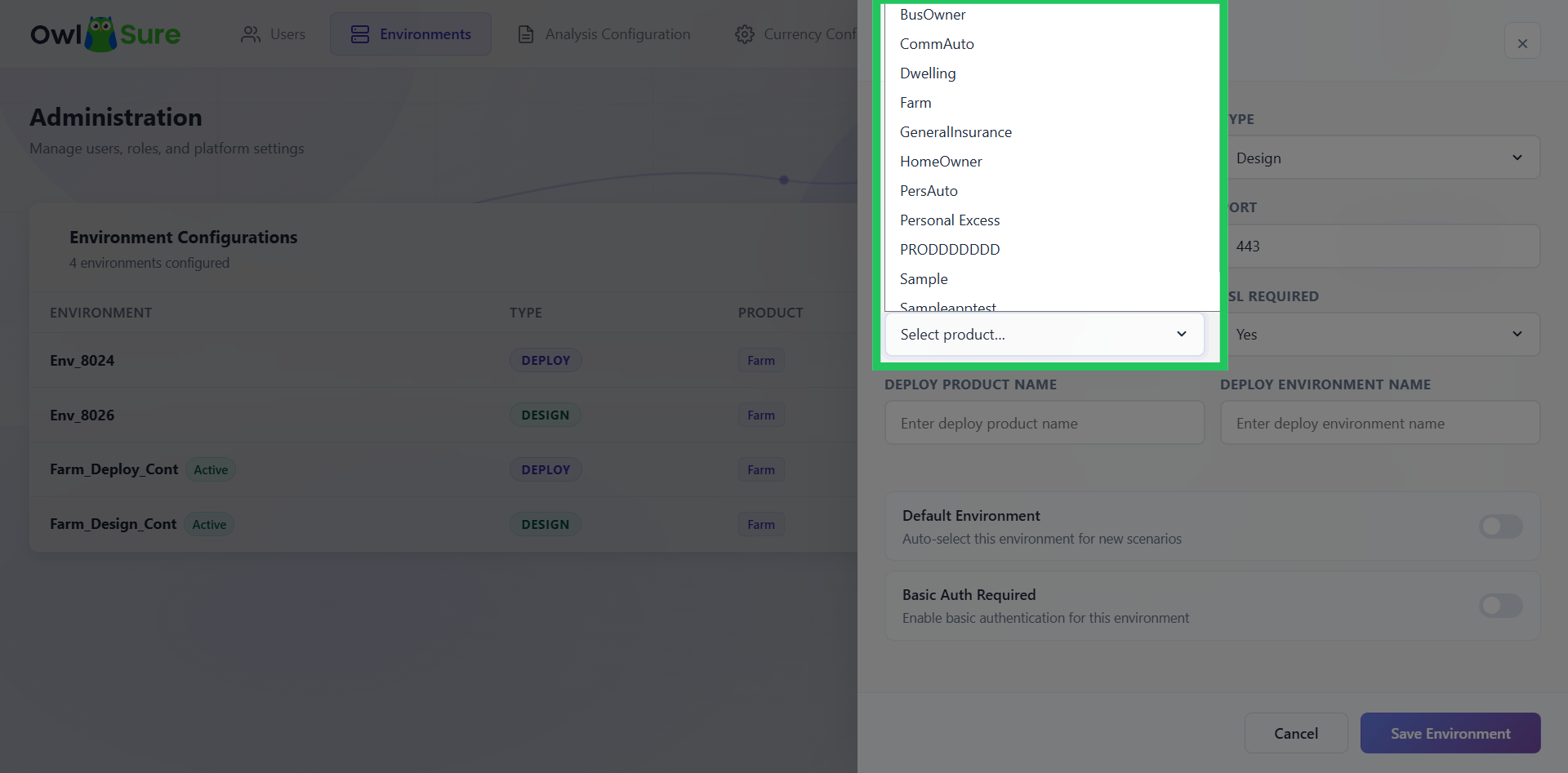
View Available Products
Click the Product Selection dropdown to view available products for the environment.
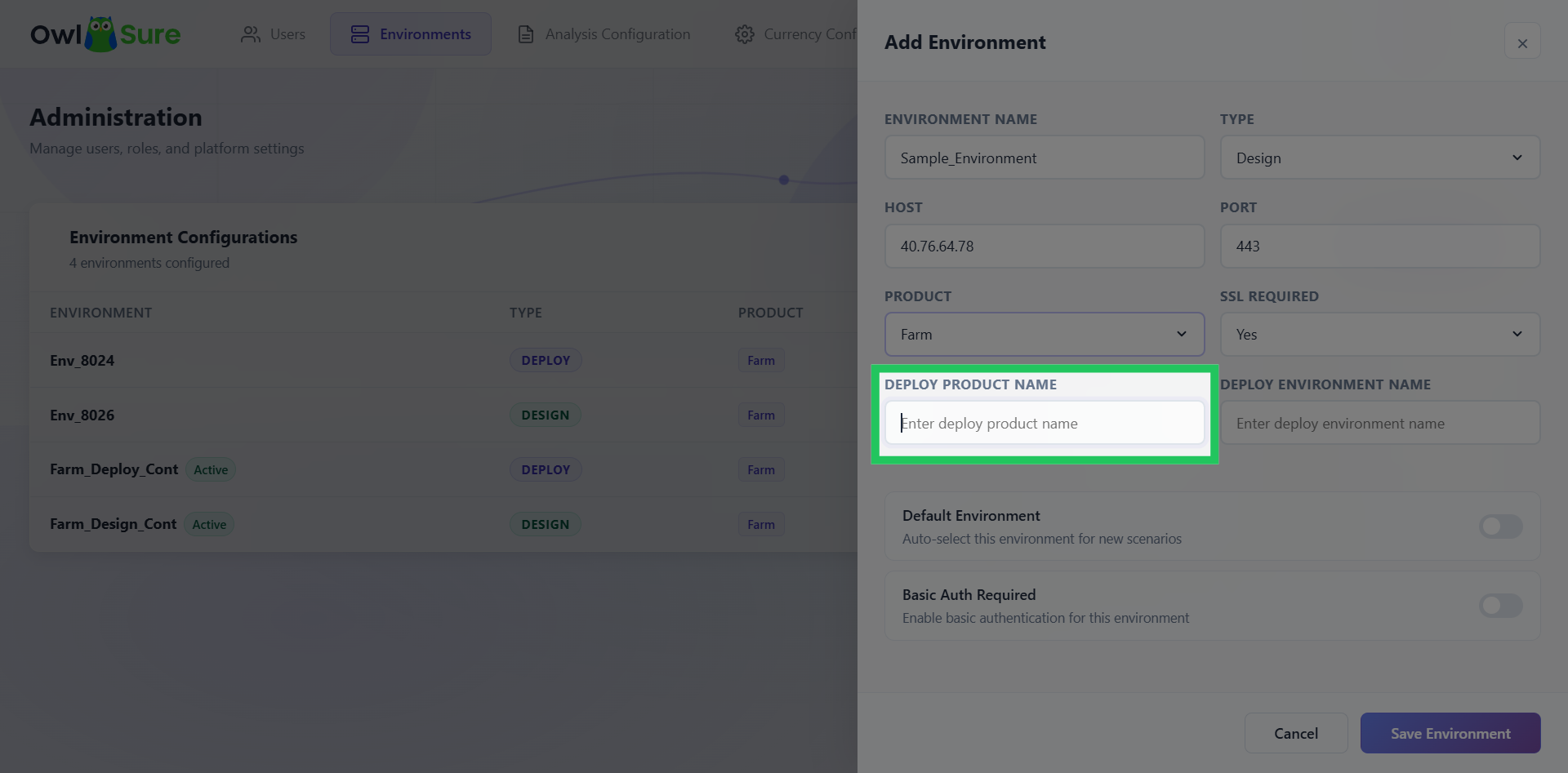
Enter Deploy Product Name
Enter the Deploy Product Name to associate the product with the new environment.
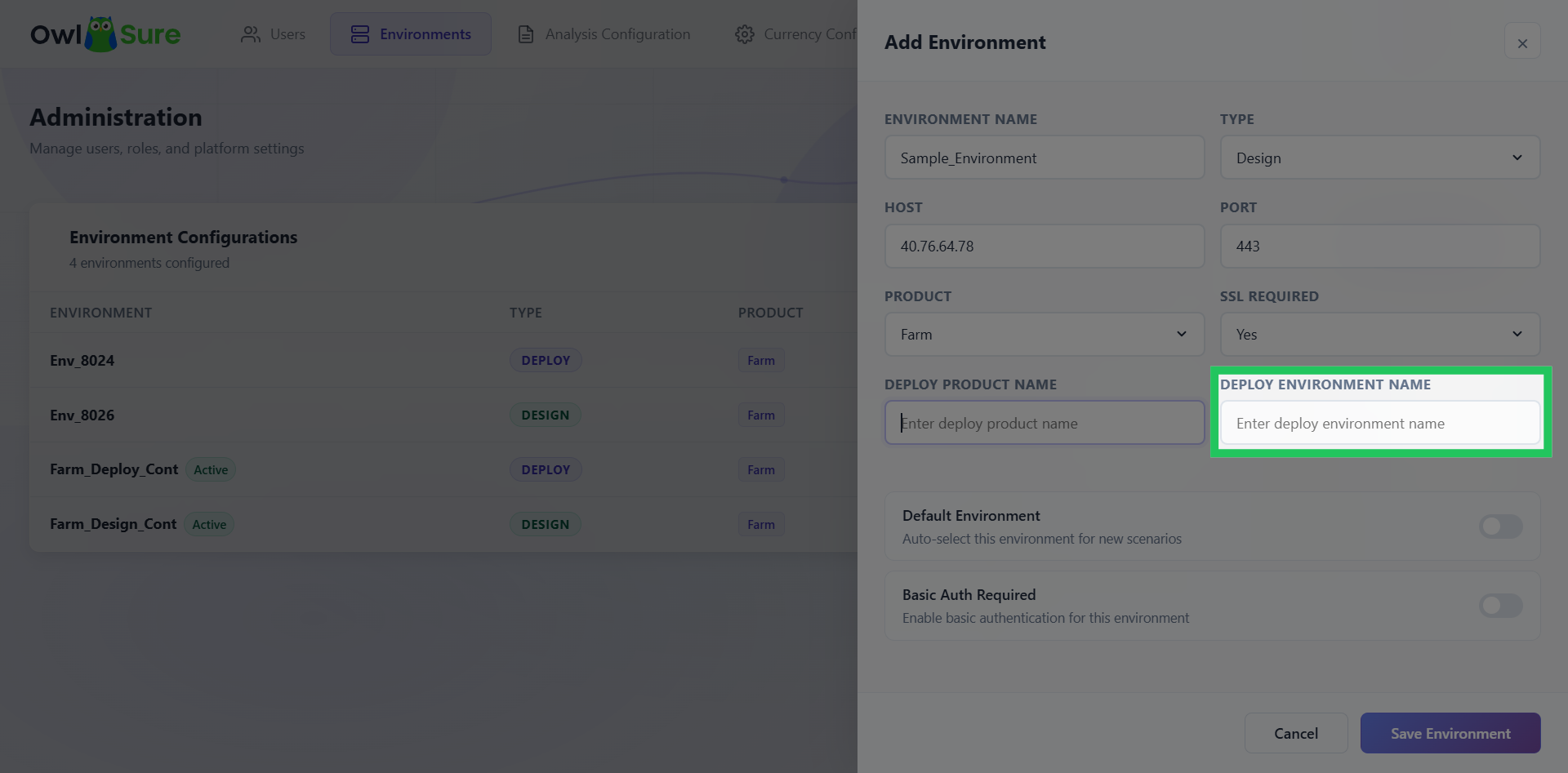
Specify the Deploy Environment Name
Enter the Deploy Environment Name to associate the deployment environment with the new environment.
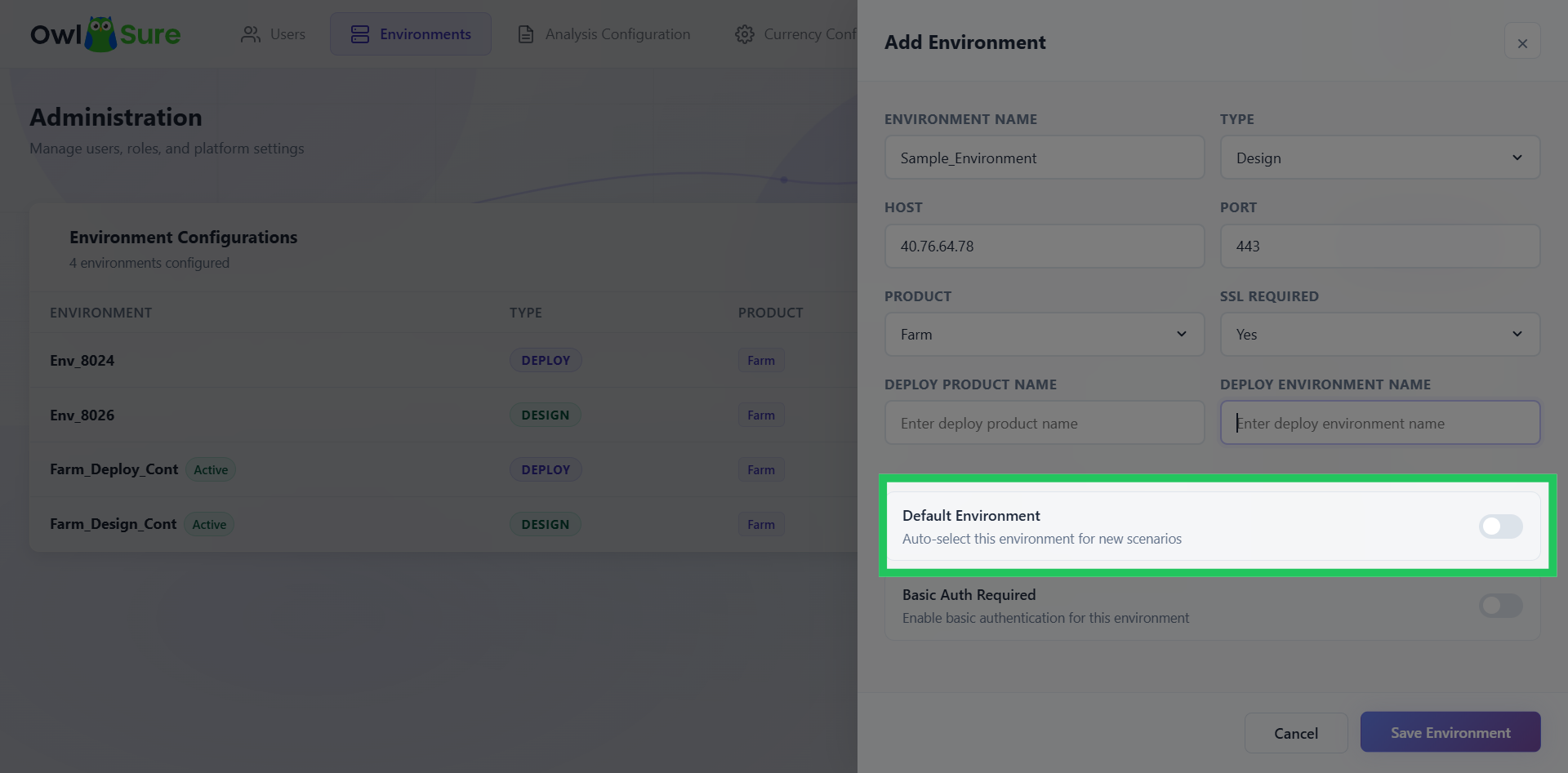
Default Environment
Select whether the new environment should be configured as the default environment.
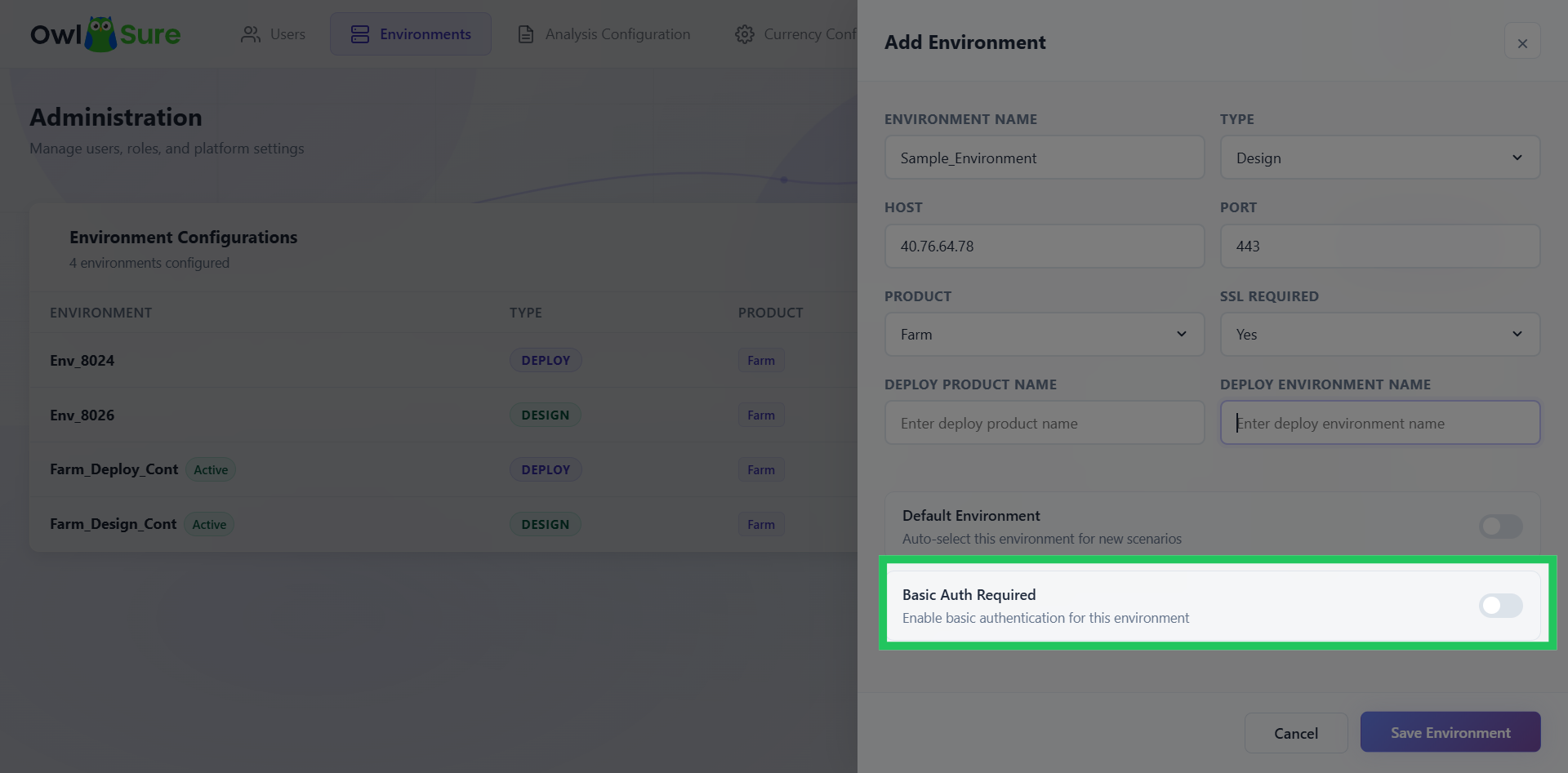
Configure Basic Authentication
Choose whether Basic Authentication is required for the environment. Enable this option to require basic authentication for access using the toggle switch, or disable it if authentication is not required.
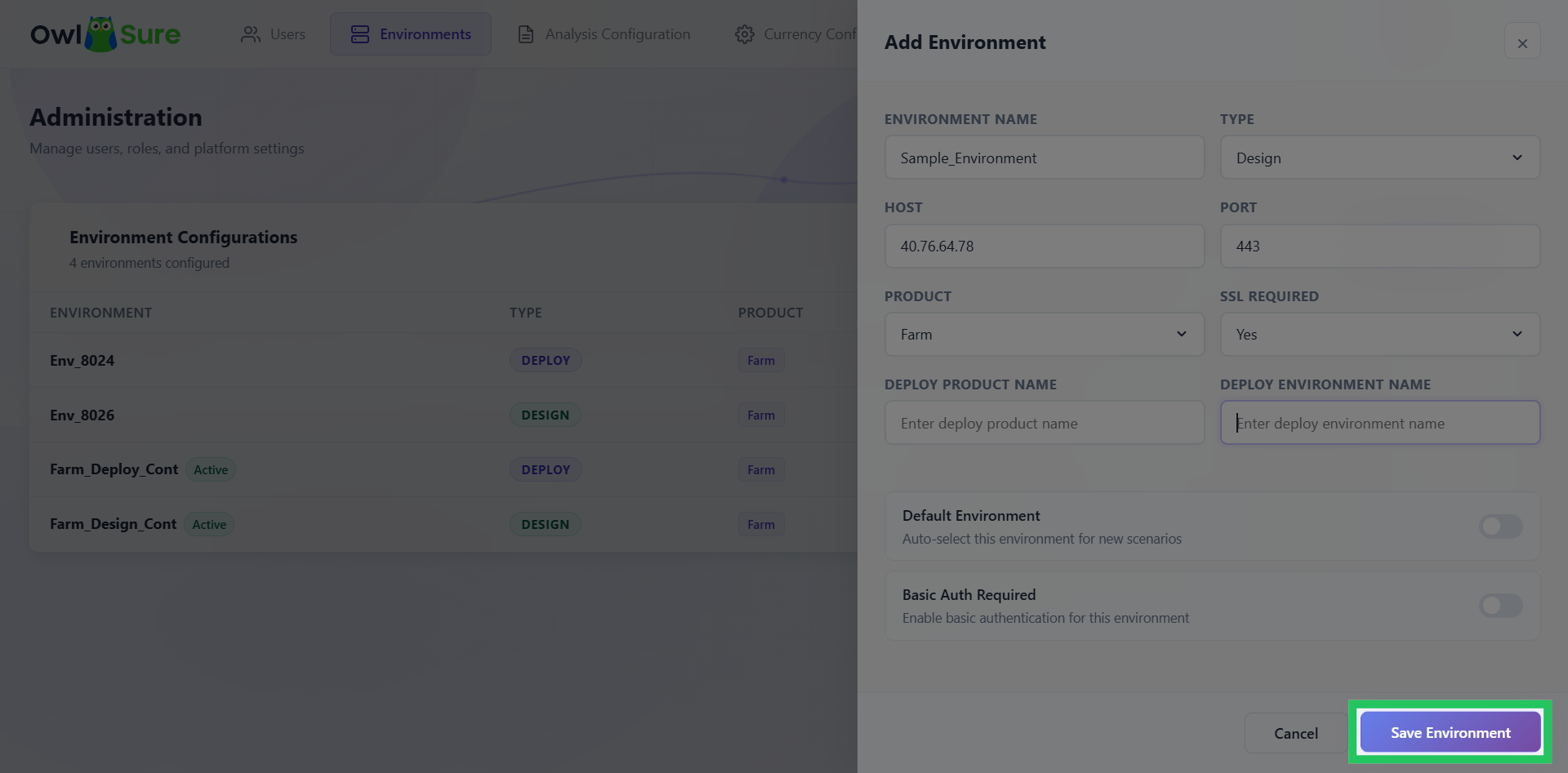
Save Environment Configuration
Click "Save Environment" to finalize and save the new environment settings.
Having trouble? Refer to our FAQs or Troubleshooting guide to know more.