Investigate a Partial Executed Scenario
Scenario: A scenario has returned a Partial Executed status. It is not clear how many policies failed, why they failed, whether the failures are concentrated in a specific area, or whether the available results are reliable enough to use.
Goal: Assess the scale and nature of the failures, decide whether to proceed with the available reports or fix the issue and re-run.
Prerequisites
- A scenario with a status of Partial Executed.
Step 1 - Open the Failure Summary
- Locate the scenario in the dashboard or Scenarios view.
- Click the kebab menu (...) in the Actions column and select View Failures.
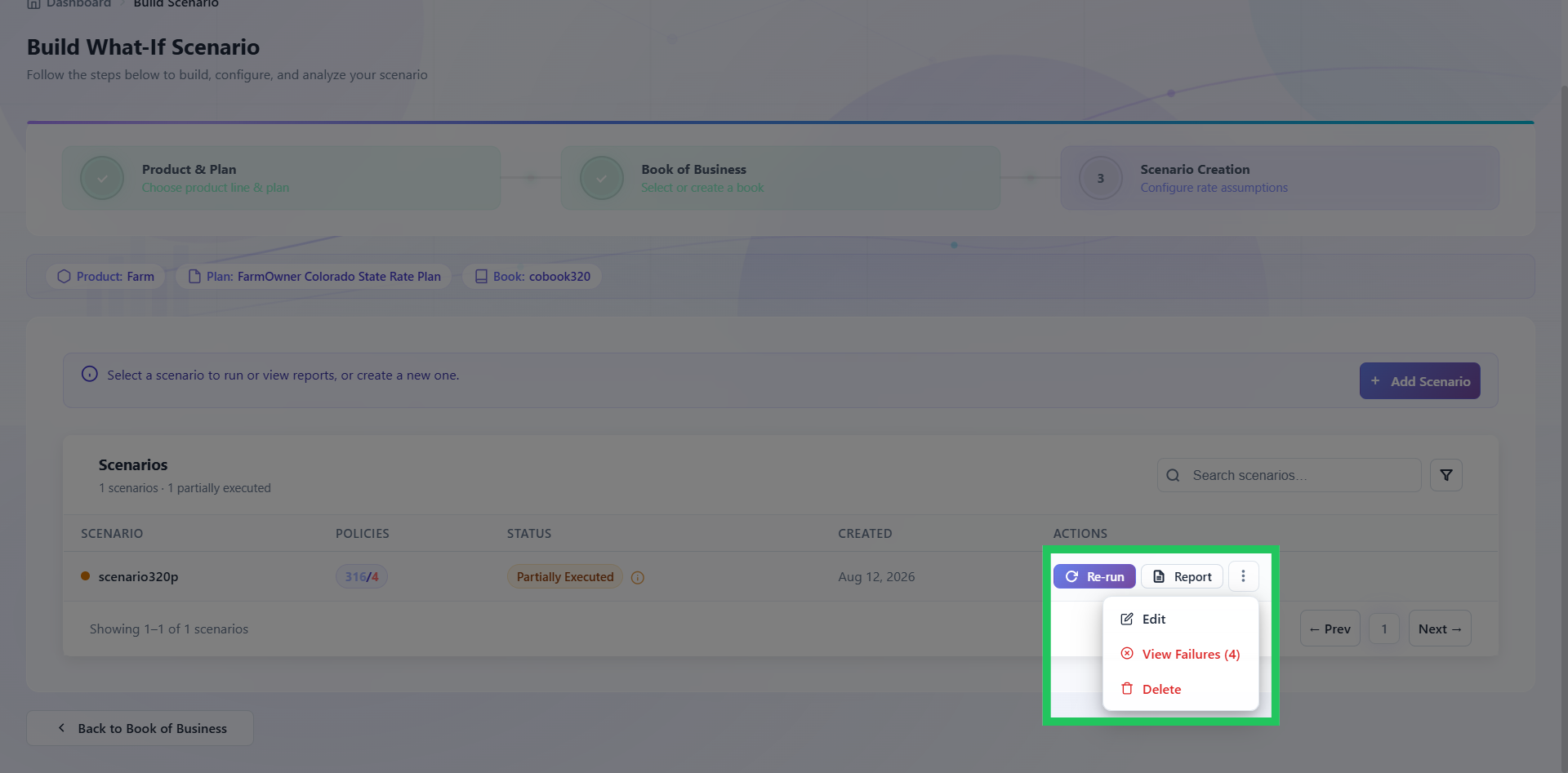
- Read the execution summary at the top of the screen before looking at individual policies.
| What to Check | Why It Matters |
|---|---|
| Total failed vs succeeded | Determines the scale of the problem - 12 failures out of 50,000 is very different from 8,000 |
| Dominant failure category | If 95% of failures share one category, there is a single root cause to fix |
| State distribution of failures | Determines whether the failures are isolated to one area or spread across the portfolio |
Do not skip to the policy list. The summary tells you where to focus.
Step 2 - Identify Whether the Failures Are Skewed
- Apply the State filter to check whether failures are concentrated in one or two states.
- Apply the Failure Category filter to identify the dominant failure type.
- Apply the Failure Description filter for the dominant category to identify which specific territories, classes, or coverages are affected.
Step 3 - Decide Whether to Proceed or Re-Run
The key question is whether the segment with concentrated failures is central to the analysis or peripheral to it.
| Situation | Recommendation |
|---|---|
| Failures are less than 2% of the portfolio and distributed evenly | Proceed to reports - note the failure count in any outputs you share |
| Failures are concentrated in a segment not relevant to your analysis | Proceed to reports - document the limitation |
| Failures are concentrated in a segment central to your analysis | Fix the issue and re-run before using the results |
| Failures are greater than 10% of the portfolio regardless of distribution | Fix the issue and re-run - results are not representative |
Step 4 - Fix the Root Cause
| Failure Category | Action |
|---|---|
| Rate Table Mismatches | Export the failed policy list. Identify the missing territory codes, class values, or deductible entries. Ask your administrator to update the rate table, then re-run. |
| Configuration Errors | Contact your administrator with the failure details and scenario context. |
| Missing Data | Export the failed policy list. Coordinate with the data team to correct missing fields. |
| Processing Timeouts | Contact your administrator - this may indicate data complexity or a platform performance issue. |
| Coverage Mapping Errors | Contact your administrator. |
| Integration Failures | Contact your administrator. |
Step 5 - Re-Run the Scenario
- Confirm the root cause has been resolved.
- If the fix required a scenario configuration change, click the kebab menu (...), select Edit, update the configuration, and save.
- If the fix was to the rate table or environment only, click Re-Run in the Actions column directly.
- Confirm the new status is Executed.
Re-running replaces the previous execution results. Export the reports first if they need to be kept.
Next Steps
| Outcome | Action |
|---|---|
| Failures are acceptable and results are usable | Proceed to reports. Refer to Read a Premium Displacement Report |
| Scenario has been re-run successfully | Confirm status is Executed, then open reports |
Having trouble? Refer to our FAQs or Support & Escalation guide to know more.