Compare Two Rate Change Proposals
Scenario: Two competing proposals are under review for a Home portfolio rate revision - a flat 4% base rate increase across all states, and a territory-targeted revision that increases rates in high-loss territories by 7% while holding other territories flat. Or two scenarios have already been run but the Scenario Compare report is not producing a meaningful result.
Goal: Evaluate both proposals against the same portfolio and produce a reliable side-by-side comparison for the pricing committee before a filing decision is made.
Prerequisites
- Access to the What-If platform with a provisioned account and the application URL provided by your administrator.
- A KPI profile configured with the dimensions relevant to the analysis. Both scenarios must use the same KPI profile; otherwise the Scenario Compare report will not produce a meaningful comparison.
- The list of rate table entries to be modified for each proposal, confirmed before starting.
Step 1 - Confirm the Scenarios Are Comparable
For the Scenario Compare report to produce a meaningful result, both scenarios must share the same foundational setup. If scenarios have already been run and the comparison looks wrong, check the following before rebuilding:
| Requirement | Why It Matters |
|---|---|
| Both scenarios use the same Book of Business | If the portfolios differ, the comparison reflects different policy sets rather than different rate assumptions |
| Both scenarios use the same KPI profile | If the profiles differ, the segment breakdowns will not align |
| Both scenarios use the same rate table as the starting basis | If the starting basis differs, the Current premium figures will not match and the displacement comparison will be skewed |
If any of these do not match, rebuild the scenarios using the steps below before proceeding.
Step 2 - Create a Shared Book of Business
Both scenarios must run against the same Book of Business. If they do not, the Scenario Compare report will be comparing different portfolios, not different rate assumptions.
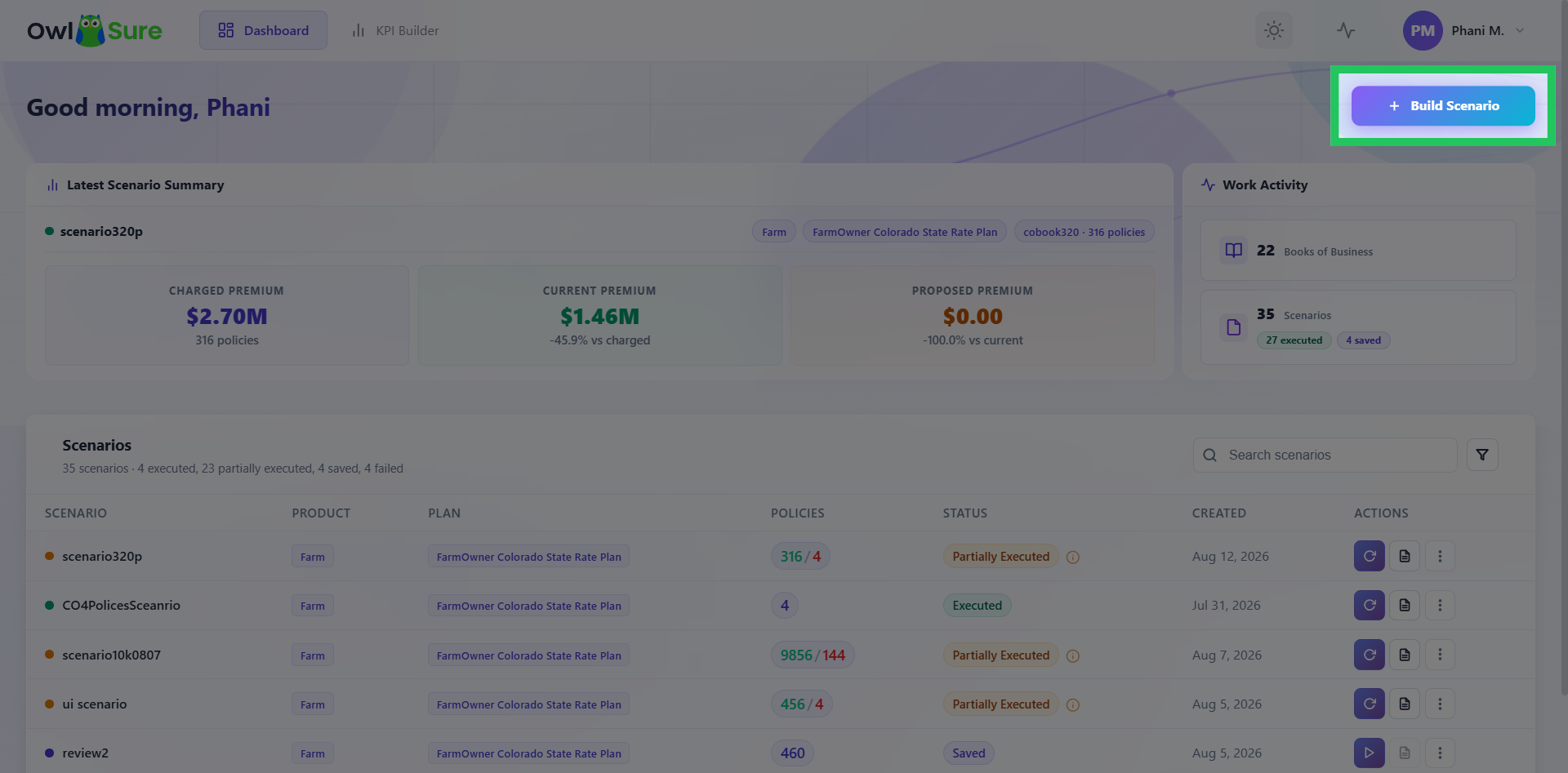
- From the dashboard, click Build Scenario and select Home and the applicable rate plan.
- On the Book of Business screen, click Add, leave State and Territory filters open, apply an Effective Date Range relevant to the filing, and confirm the policy count.
- Name the book
Home - Full Portfolio - [Effective Date Range], save it, select it, and click Continue to Scenario Creation.
Step 3 - Build Proposal A (Flat 4% Increase)
- Enter the scenario name:
Home - Proposal A - Flat Base Rate +4%. - Select the current Home rate table as the rating basis.
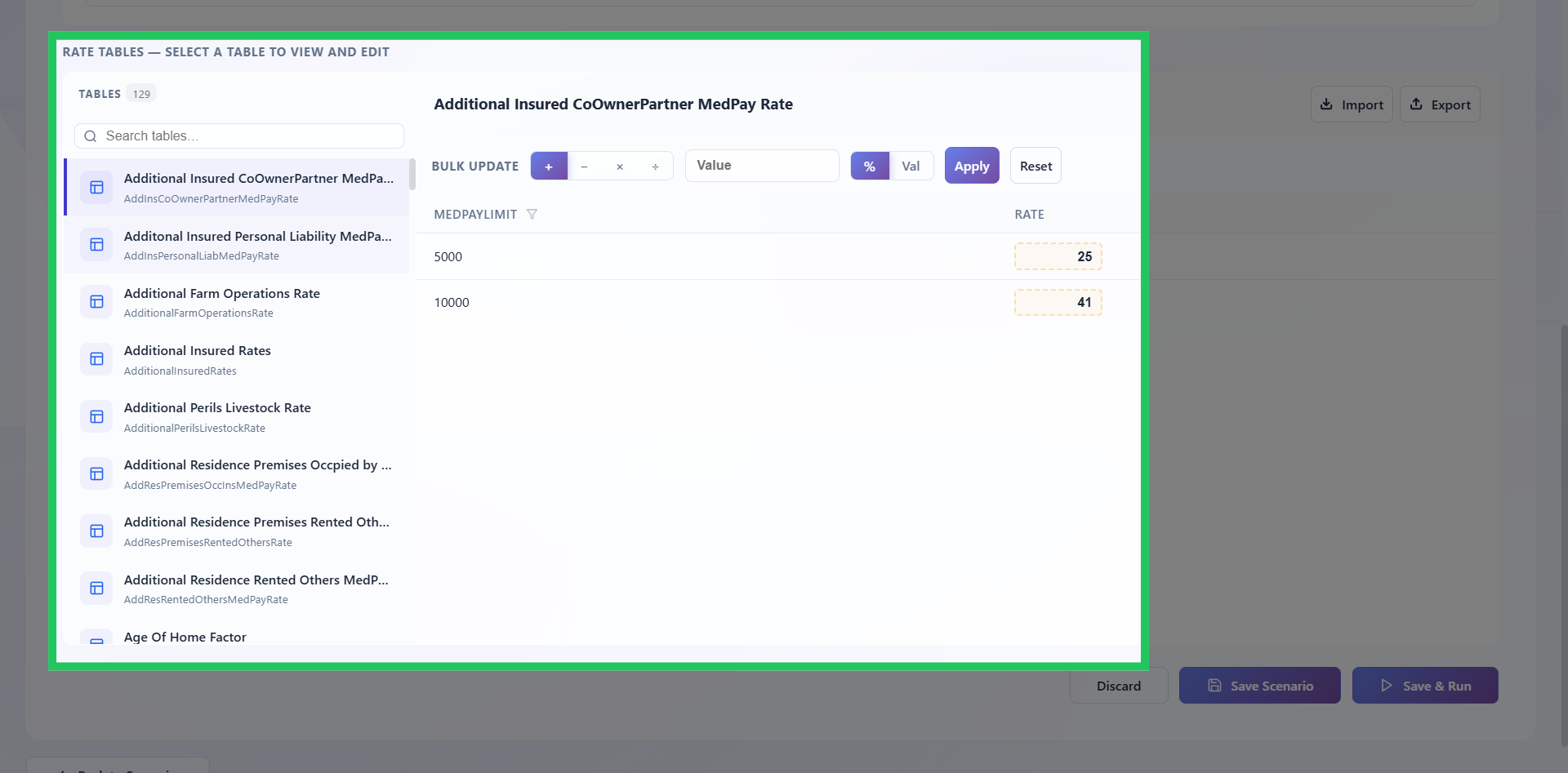
- Select the Base Rates table and apply a bulk adjustment of +4%.
- Confirm only Base Rates shows as modified.
- Click Save Scenario - do not run yet.
Build both scenarios before executing either. Running them close together produces results that are more directly comparable.
Step 4 - Build Proposal B (Territory-Targeted Revision)
- Return to the dashboard and click Build Scenario. Select Home, the same rate plan, and the same Book of Business used for Proposal A.
- Enter the scenario name:
Home - Proposal B - Territory-Targeted +7% High-Loss. - Select the same rate table used for Proposal A; both scenarios must start from the same rating basis.
- Select the Territory Factors table and use inline editing to update each high-loss territory factor to reflect the 7% increase. Leave all other territory factors unchanged.
- Check the modified table count - only Territory Factors should show as modified.
- Click Save Scenario - do not run yet.
Step 5 - Execute Both Scenarios
- From the dashboard, locate Proposal A and click Run.
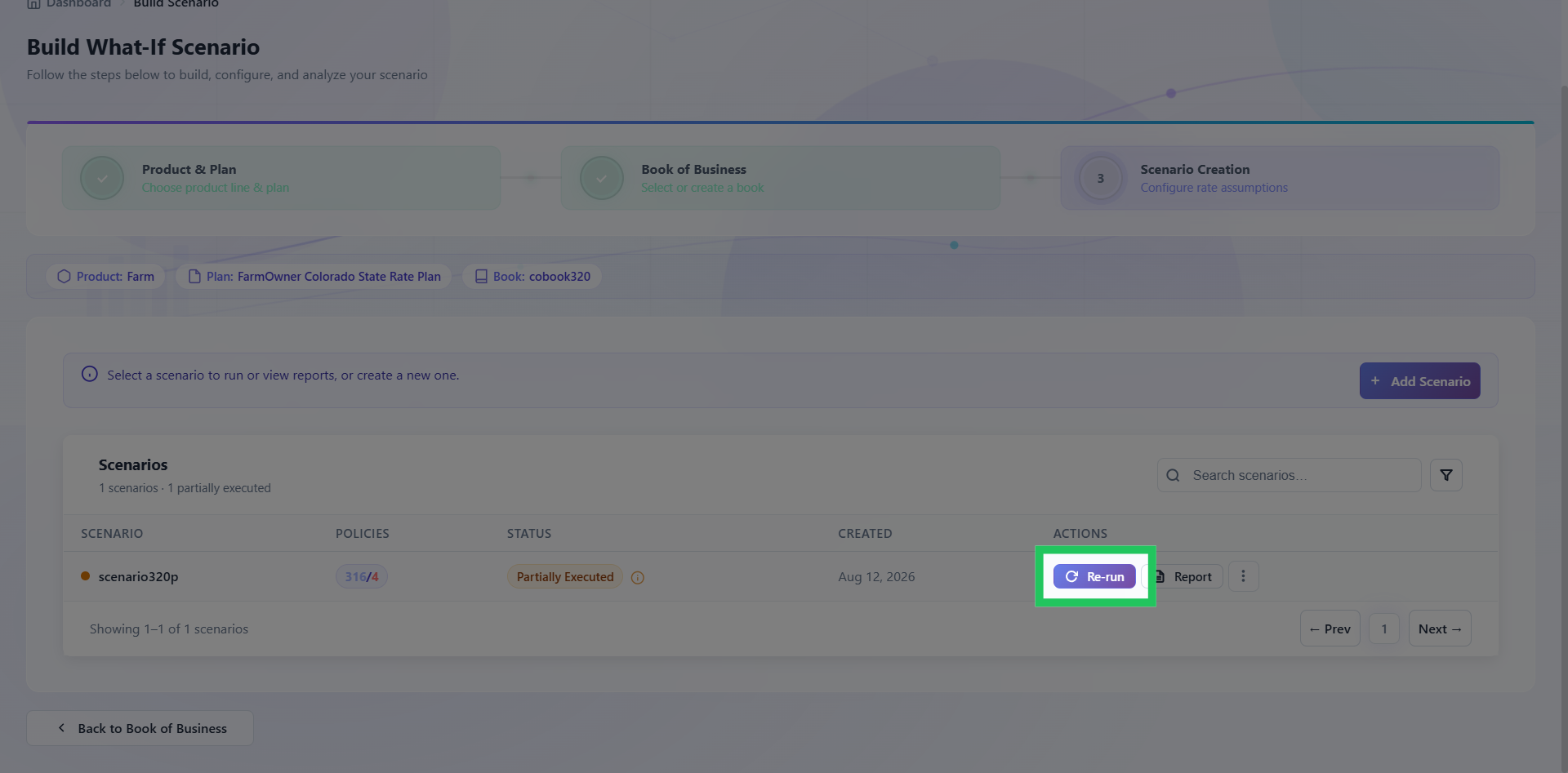
- Once Proposal A shows Executed, locate Proposal B and click Run.
Run sequentially rather than simultaneously - it is easier to track which execution is which and avoids potential resource contention.
Step 6 - Compare the Results
Once both scenarios show Executed:
- Open either scenario's reports and navigate to the Scenario Compare report.
- Select both Proposal A and Proposal B.
- Check that the Current premium figures are the same across both scenarios. If they differ, the starting basis was not identical and the comparison is not valid.
Total Premium Movement
Check whether Proposal B produces materially different total displacement than Proposal A. A territory-targeted approach often produces a similar total impact to a flat increase but distributes it differently across the portfolio.
Segment-Level Differences
Open the Segment Analysis report for each scenario separately and compare the territory-level breakdown. Proposal B should show concentrated displacement in high-loss territories and minimal change elsewhere.
Winner / Loser Distribution
Open the Winner / Loser report for each scenario and compare the winner/loser split.
Proposal B will likely produce fewer losers overall but larger average increases for the losers it does produce. This is relevant for policyholder impact analysis and regulatory review.
Step 7 - Export for the Pricing Committee
Export the Scenario Compare, Segment Analysis, and Winner / Loser reports for each scenario. These are the outputs the pricing committee needs to make a filing decision.
Next Steps
| Outcome | Action |
|---|---|
| Committee selects a proposal | Proceed with the filing using the exported report outputs |
| Committee wants a hybrid approach | Edit one of the existing scenarios, adjust the rate assumptions, and re-run. Refer to Edit and Re-Run a Scenario |
| Current premium figures differ between scenarios | Rebuild both scenarios using the same rate table as the starting basis |
Having trouble? Refer to our FAQs or Troubleshooting guide to know more.