Run a Scenario and Check the Results
Scenario: A scenario has been built and saved and needs to be executed, or a scenario has been running for longer than expected and it is not clear whether to wait or investigate.
Goal: Execute the scenario, interpret the execution outcome, and confirm the results are complete and reliable before opening reports.
Prerequisites
- A scenario with a status of Saved or Running. Refer to Test a Base Rate Increase or Compare Two Rate Change Proposals to know more.
- The environment has passed a health check; confirm this from the dashboard before executing. If the health check fails, contact the administrator before proceeding.
Step 1 - Locate the Scenario
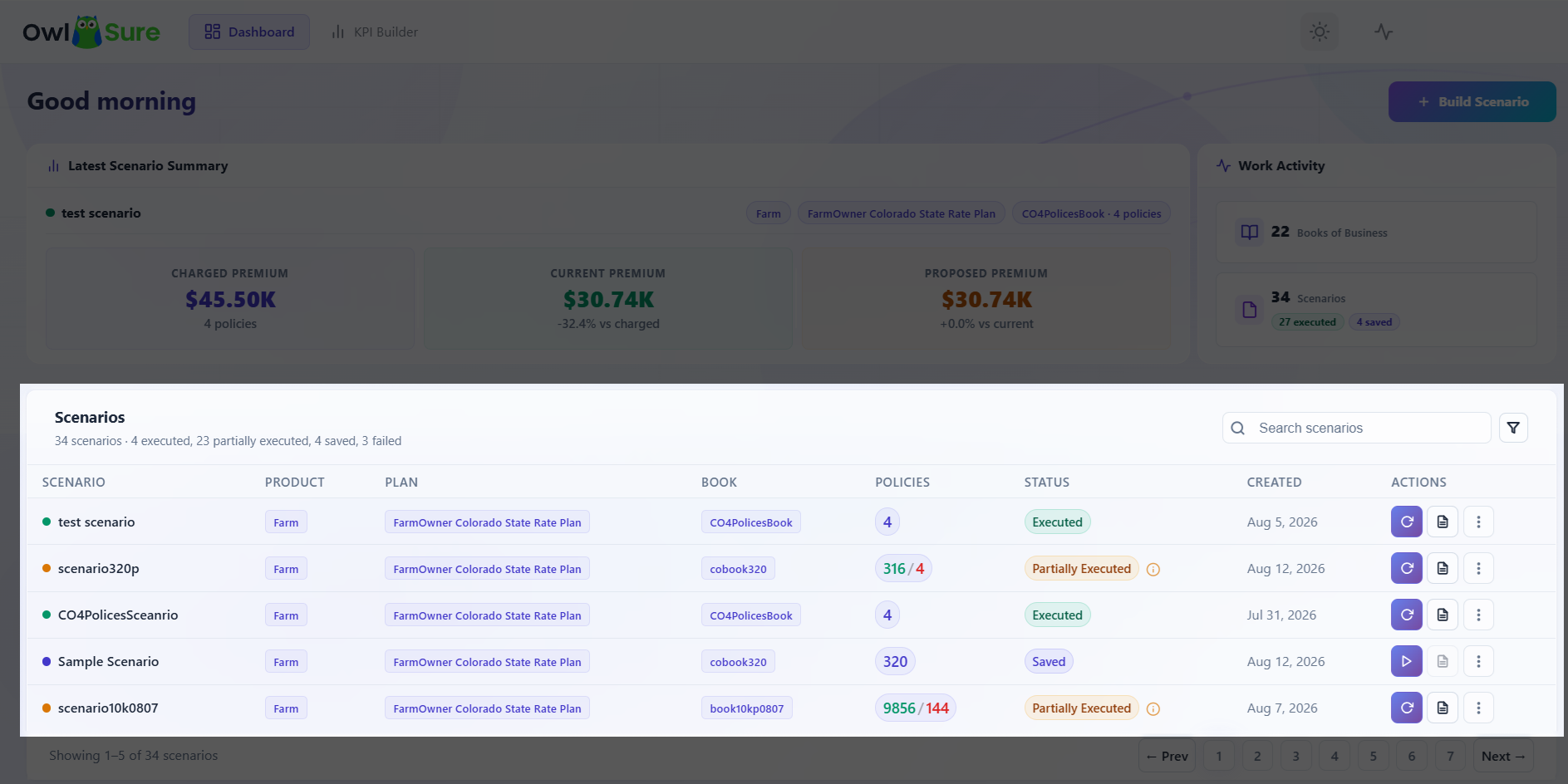
- From the dashboard, find the scenario in the scenario list.
- Note the current status and the policy count - larger Books of Business take longer to process and a long execution time may be normal.
Step 2 - Initiate Execution
If the scenario status is Saved:
- Click Run in the Actions column next to the scenario.
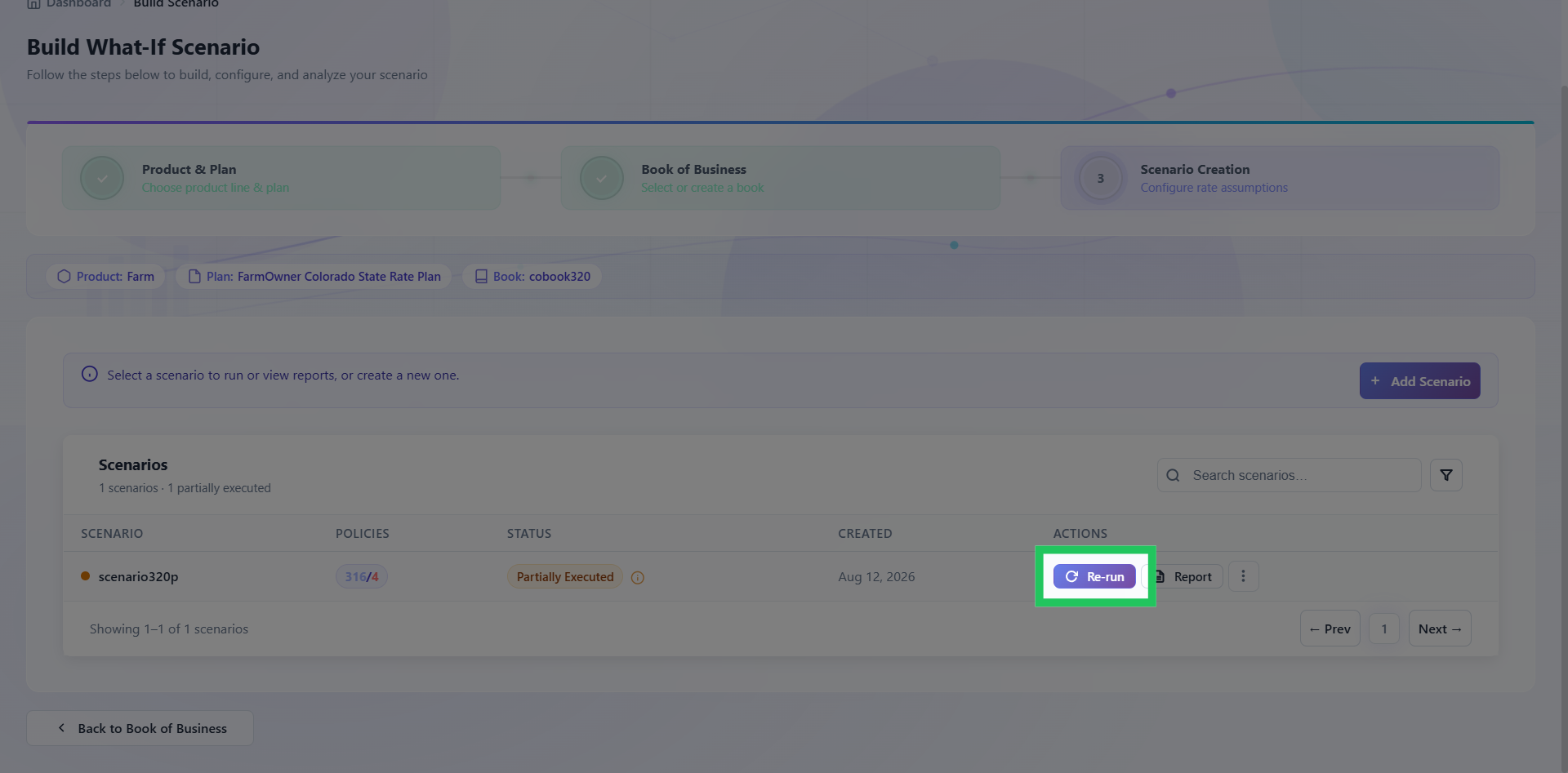
- Confirm the status updates to Running.
Step 3 - Decide Whether to Wait or Investigate
If the scenario has been running for an unexpectedly long time:
- Refresh the page to confirm the status displayed is current.
- Check the policy count - a large Book of Business may legitimately take longer to process.
- If the status has not changed after a significant period and the policy count is not unusually large, contact the administrator as the execution may have stalled.
Do not re-run a scenario that is still showing Running. Wait for the current execution to complete or fail before taking further action.
For large Books of Business, navigating away is the better option. The platform sends a notification on completion.
Step 4 - Interpret the Execution Outcome
When execution finishes, check the status:
| Status | What It Means | What to Do Next |
|---|---|---|
| Executed | All policies processed successfully | Proceed to reports |
| Partial Executed | Some policies succeeded, others failed | Assess whether failures affect result reliability before opening reports. Refer to Investigate a Partial Executed Scenario to know more. |
| Failed | Execution did not complete | Do not open reports. Refer to Resolve a Failed Scenario to know more. |
Step 5 - Confirm Results Are Ready
Before opening reports:
- Confirm the status is Executed (or Partial Executed with acceptable failures).
- Confirm the policy count in the execution summary matches the Book of Business selected.
A significantly lower processed count than expected may indicate silent failures. Check the failure screen even if the status shows Executed.
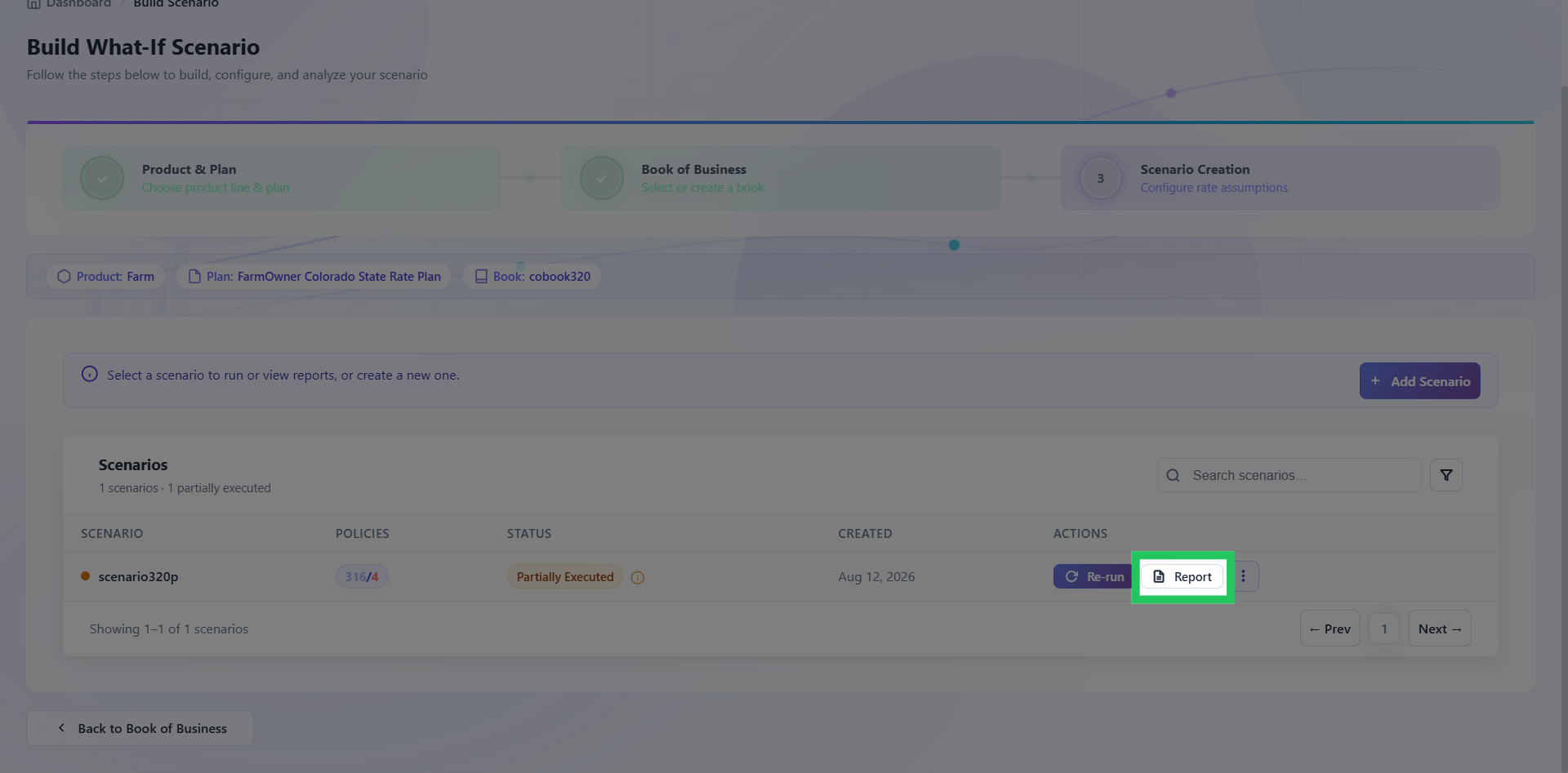
- If everything looks correct, click Report.
Next Steps
- Results look correct - Read a Premium Displacement Report
- Scenario returned Partial Executed - Investigate a Partial Executed Scenario
- Scenario returned Failed - Resolve a Failed Scenario
Having trouble? Refer to our FAQs or Troubleshooting guide to know more.