Edit and Re-Run a Scenario
Scenario: A scenario has already been executed and the rate assumptions need to be adjusted, either because the outcome was not what was expected or because a revised proposal needs to be tested. The existing results may need to be preserved before making changes.
Goal: Export the existing results if needed, modify the rate assumptions, and re-run the scenario without building a new one from scratch.
Prerequisites
- A scenario with a status of Executed, Partial Executed, or Saved. Refer to Run a Scenario and Check the Results to know more.
- Clarity on what needs to change - which rate table, which adjustment, and what the revised value should be - before opening the editor.
Step 1 - Export the Existing Results First
Re-running a scenario replaces the previous results. If the existing results need to be kept for comparison or reference, export the reports before making any changes.
- Locate the scenario and click Report in the Actions column.
- Export each report that needs to be retained - at minimum, export the Premium Displacement report before proceeding.
Step 2 - Open the Scenario Editor
- Locate the scenario in the dashboard or Scenarios view.
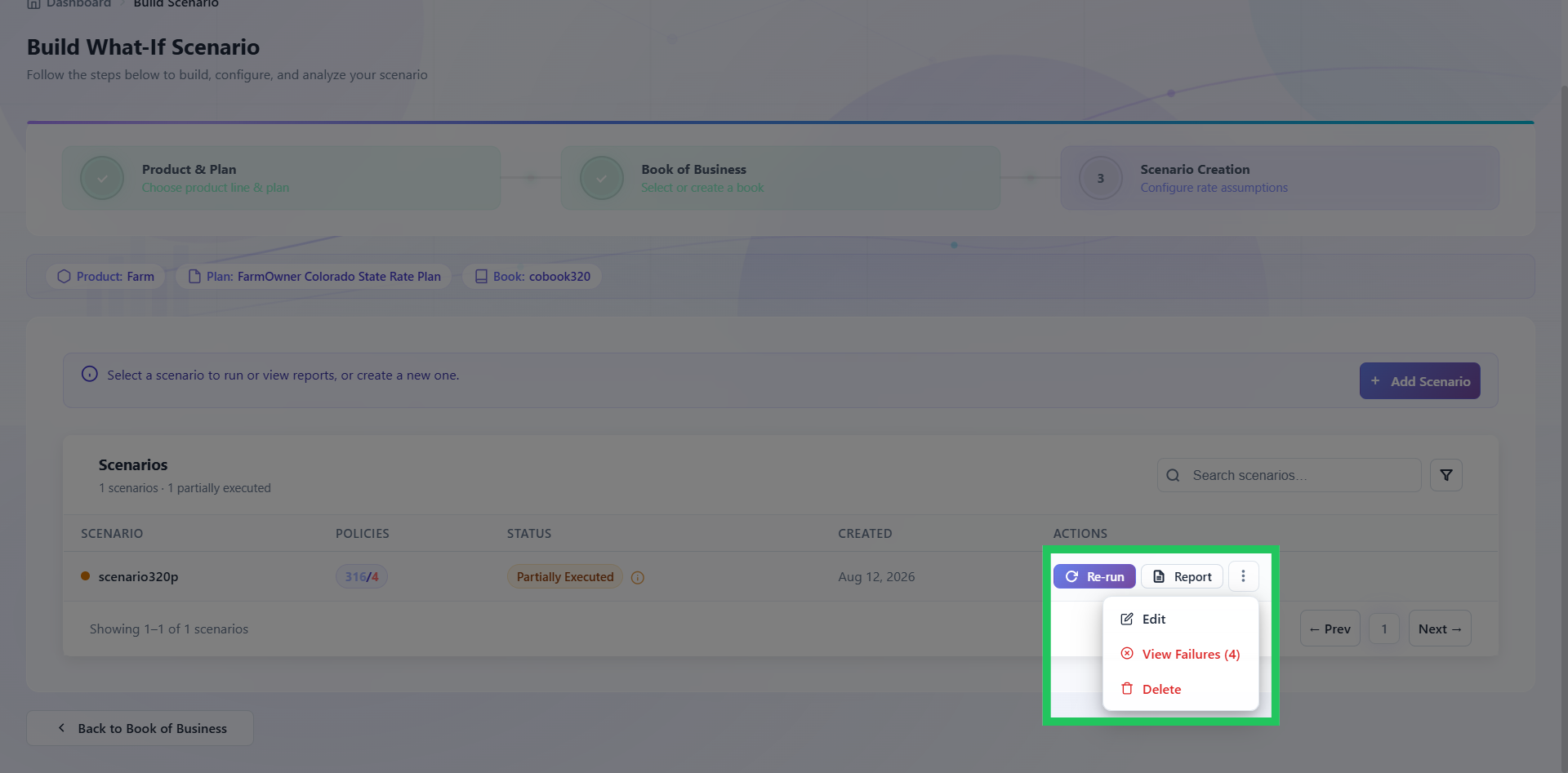
- Click the kebab menu (...) in the Actions column and select Edit.
Step 3 - Review the Current Configuration
Before making any changes:
- Check the scenario name - if the rate assumption is changing materially, update the name to reflect the new assumption so it is identifiable in the dashboard.
- Confirm the Book of Business is still the correct portfolio for the revised analysis.
- Check the rate table selected and the modified table count - note which tables are currently modified and what adjustments are applied.
Step 4 - Make the Changes
To change a bulk adjustment:
- Select the rate table, then reset the existing adjustment.
- Apply the revised bulk adjustment percentage.
To change an inline edit:
- Select the rate table, locate the specific cell, and update the value directly.
To remove a modification entirely:
- Select the modified table and click Reset to restore it to the original values.
After making changes, check the modified table count. Any table showing as modified that was not intentionally changed should be reset before saving.
Step 5 - Save and Re-Run
- Update the scenario name if the rate assumption has changed.
- Click Save and Run to save the changes and execute immediately, or click Save Scenario if the scenario needs to be reviewed before running.
- Confirm the status updates to Running.
Step 6 - Confirm the Results
Once execution completes:
- Confirm the status is Executed.
- Open the Premium Displacement report and verify the displacement is consistent with the revised rate assumption.
- If the previous results were exported, compare the new output against them to confirm the change had the expected effect.
Next Steps
| Outcome | Action |
|---|---|
| Results reflect the revised assumption correctly | Proceed with reporting or filing preparation |
| Displacement is still not as expected | Refer to Identify Rate Factors Driving a Change |
| Scenario returns Partial Executed or Failed | Refer to Investigate a Partial Executed Scenario or Resolve a Failed Scenario |
Having trouble? Refer to our FAQs or Troubleshooting guide to know more.