Resolve a Failed Scenario
Scenario: A scenario has come back with a status of Failed. No policies were processed and no reports are available. The failure may be a Rate Table Mismatch where the rate table appears correctly configured, or another category entirely.
Goal: Diagnose the root cause of the failure, apply the correct fix, and re-run the scenario to a successful Executed status.
Prerequisites
- A scenario with a status of Failed.
Step 1 - Open the Failure Screen
- Locate the scenario in the dashboard or Scenarios view.
- Click the kebab menu (...) in the Actions column and select View Failures.
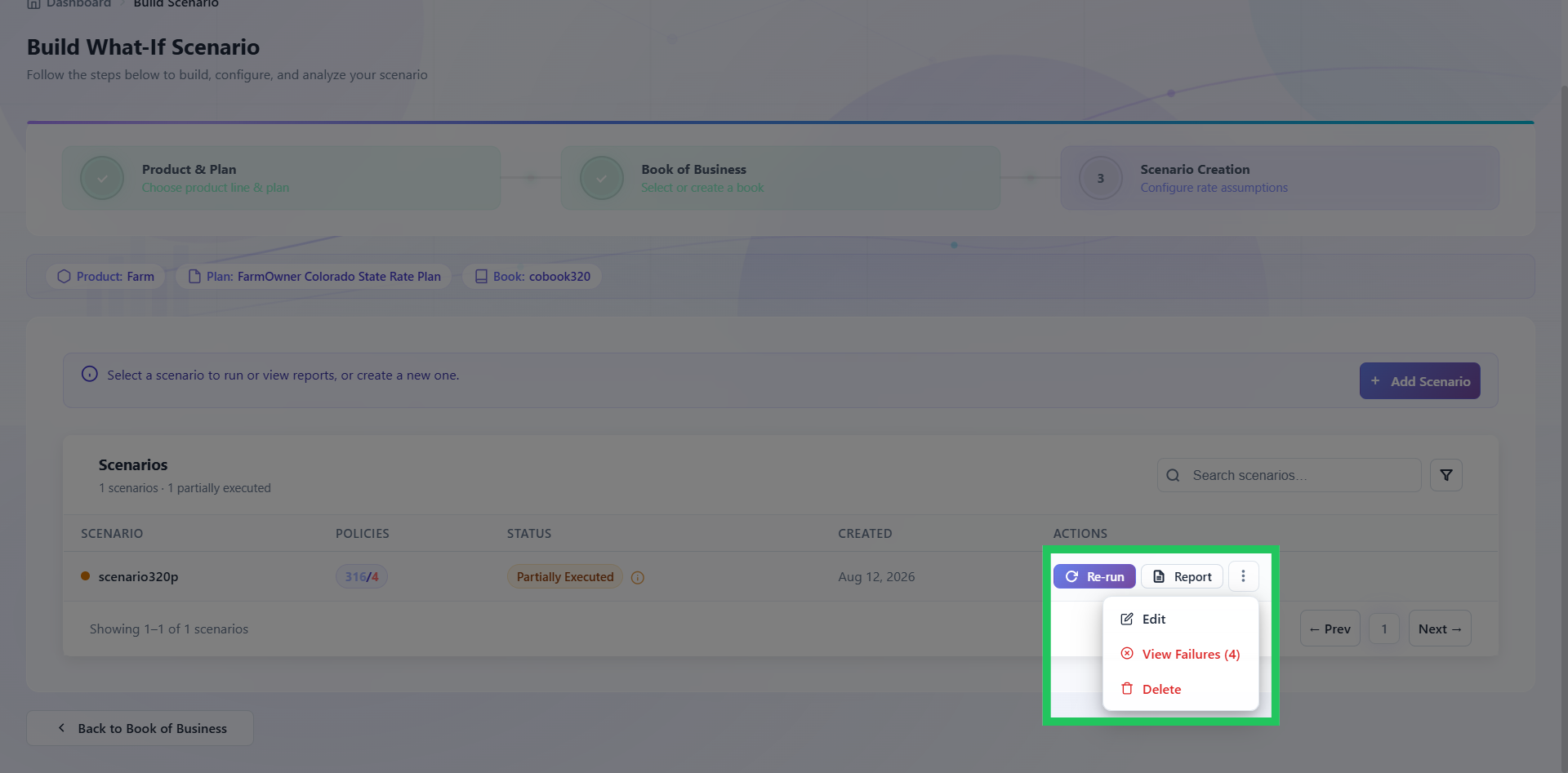
- Read the execution summary and note the dominant failure category and the specific failure descriptions listed.
| Field | What to Check |
|---|---|
| Total Failed Policies | Should equal the full policy count - if the scenario is Failed, all policies failed |
| Dominant Failure Category | The category with the highest count is your starting point |
| Failure Description | The specific reason - this tells you exactly what the platform could not process |
Step 2 - Identify the Root Cause
Match the dominant failure category to the likely cause:
| Failure Category | Likely Cause |
|---|---|
| Rate Table Mismatches | A territory code, class value, or deductible entry in the policy data does not exist in the selected rate table |
| Configuration Errors | The rate plan, product, or environment is not configured correctly |
| Missing Data | Policies are missing fields required for rating |
| Validation Failures | Policies are failing data validation checks before rating begins |
| Processing Timeouts | Policies are exceeding the allowed processing time - may indicate data complexity or a platform issue |
| Coverage Mapping Errors | A coverage on the policy cannot be mapped to the current rate plan configuration |
| Integration Failures | A connectivity issue with a downstream system is preventing execution |
Step 3 - Investigate Rate Table Mismatches
A Rate Table Mismatch means the platform attempted to look up a value in the rate table that does not exist. The failure description identifies exactly which value could not be found.
- Use the Failure Description filter to group failures by the specific mismatch reason.
- Note the exact values that are missing - for example, a specific rating code, classification, or territory value that exists in the policy data but is not present in the rate table.
- Export the failed policy list to review the affected policies in detail.
A rate table that appears correctly configured may still be missing values if the policy data contains codes or classifications that were not included when the table was set up. The issue is often in the data rather than the table structure.
Determine whether the issue is in the rate table or the policy data:
| Observation | Likely Cause | Action |
|---|---|---|
| The missing value is a valid code that should be in the rate table | The rate table is incomplete | Contact the administrator to add the missing value |
| The missing value is an unexpected or unrecognised code | The policy data may contain an error or an outdated code | Coordinate with the data team to investigate |
| The missing value appears in only a small number of policies | An edge case in the data | Assess whether the affected policies are material before deciding whether to fix and re-run |
Step 4 - Apply the Fix
Rate Table Mismatches: Contact the administrator with the specific missing values from the Failure Description column and confirm the update has been made before re-running.
Configuration Errors: Contact the administrator with the scenario name, product, plan, and failure description. Do not re-run until the administrator confirms the configuration has been corrected.
Missing Data: Export the failed policy list, coordinate with the data team to correct the source data, and confirm the data has been corrected before re-running.
Processing Timeouts: Contact the administrator with the scenario details. Do not re-run immediately - a timeout failure on all policies indicates a systemic issue, not a data problem.
Coverage Mapping Errors / Integration Failures: Contact the administrator with the failure details. These categories require platform-level investigation and cannot be resolved by the analyst.
Step 5 - Re-Run the Scenario
- Locate the scenario in the dashboard.
- If the fix required a change to the scenario configuration, click the kebab menu (...), select Edit, make the change, and save.
- If the fix was to the rate table or environment only, click Re-Run in the Actions column directly.
- Monitor the execution and confirm the status reaches Executed.
If the scenario returns Failed again with the same description, the fix was not fully applied. If it fails with a different description, a secondary issue has surfaced - repeat the diagnosis from Step 2.
Next Steps
| Outcome | Action |
|---|---|
| Scenario now shows Executed | Proceed to reports. Refer to Read a Premium Displacement Report |
| Scenario returns Failed with the same description | The fix was not fully applied - contact the administrator |
| Scenario returns Failed with a different description | A secondary issue has surfaced - repeat the diagnosis from Step 2 |
| Scenario returns Partial Executed | Refer to Investigate a Partial Executed Scenario |
Having trouble? Refer to our FAQs or Support & Escalation guide to know more.