Test a Base Rate Increase
Scenario: The pricing team wants to evaluate the impact of a 5% base rate increase on the Personal Auto portfolio in Texas before submitting a rate filing, or a rate change has been applied and the Premium Displacement result looks different from what was expected.
Goal: Configure and run the scenario correctly, verify the rate change was applied as intended, and produce the outputs needed for actuarial review and filing preparation.
Prerequisites
- Access to the What-If platform with a provisioned account and the application URL provided by your administrator.
- A KPI profile configured with the dimensions relevant to the analysis. If one does not exist, create one from the KPI Builder in the platform navigation before proceeding.
- Rate tables published and available in the environment; confirm with your administrator.
Step 1 - Create a Texas-Only Book of Business
Running against the full national portfolio would dilute the Texas-specific impact. Scope the book to Texas only.
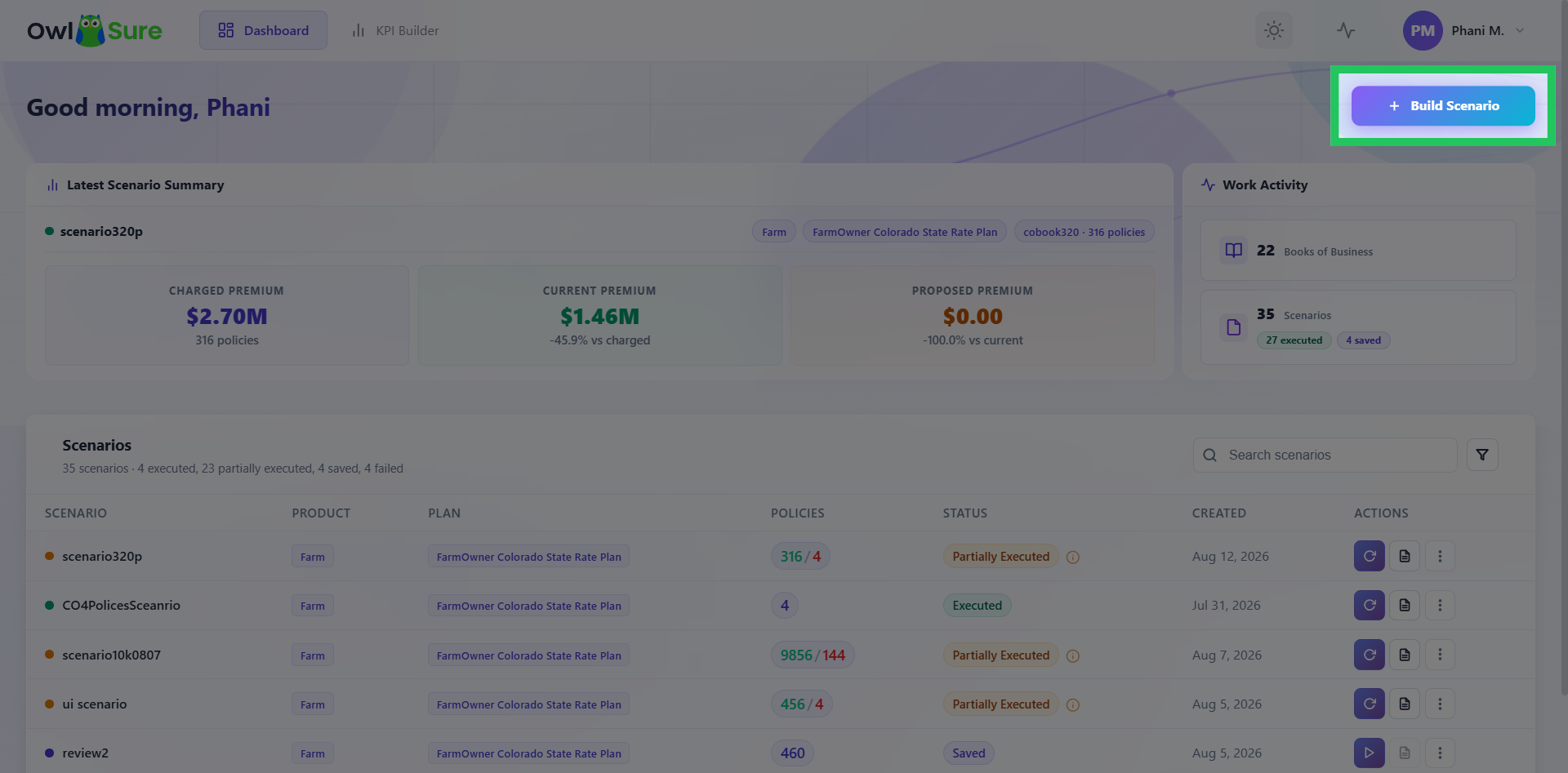
- From the dashboard, click Build Scenario.
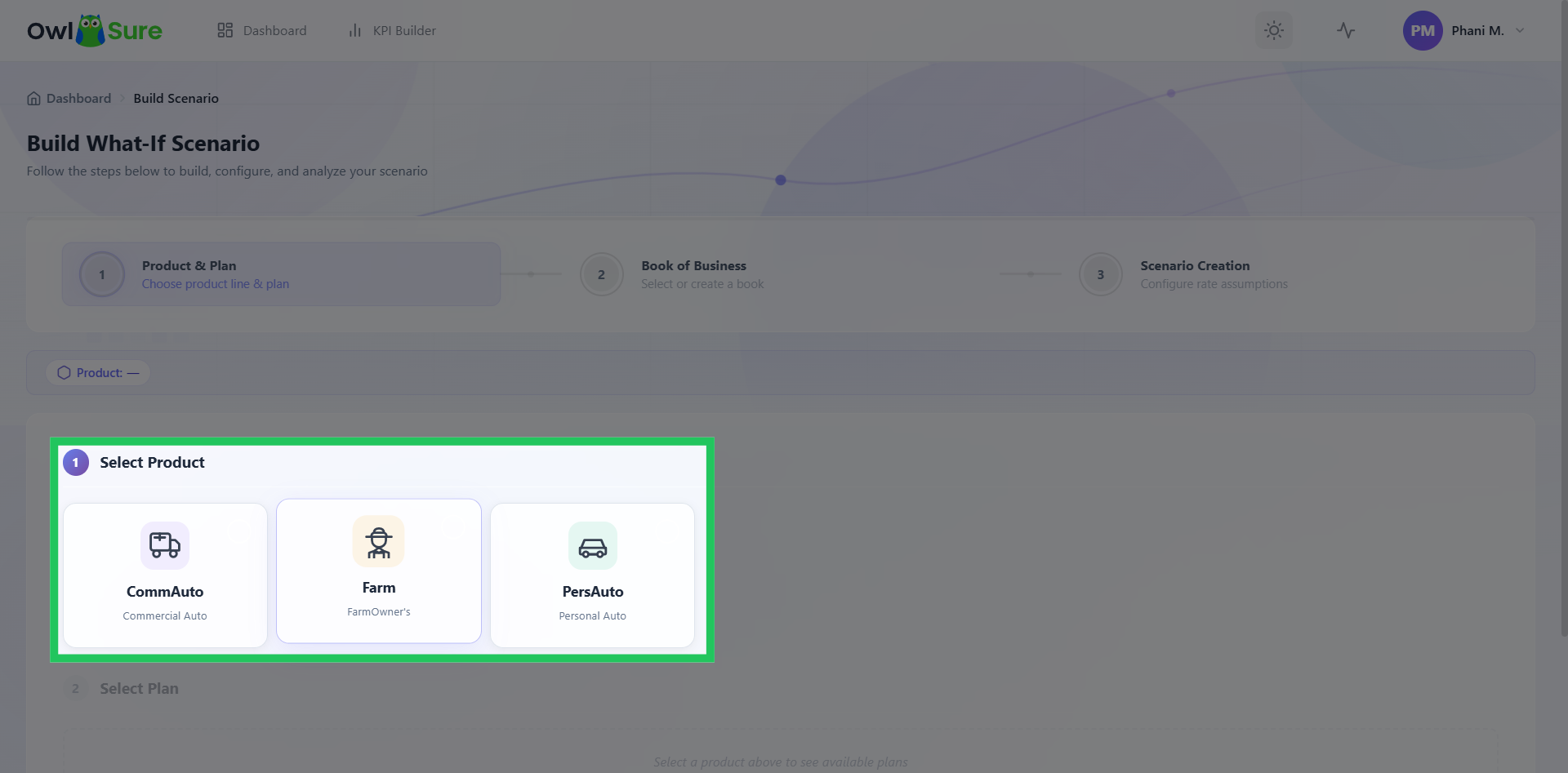
- Select Personal Auto and the applicable rate plan.
- On the Book of Business screen, check whether a Texas-only book already exists.
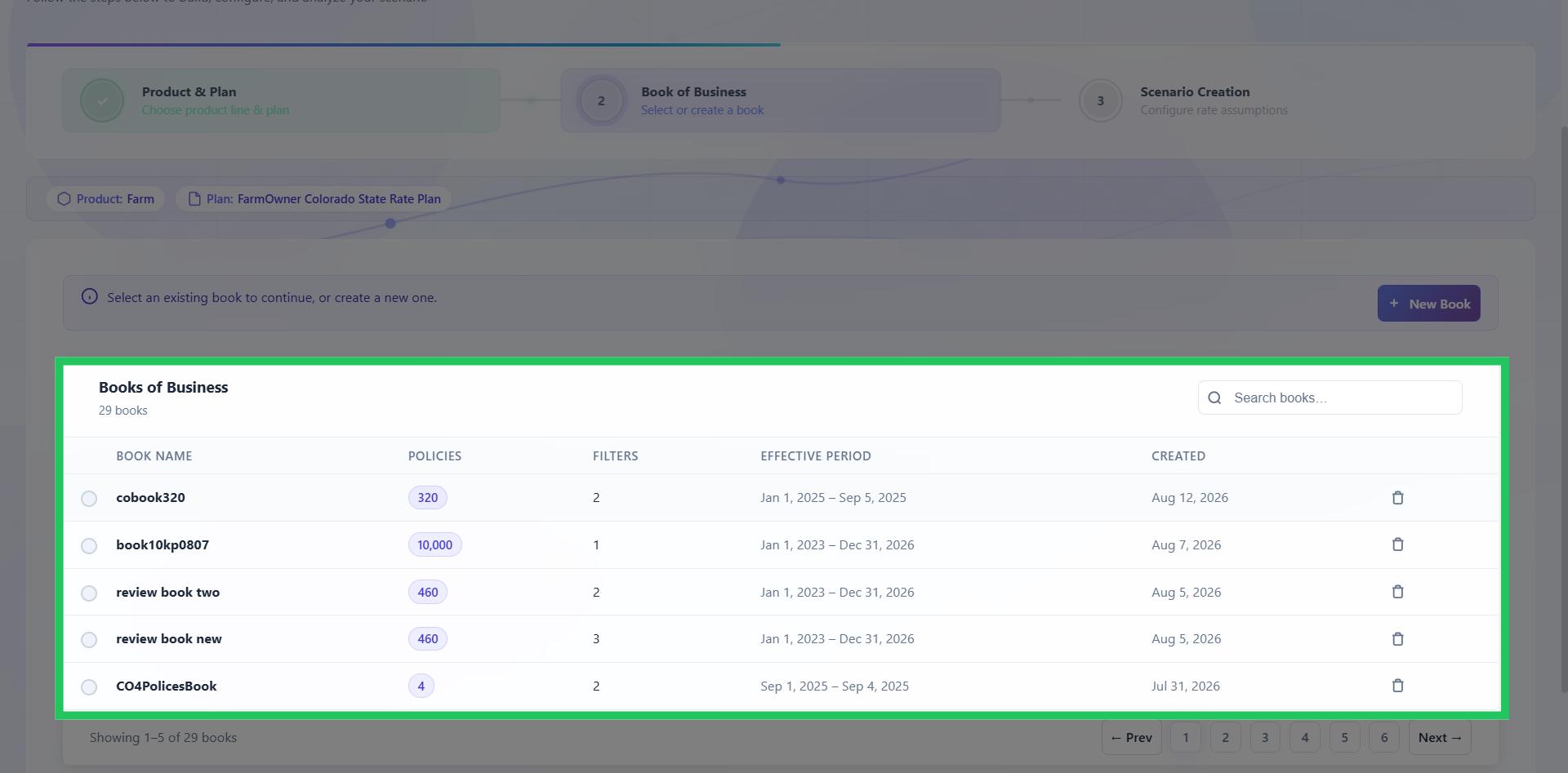
- If it does and the policy count looks correct, select it and skip to Step 2.
- If not, click Add, apply a State: Texas filter and an Effective Date Range relevant to the filing, confirm the policy count, and name the book
Personal Auto - TX - [Effective Date Range]. Save and select it.
- Click Continue to Scenario Creation.
Step 2 - Configure the Rate Assumption
- Enter the scenario name:
Personal Auto - TX - Base Rate +5% - [Filing Date]. - Select the current Texas rate table as the rating basis.
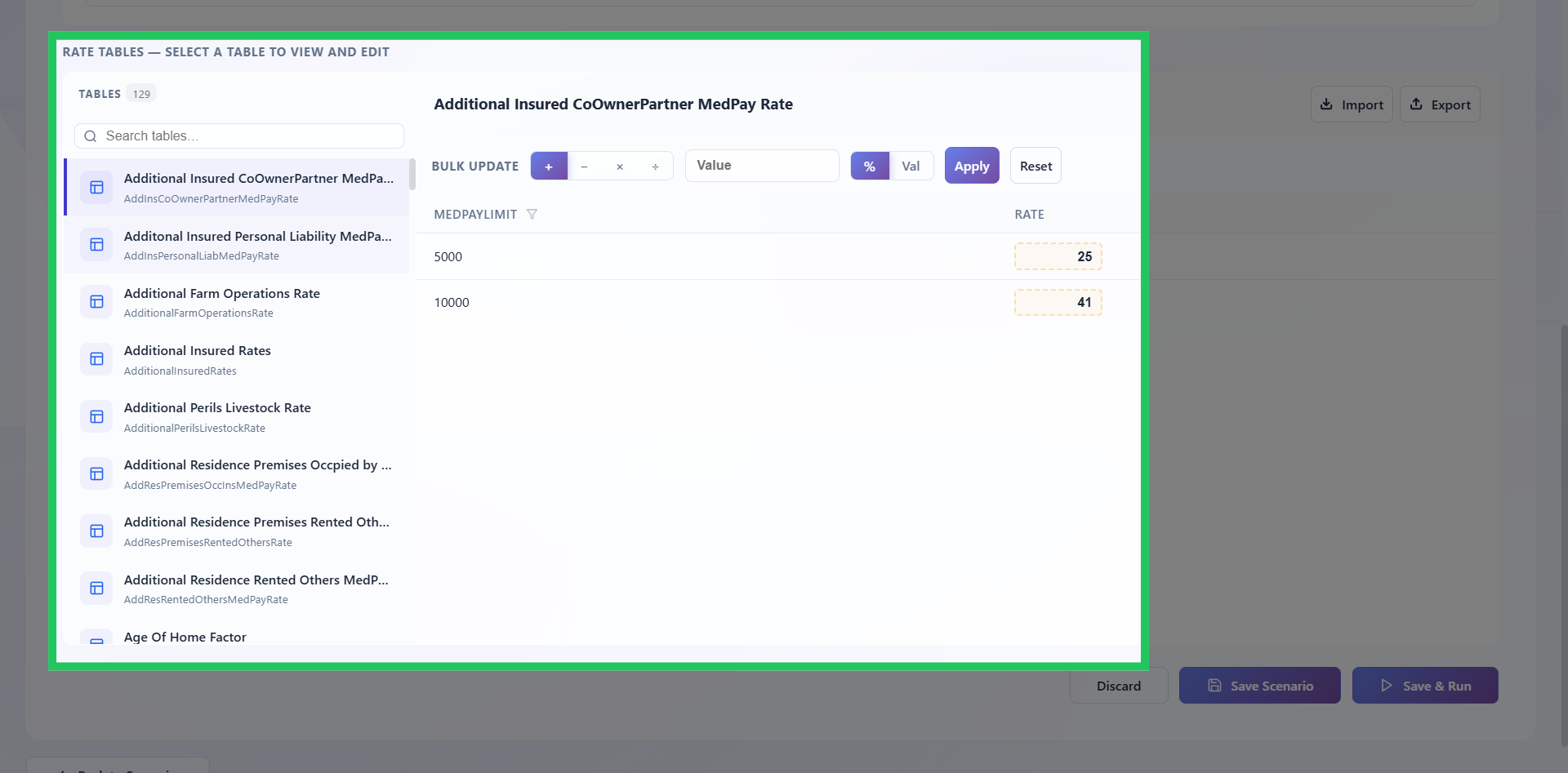
- Select the Base Rates table and apply a bulk adjustment of +5%.
Use bulk adjustment for a uniform increase across all base rate cells. If the proposal targets specific territories differently, use inline editing on Territory Factors instead.
- Check the modified table count - only Base Rates should show as modified. If other tables appear, reset them before saving.
- Click Save and Run.
Step 3 - Verify the Configuration if Results Look Unexpected
If the Premium Displacement result looks different from what was expected, verify the scenario was set up correctly before investigating the results.
- Click the ... menu and select Edit to open the scenario configuration.
- Check the modified table count - only the table that was intended to be changed should show as modified.
- Check the adjustment applied to the intended table and confirm it matches what was planned.
- If any unintended tables are modified, reset them and re-run before reviewing results.
Step 4 - Review the Results
Once the scenario status shows Executed, click Report.
4a. Premium Displacement Report
- Open the Premium Displacement report.
- Check the total premium movement from Current to Proposed and verify the displacement is consistent with what a 5% base rate increase should produce.
- Open the Rate Comparison report to confirm the adjustment is reflected correctly at the factor level.
If the figure looks significantly higher or lower than expected even after verifying the configuration, refer to Identify Rate Factors Driving a Change to investigate further.
4b. Segment Analysis Report
- Open the Segment Analysis report.
- Break down the displacement by Territory and Driver Age.
- Identify any segments absorbing a disproportionate share of the change.
Regulators and actuarial reviewers will ask about segment-level distribution - having this ready before the filing review saves time.
4c. Winner / Loser Report
- Open the Winner / Loser report and review the policyholder-level impact.
- Check whether any segment is seeing an increase materially larger than 5%.
If a specific segment shows a much larger increase, it may indicate an interaction with other rating factors that needs investigation before filing.
If the Scenario Returns Partial Executed
- Open the ... menu and select View Failures.
- Check the failure category breakdown. If failures are concentrated in Rate Table Mismatches, identify which territories are affected and assess whether those territories are material to the filing before proceeding to reports.
Refer to Investigate a Partial Executed Scenario to know more.
Next Steps
| Outcome | Action |
|---|---|
| Results support the filing | Export Premium Displacement and Segment Analysis reports for the actuarial review package |
| Results show unacceptable outcomes in specific segments | Test a tiered approach - refer to Compare Two Rate Change Proposals |
| Displacement is still inconsistent after fixing the configuration | Refer to Identify Rate Factors Driving a Change |
Having trouble? Refer to our FAQs or Troubleshooting guide to know more.