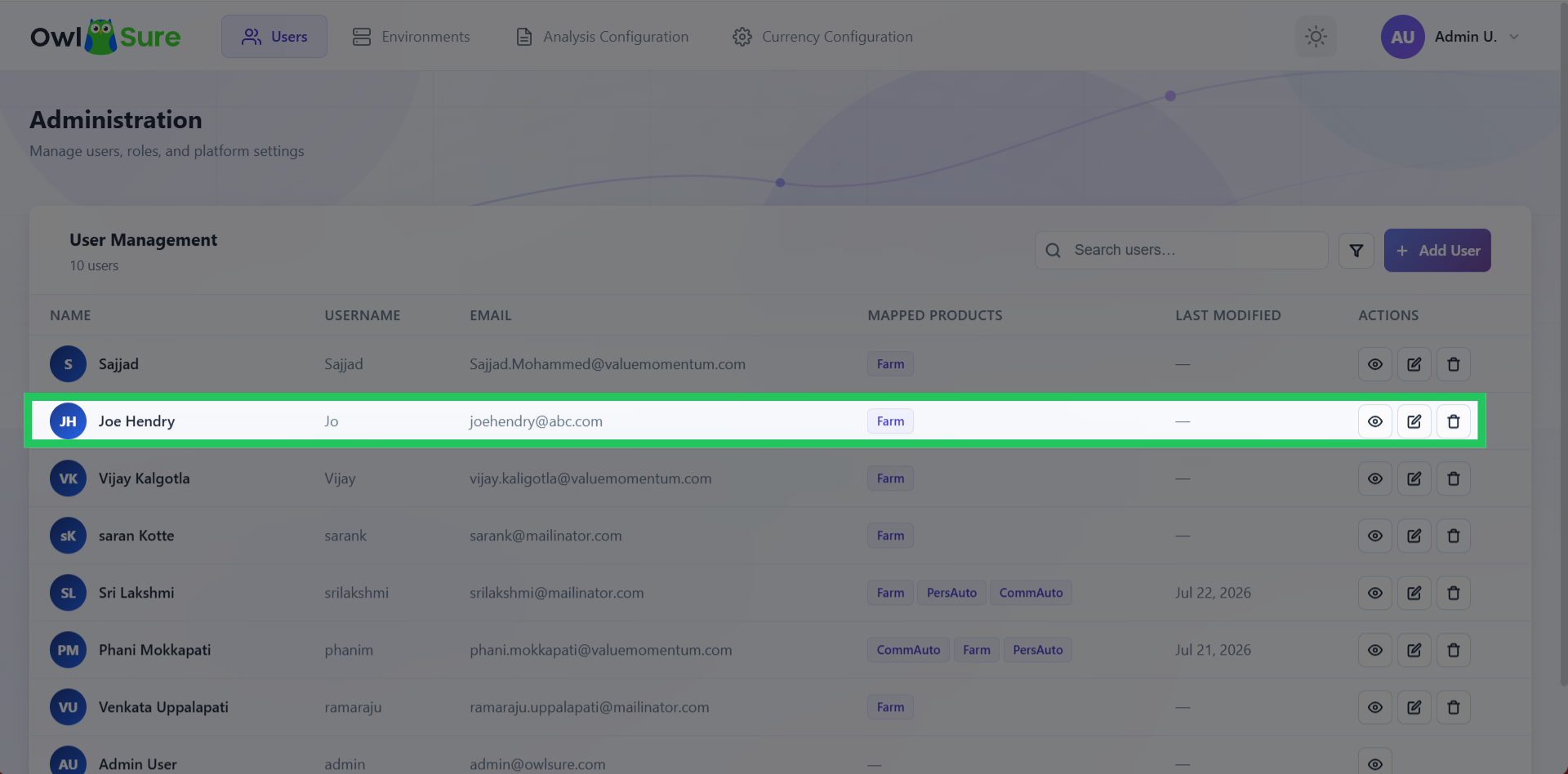
Creating a User

The Add User functionality enables administrators to onboard and manage users with configurable roles, product access, and permissions. It supports secure access governance through role-based access control, product-level security, user activation/deactivation, audit tracking, and segregation of duties. The feature also allows authorized users to create and execute What-If scenarios with extensible permission support for future enhancements.
Administrators can:
- Create new users
- Modify existing users
- Assign roles and permissions
- Control product access
- Activate or deactivate accounts
- Monitor user login activity
Add a New User
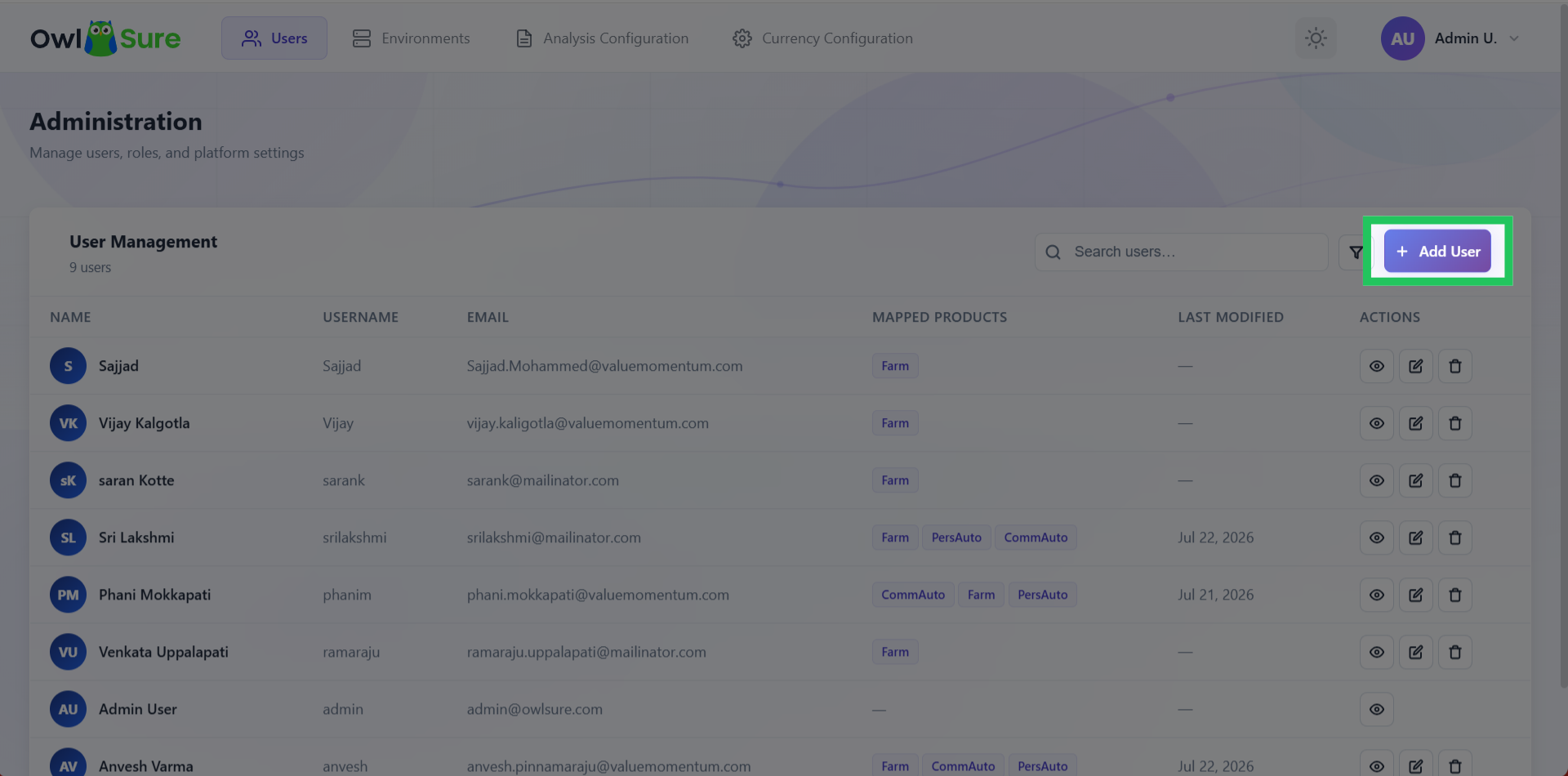
From the dashboard, click Add User to begin creating a new user account. This opens the user setup page where you can enter the user's details and configure their access.
Configure User Profile and Permissions
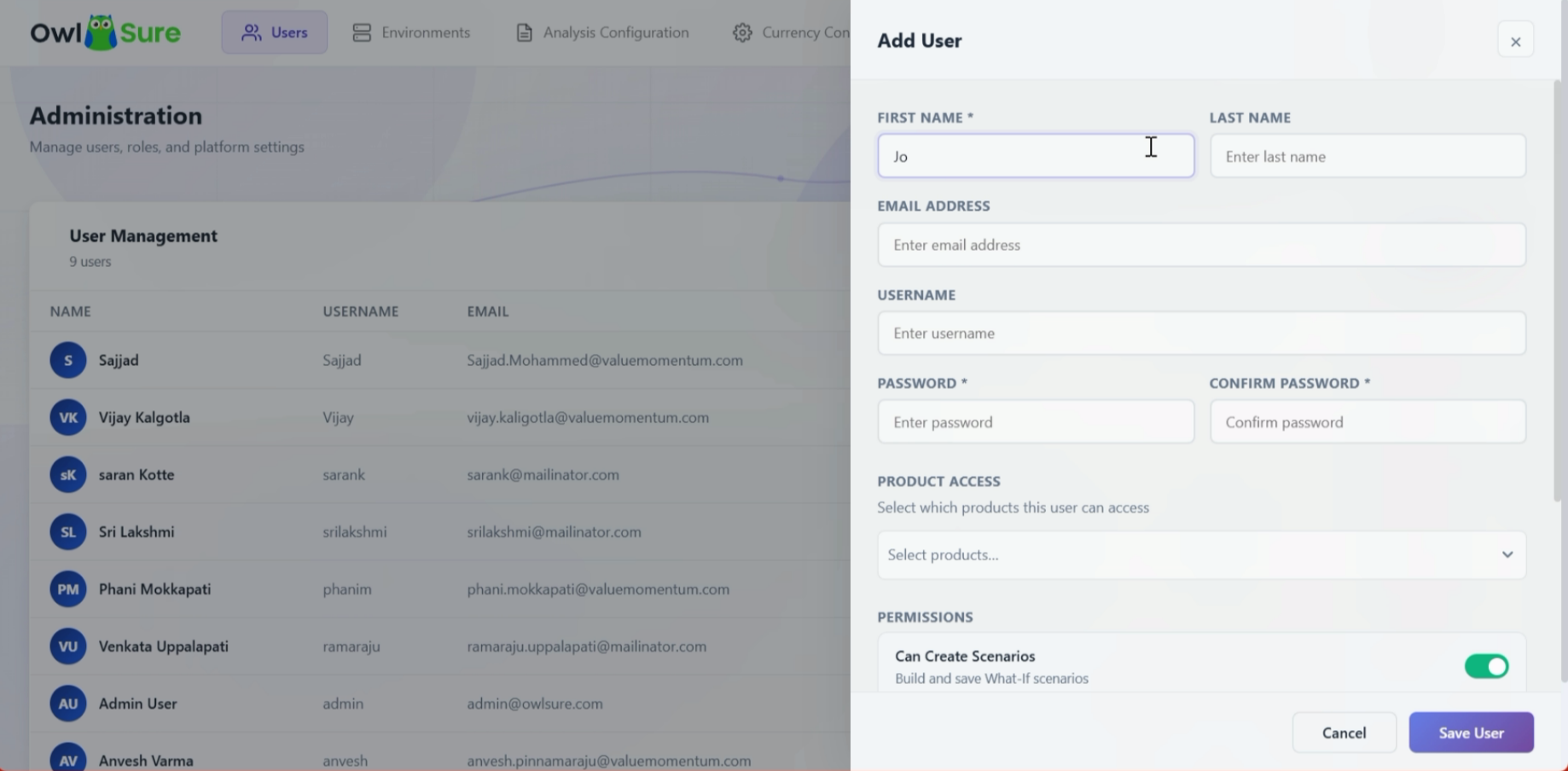
Enter the required user information and configure the appropriate product access and permissions. The information provided establishes the user's account and determines the functionality available to them within the WhatIF application.
Provide First and Last Name
Enter the user's first name and last name in the respective fields. Providing accurate information ensures that the user can be correctly identified throughout the application.
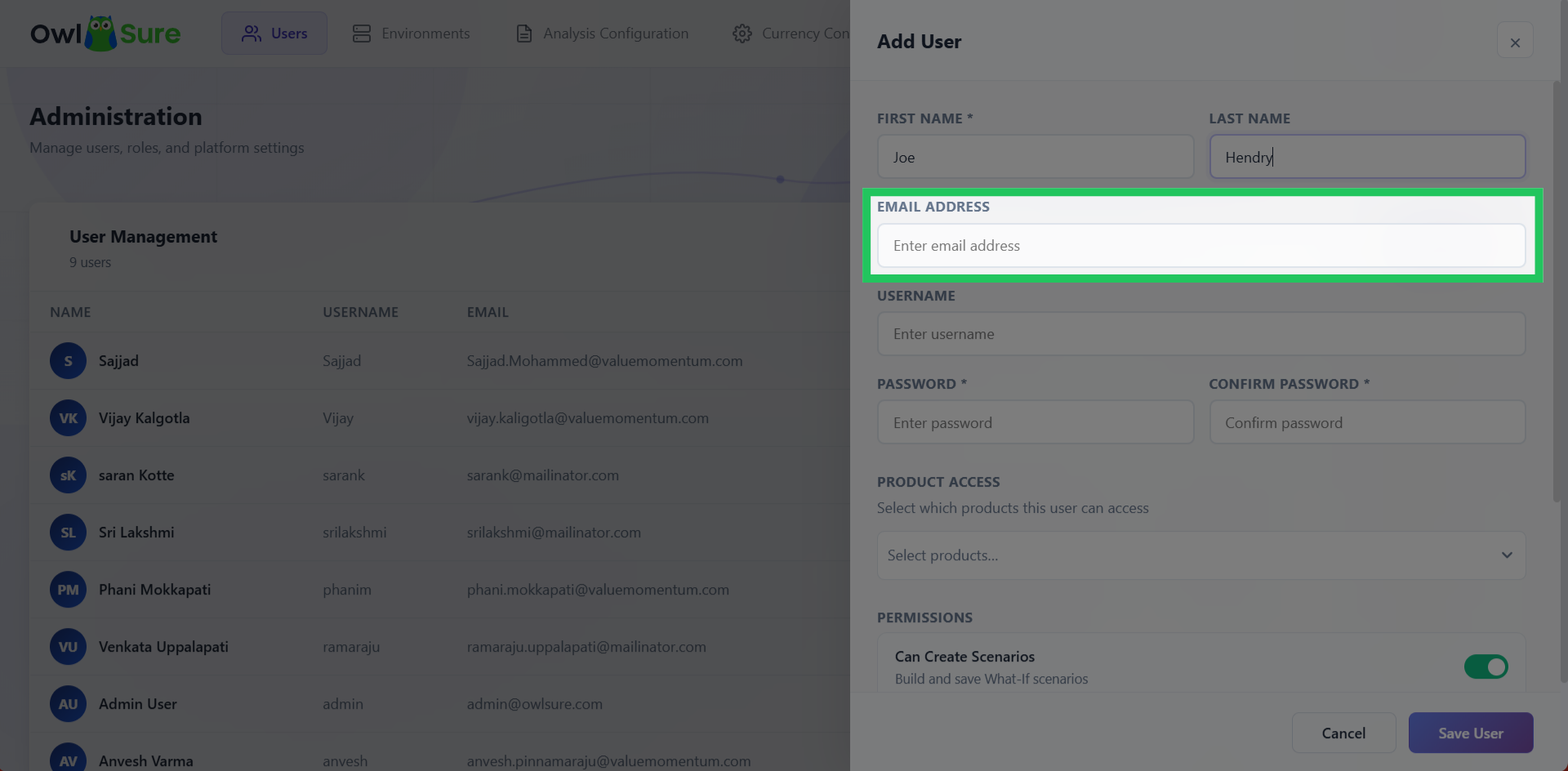
Enter User Email Address
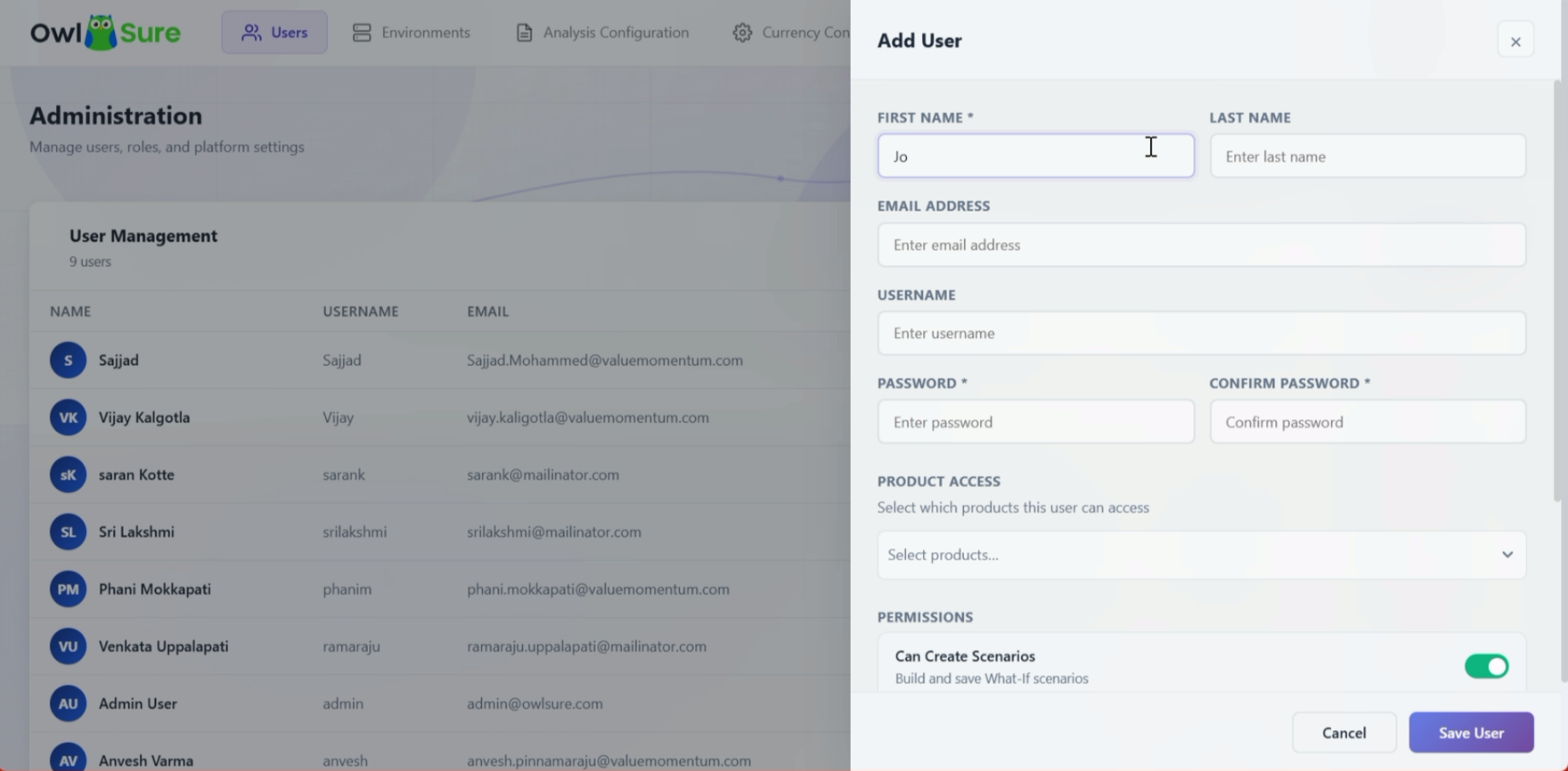
Enter the user's email address in the Email Address field. Ensure that the address is accurate and corresponds to the intended user account.
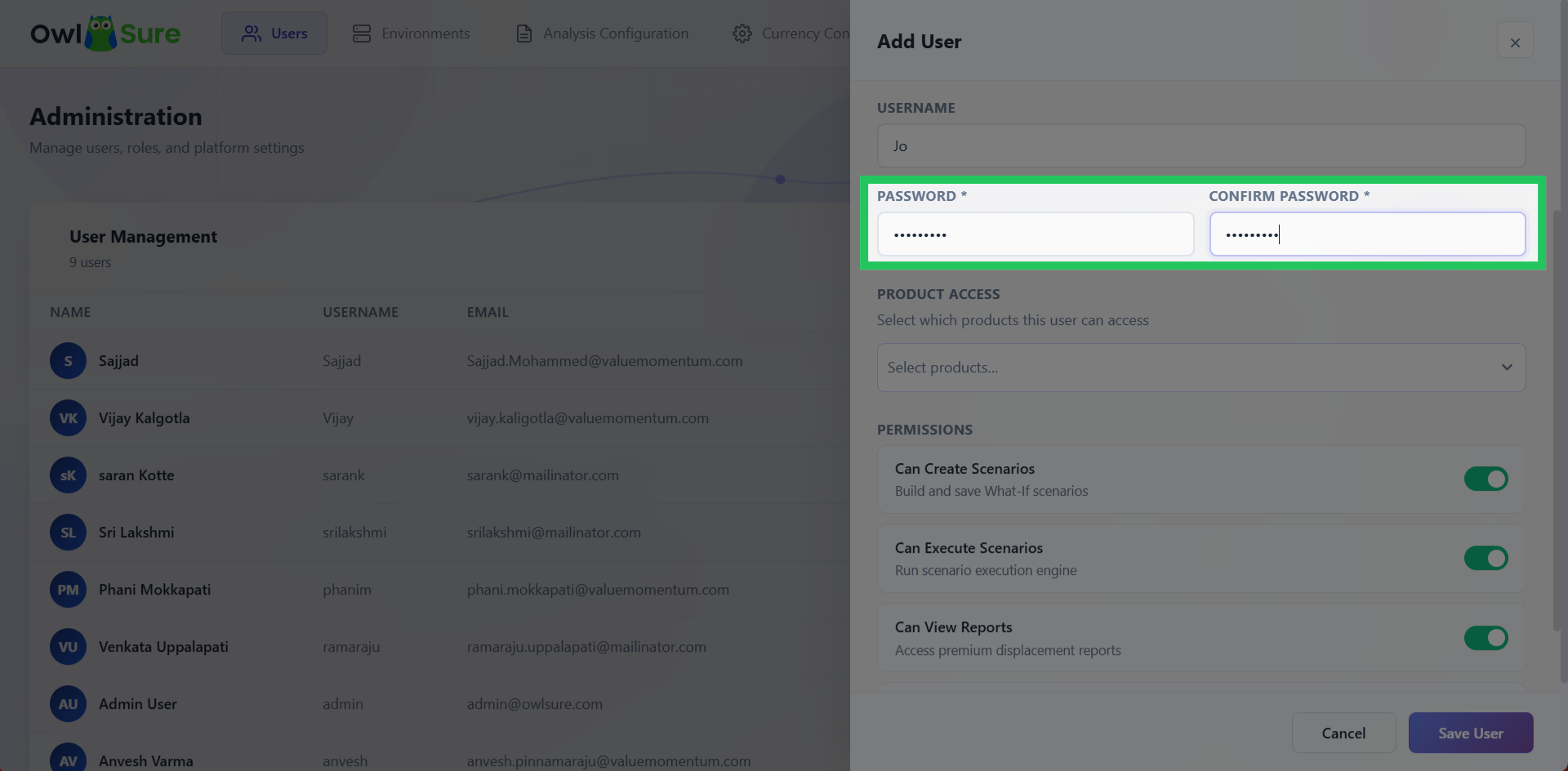
Set User Password
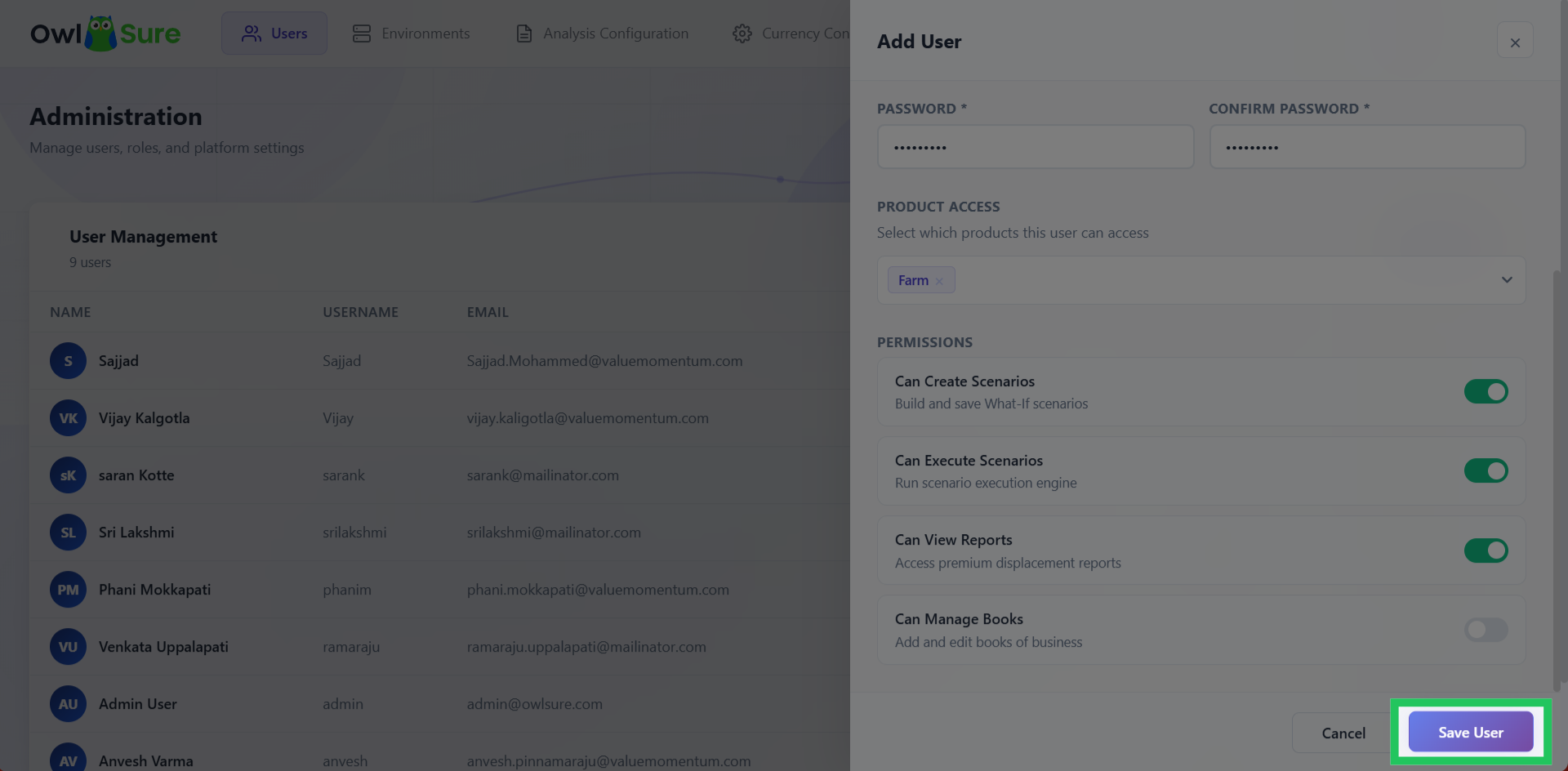
Enter a password in the designated Password field and re-enter the same password in the Confirm Password field. Ensure that both entries match and comply with any password requirements configured for the application.
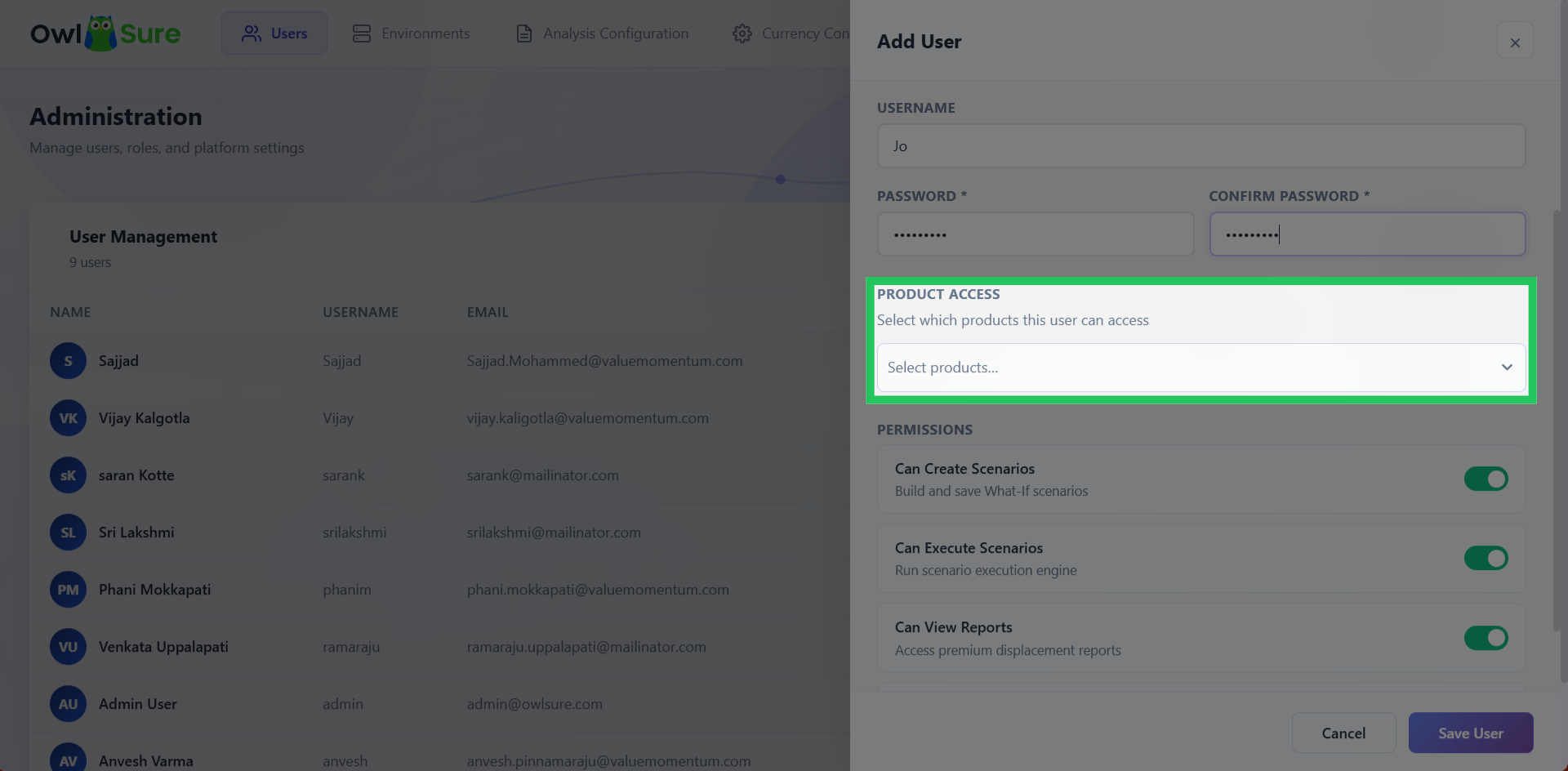
Assign Product Access to a User
Select the products that the user should be permitted to access. Product access determines which areas and functionality of the WhatIF application are available to the user.
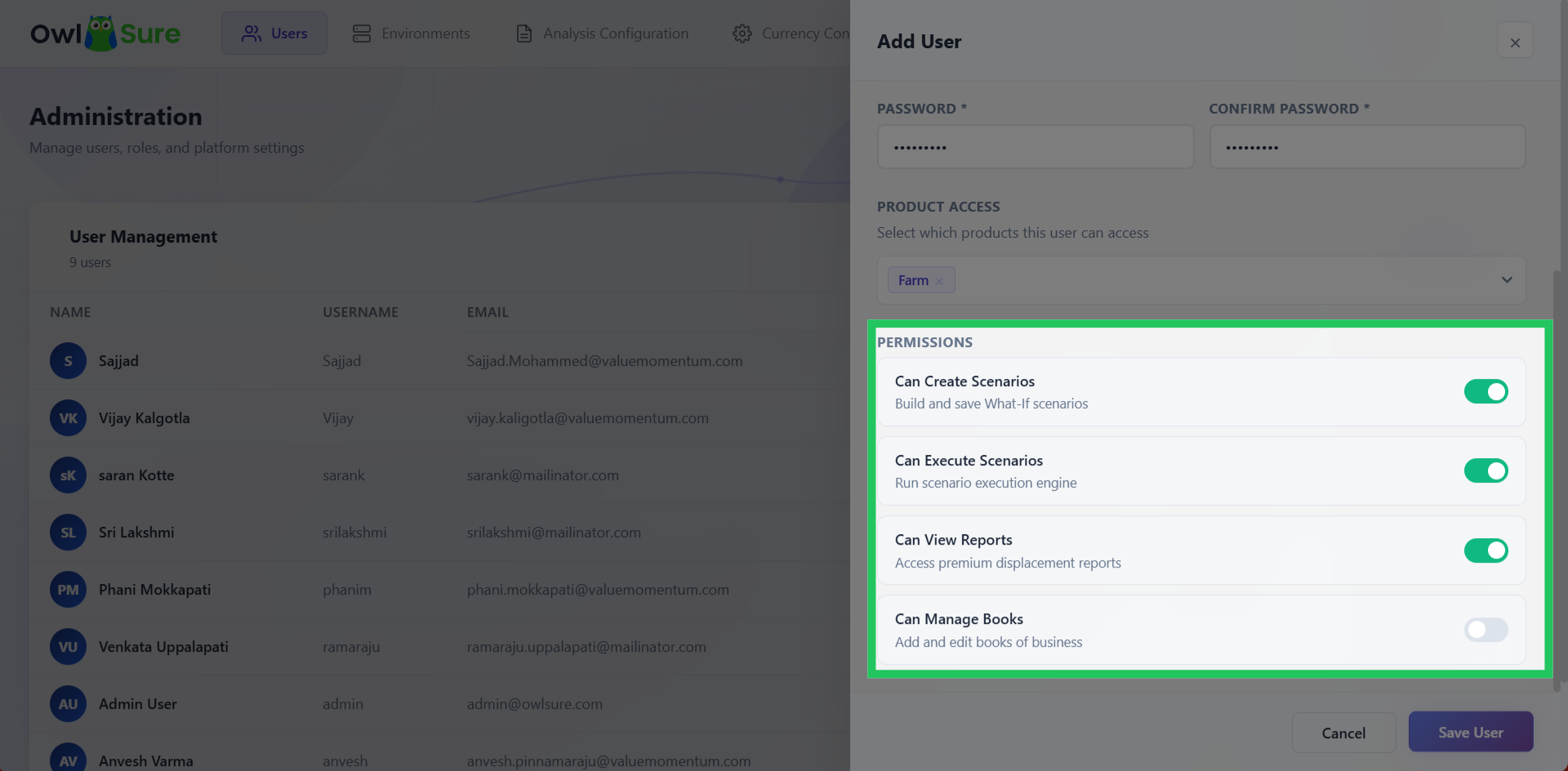
Define Permissions
Configure the permissions associated with the user's account. Permissions determine the actions and functionality the user can perform within the WhatIF application. Assign permissions according to the user's responsibilities and required level of access.
Save the New User
Review the user's profile information, product access, and permissions to ensure that all details are accurate. Click Save User to create the account and save the configured access settings.
Access User Profile
After the user is successfully created, the new profile is added to the list of users available from the dashboard. Select the user from the list to access and review their profile and configured access details.