New Report Configuration
Analysis Configuration enables administrators to define the analytical structure used across reports and KPI analysis within the What-If platform. Each configuration is built through a guided workflow: selecting a product, choosing a report type, naming the configuration, and mapping the relevant risks, coverages, or attributes. Configurations are reusable and can be applied across multiple scenarios.
Administrators can:
- Create new analysis configurations
- Select products and report types (Risk, Coverage, Rate, or Policy Insights)
- Define report names and descriptions
- Map risks, coverages, and attributes with applicable value lists
- Preview and save configurations before use
Open Analysis Configuration
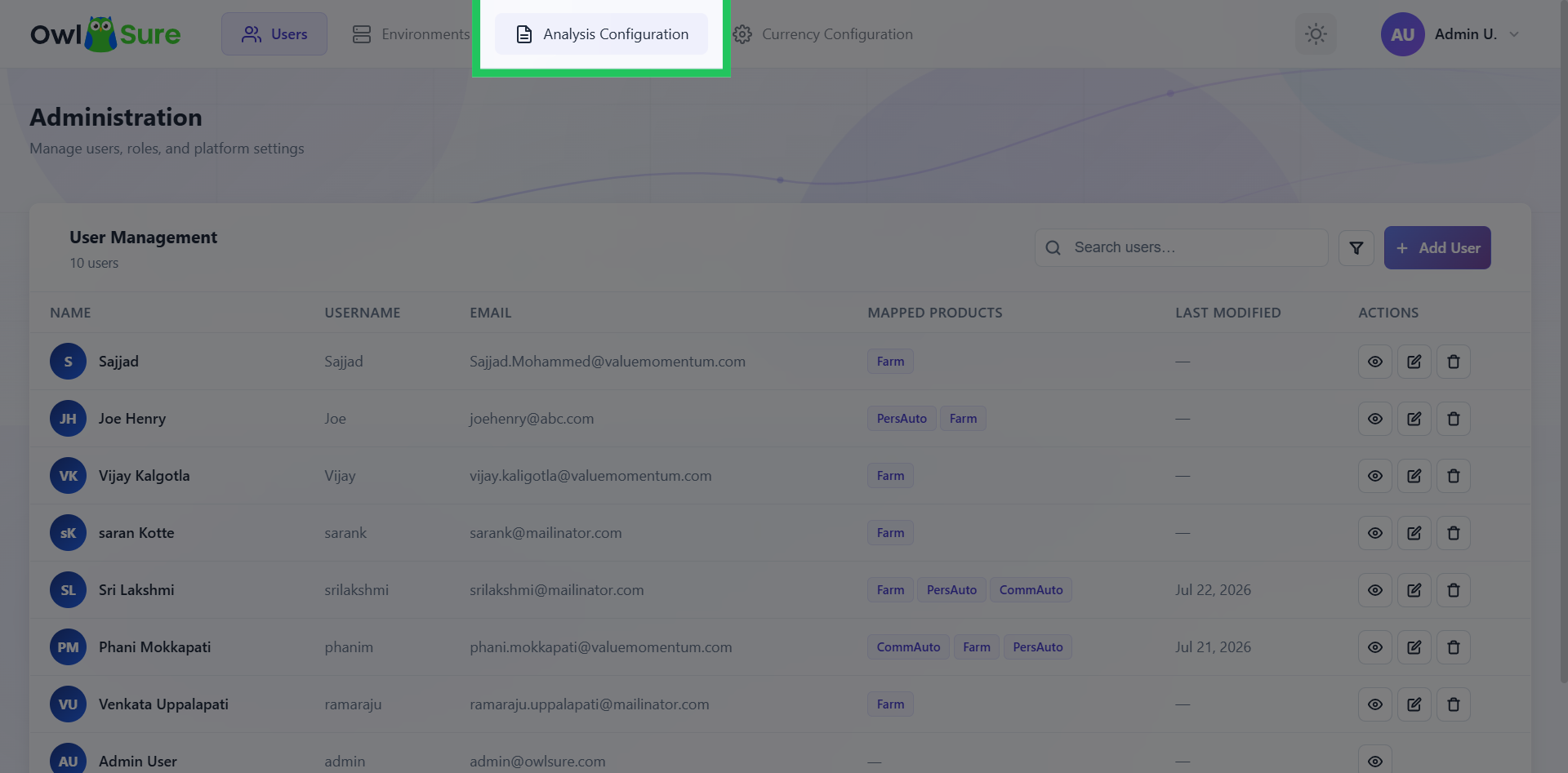
Click "Analysis Configuration" in the top navigation bar to access the analysis settings section within the What-If admin panel.
Create a New Analysis Configuration
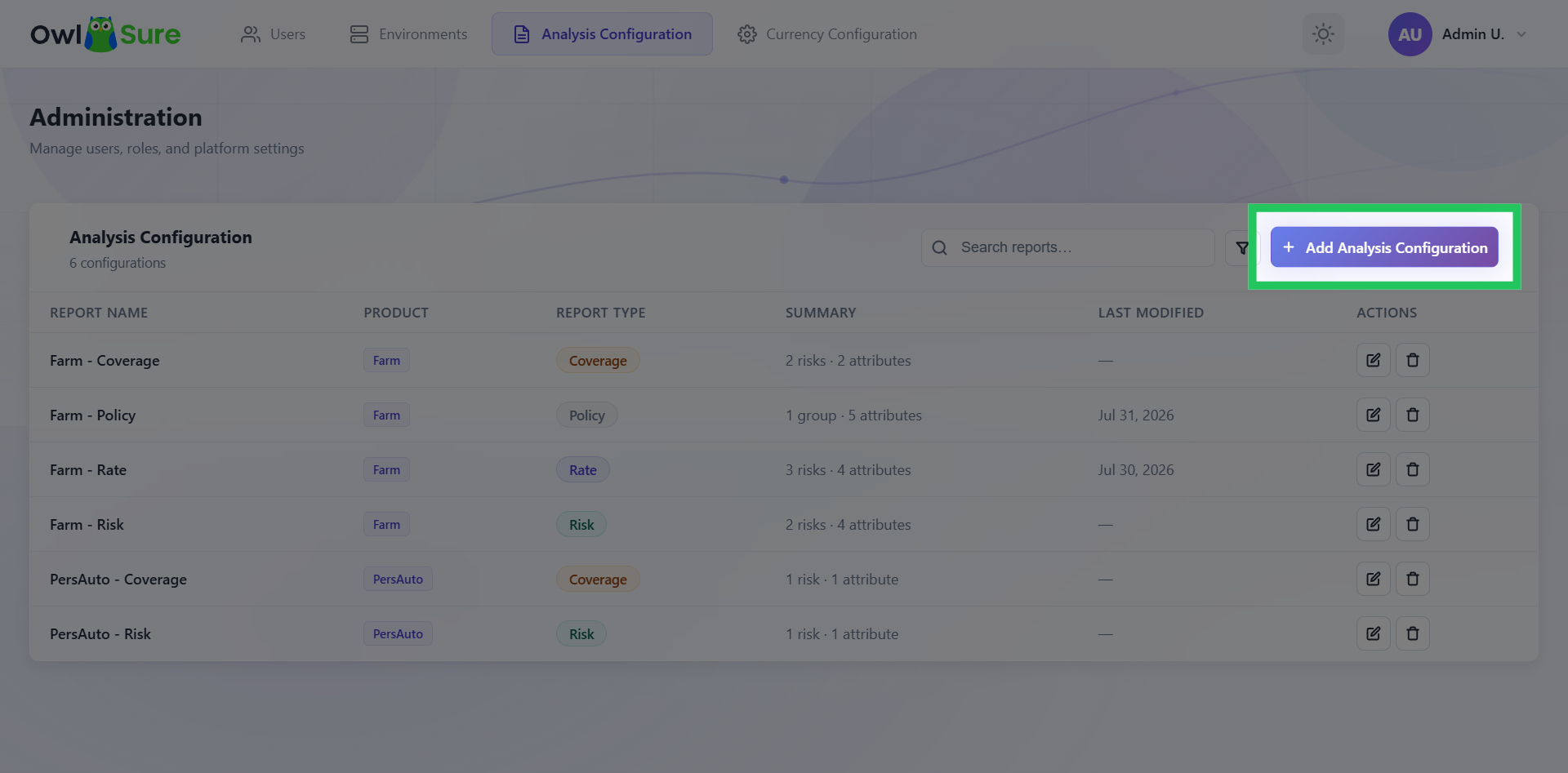
Click "Add Analysis Configuration" to begin creating a new analysis. This opens the configuration workflow and allows you to define the required settings.
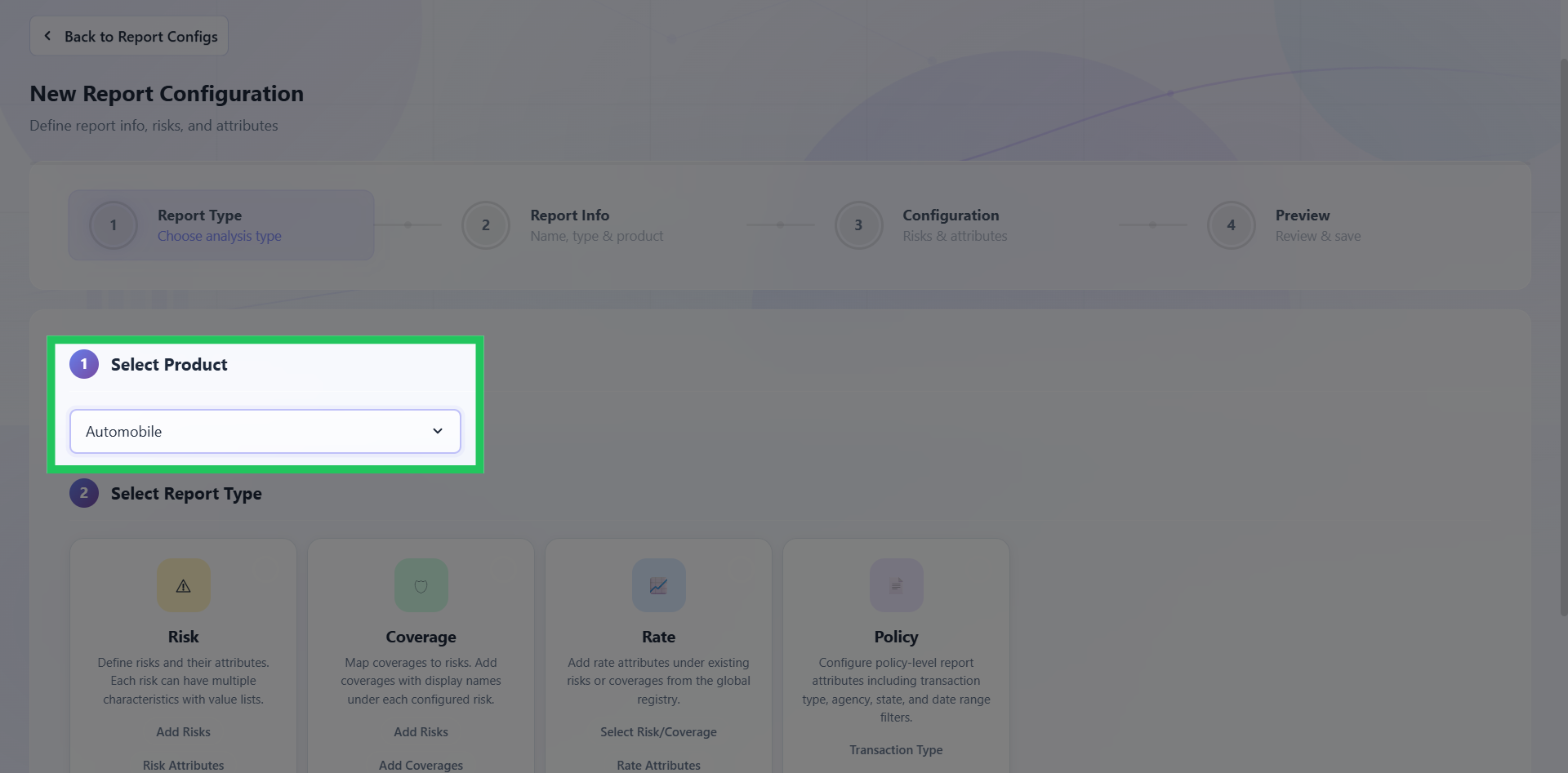
Select Product for Analysis
Open the Product drop-down menu and select the product for which you wish to configure the analysis. The available configuration options will update based on your selected product.
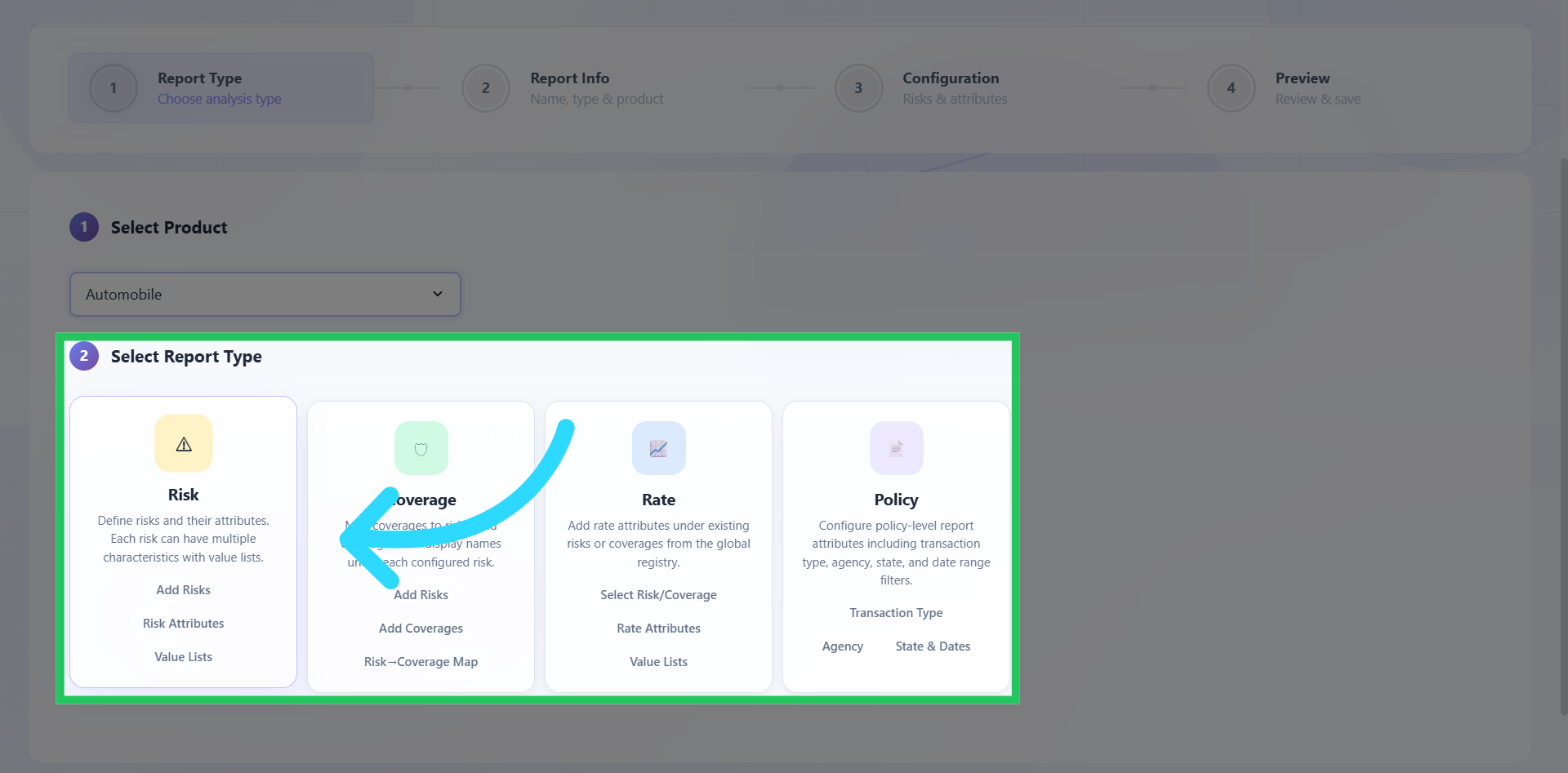
Choose a Report Type
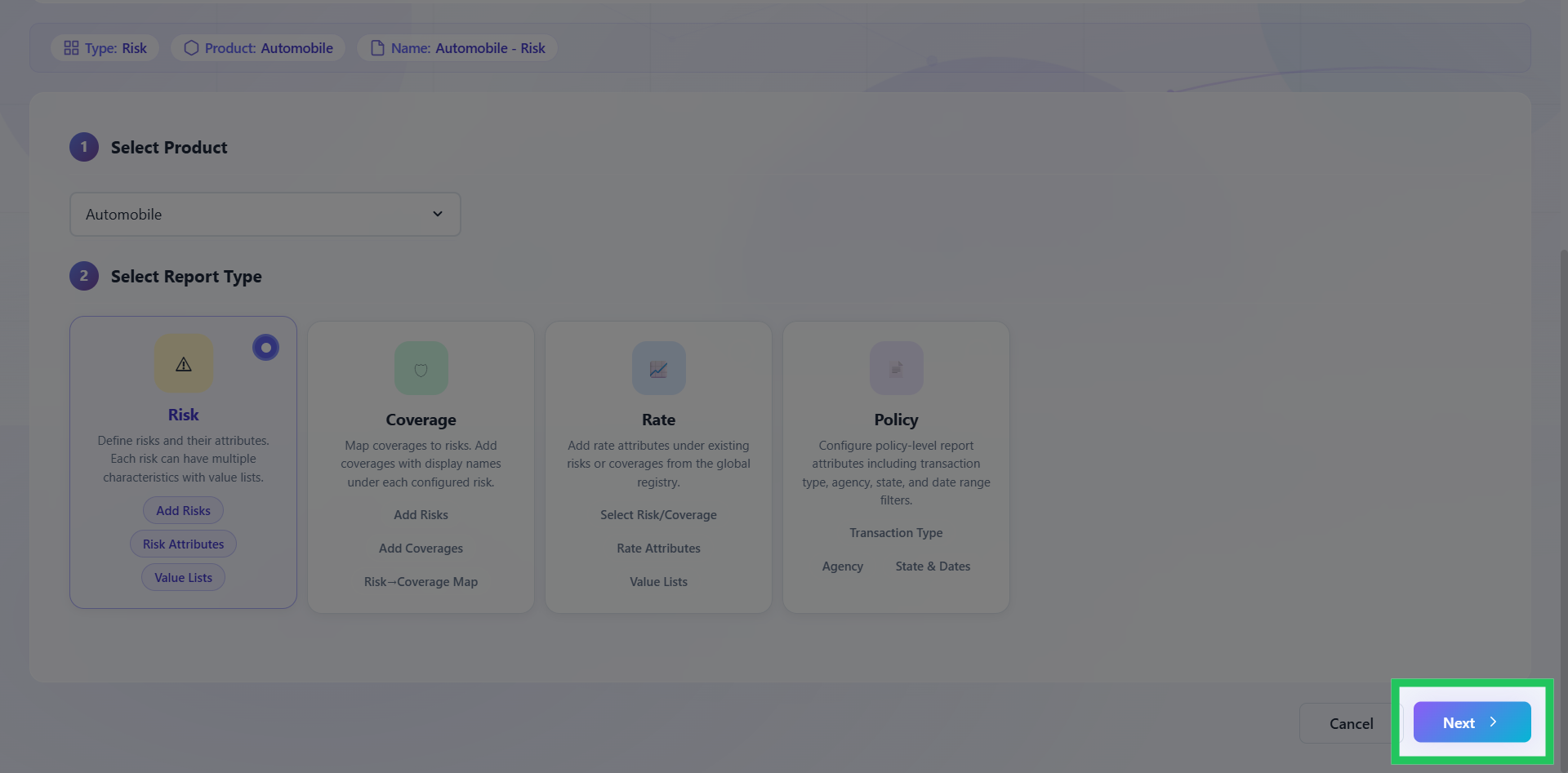
Select the report type that best aligns with your analysis requirements. The report type determines the configuration options and settings available in the subsequent steps. Click "Next" to proceed to the Configuration page.
Configure Risk Analysis
Select Risk from the list of report types.
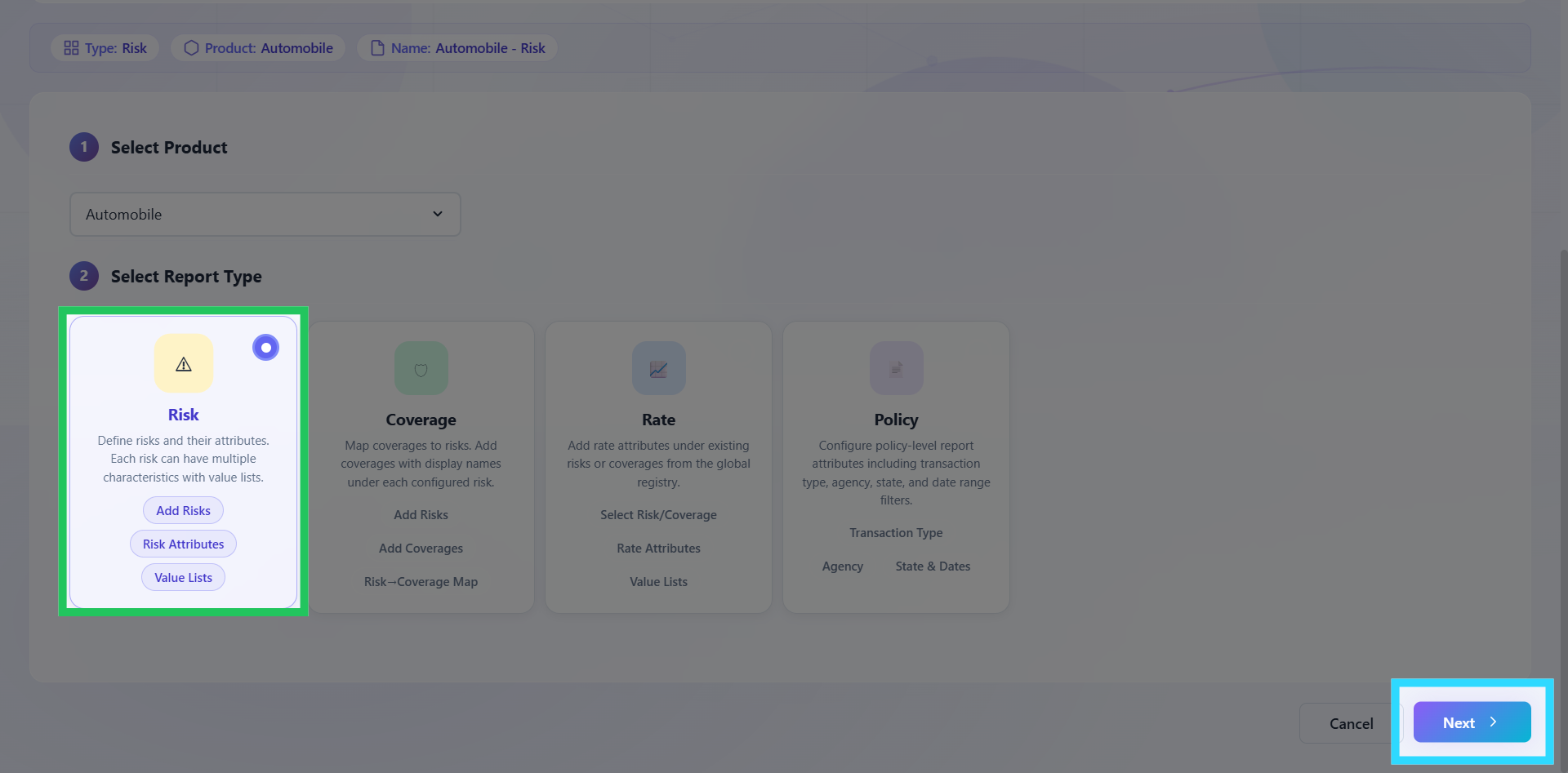
Click "Next" to proceed to the Configuration page.