Creating a Scenario
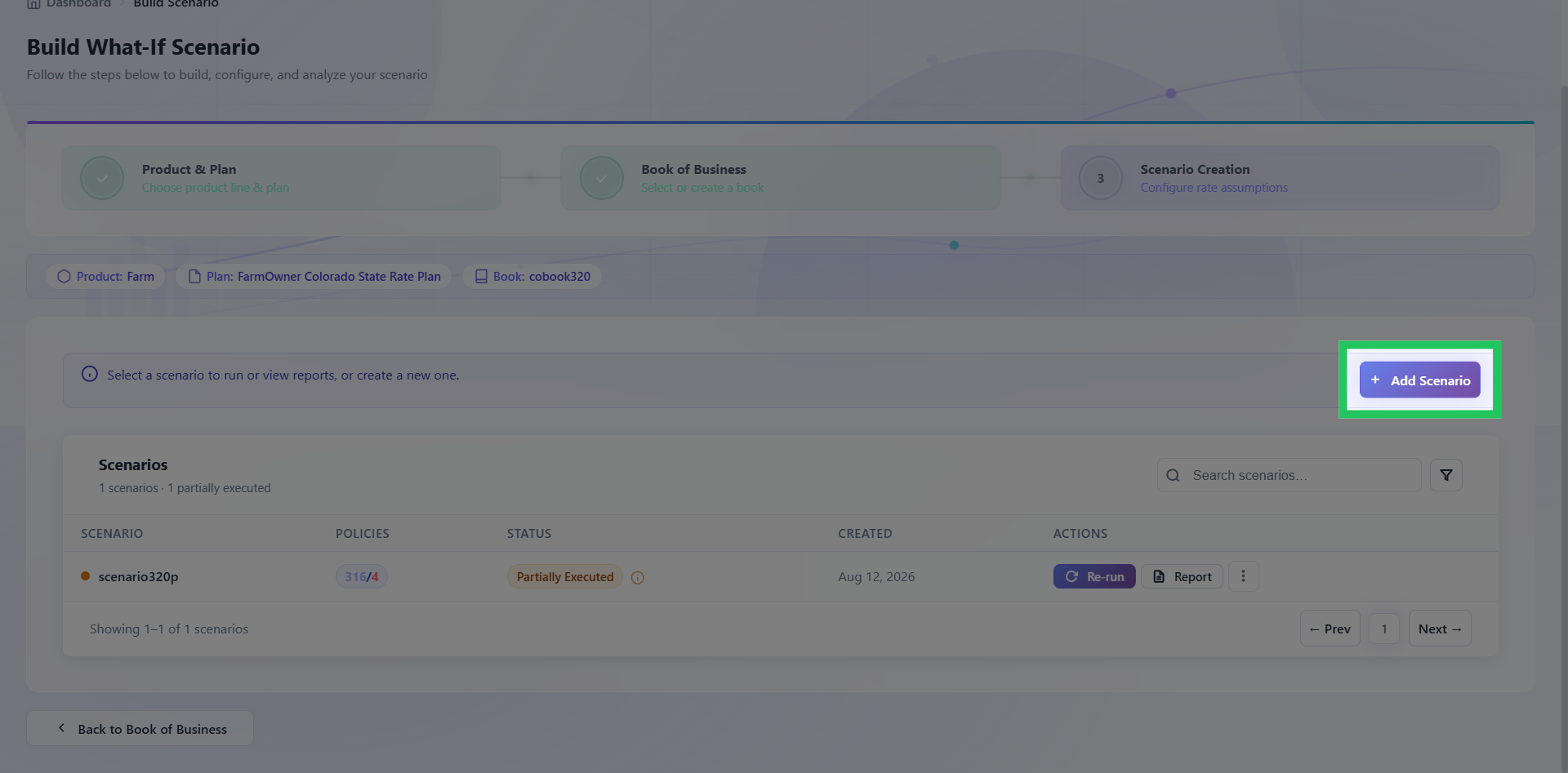
Scenarios are created and managed from the Scenario Management dashboard, which displays execution status, modified table counts, and available actions for all scenarios in the selected Book of Business. Execution runs in the background - users can monitor progress or navigate away and be notified on completion. Reports become available once execution is complete.
The execution summary includes policy count, number of execution steps, and estimated execution duration. Users can stay and monitor execution progress, receive notifications upon completion, or continue working while execution runs asynchronously.
Supported execution statuses are: Saved, Executed, Partial Executed, Failed, and Running.
Create a New Scenario
Click "Add Scenario" to create a new scenario within the selected book of business. This opens the scenario details required to define and save the new analysis.
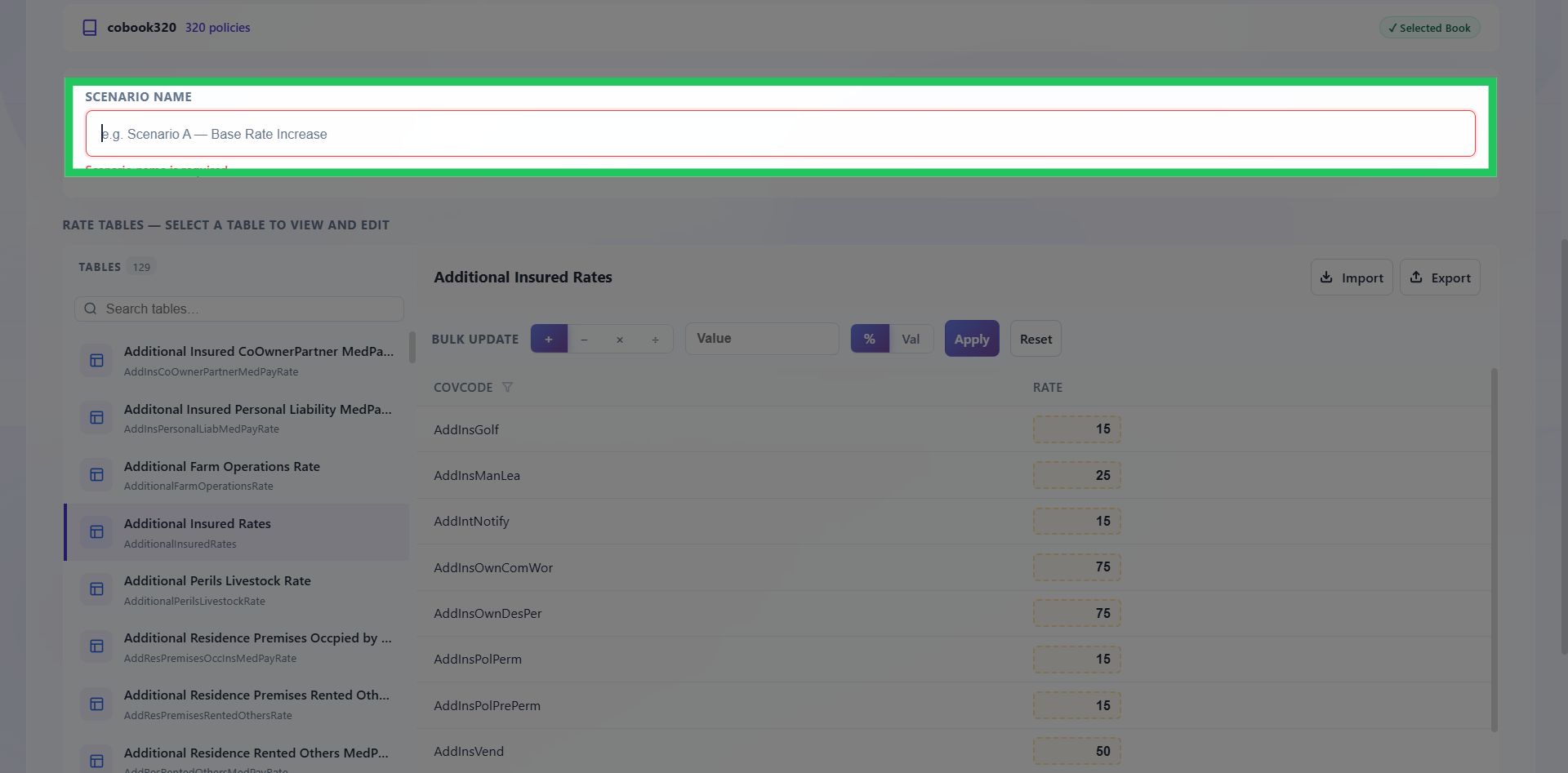
Enter a Scenario Name
Enter a relevant Scenario Name that clearly identifies the purpose or nature of the analysis. Use a descriptive name that makes the scenario easy to recognize when reviewing the scenario list or its results later.
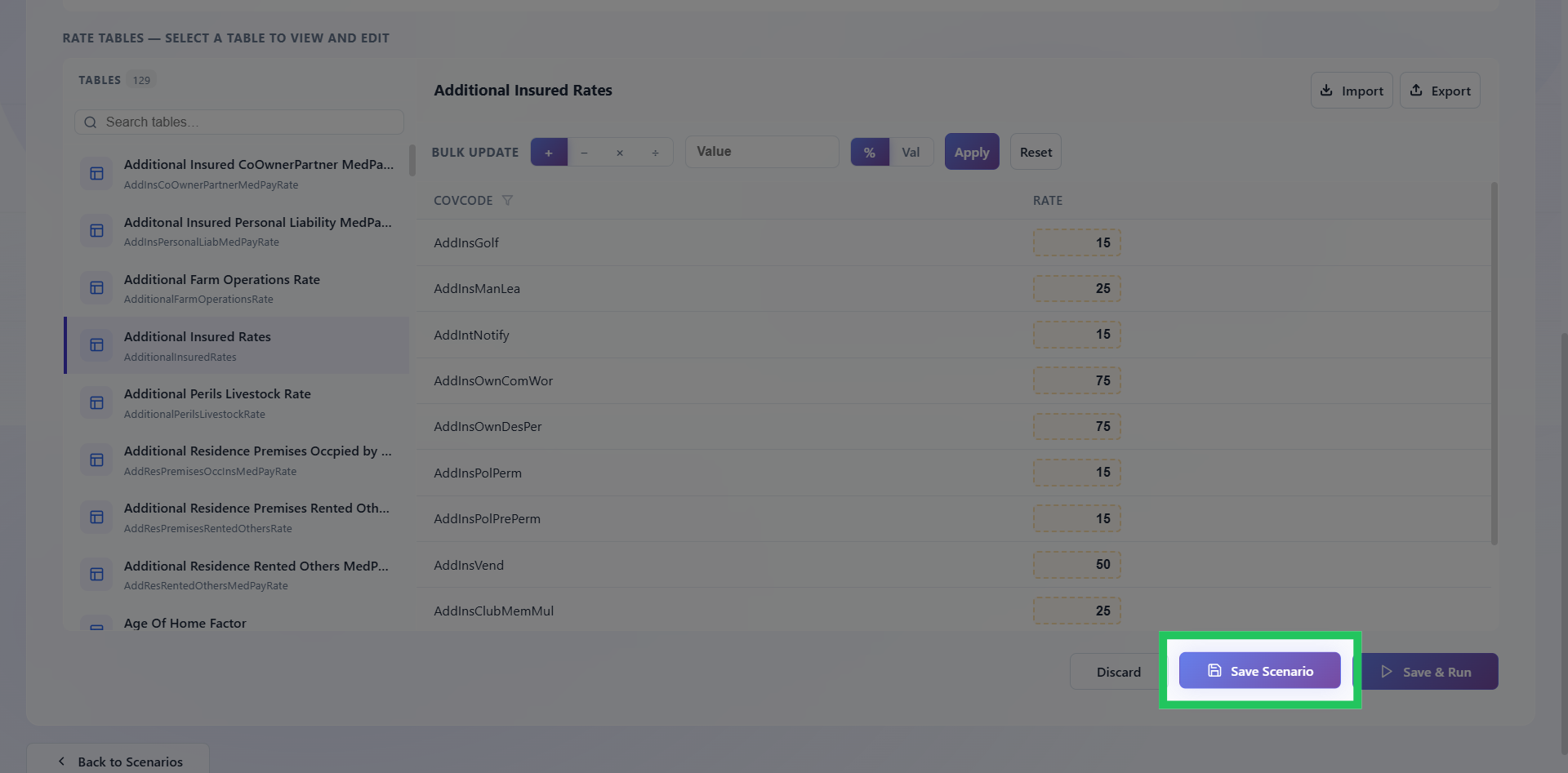
Save the Scenario Configuration
Review the scenario details and confirm that the selected product, plan, book of business, scenario name, and rate table are correct. Click Save Scenario to save the configuration and retain the scenario for further processing or execution.
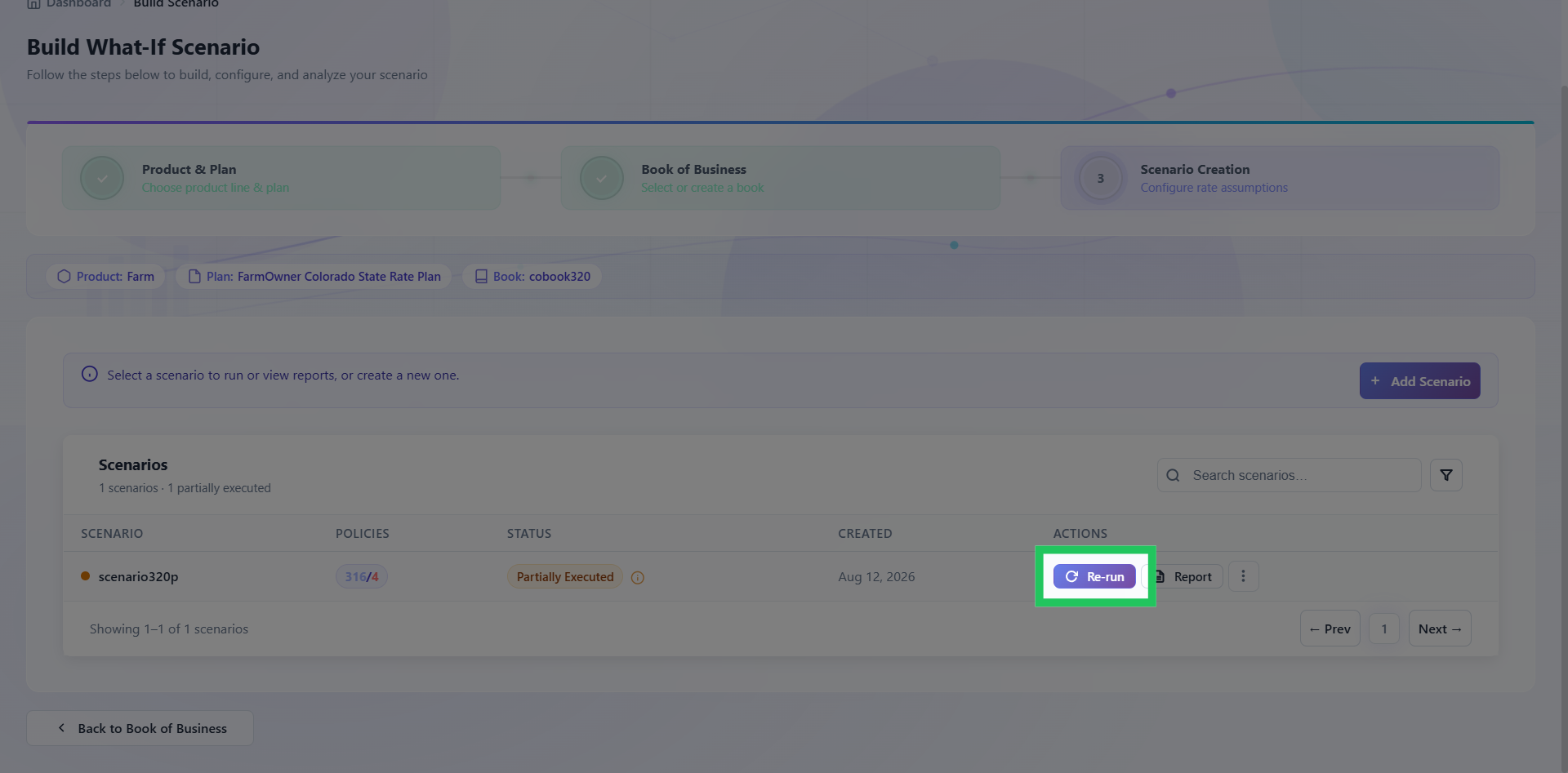
Run an Existing Scenario
To execute an existing scenario, locate the required scenario in the scenario list and go to the Actions column. Click Re-Run to initiate another execution using the scenario's existing configuration.
Access Reports for Scenario
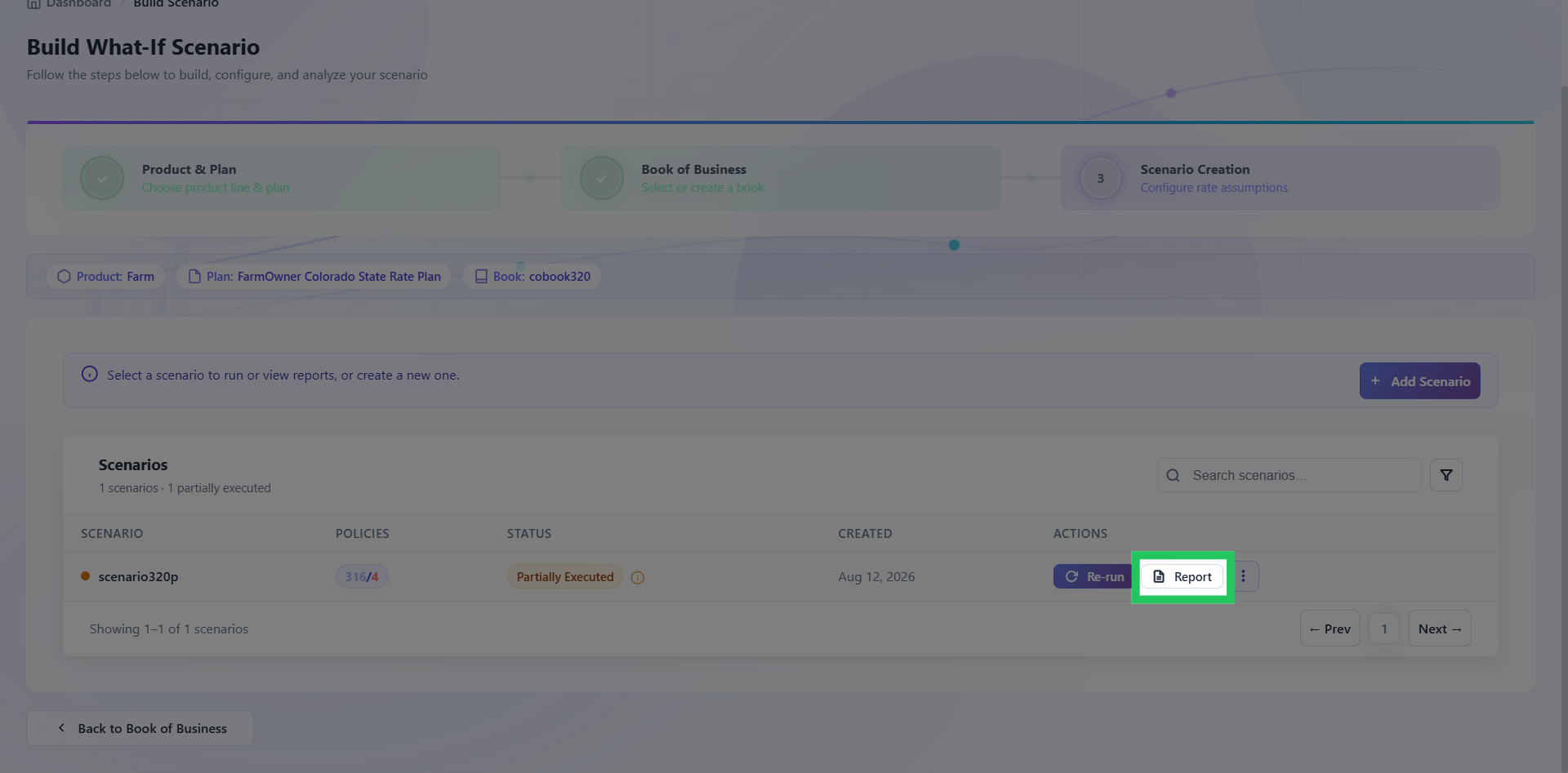
After a scenario has been executed, click Report to access the reports generated for that scenario. These reports provide the results and relevant analysis outputs produced during scenario execution.
Manage Scenario Options
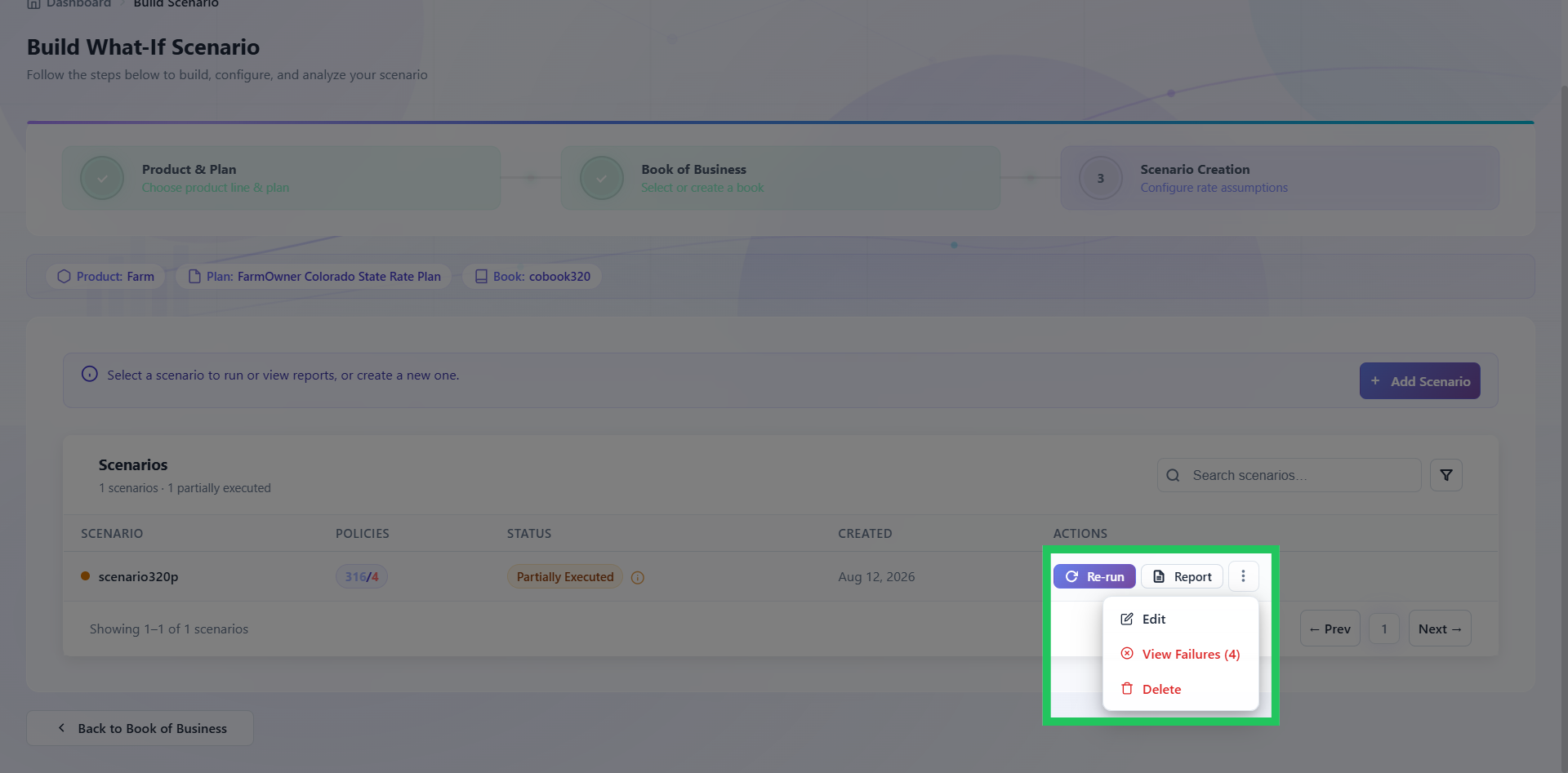
Edit, view failures, or delete the scenario by clicking on the ellipsis menu. Use the kebab menu (⋮) in the scenario's Actions column to access additional management options. Depending on the available functionality, you can edit the scenario, review execution failures, or delete the scenario.
Having trouble? Refer to our FAQs or Troubleshooting guide to know more.