Selecting a Book of Business
The Book of Business defines the portfolio of policies the scenario will run against. Select an existing Book of Business or create a new one using configurable filters to target a specific subset of the portfolio. Policy counts and portfolio distribution are calculated in real time as filters are applied.
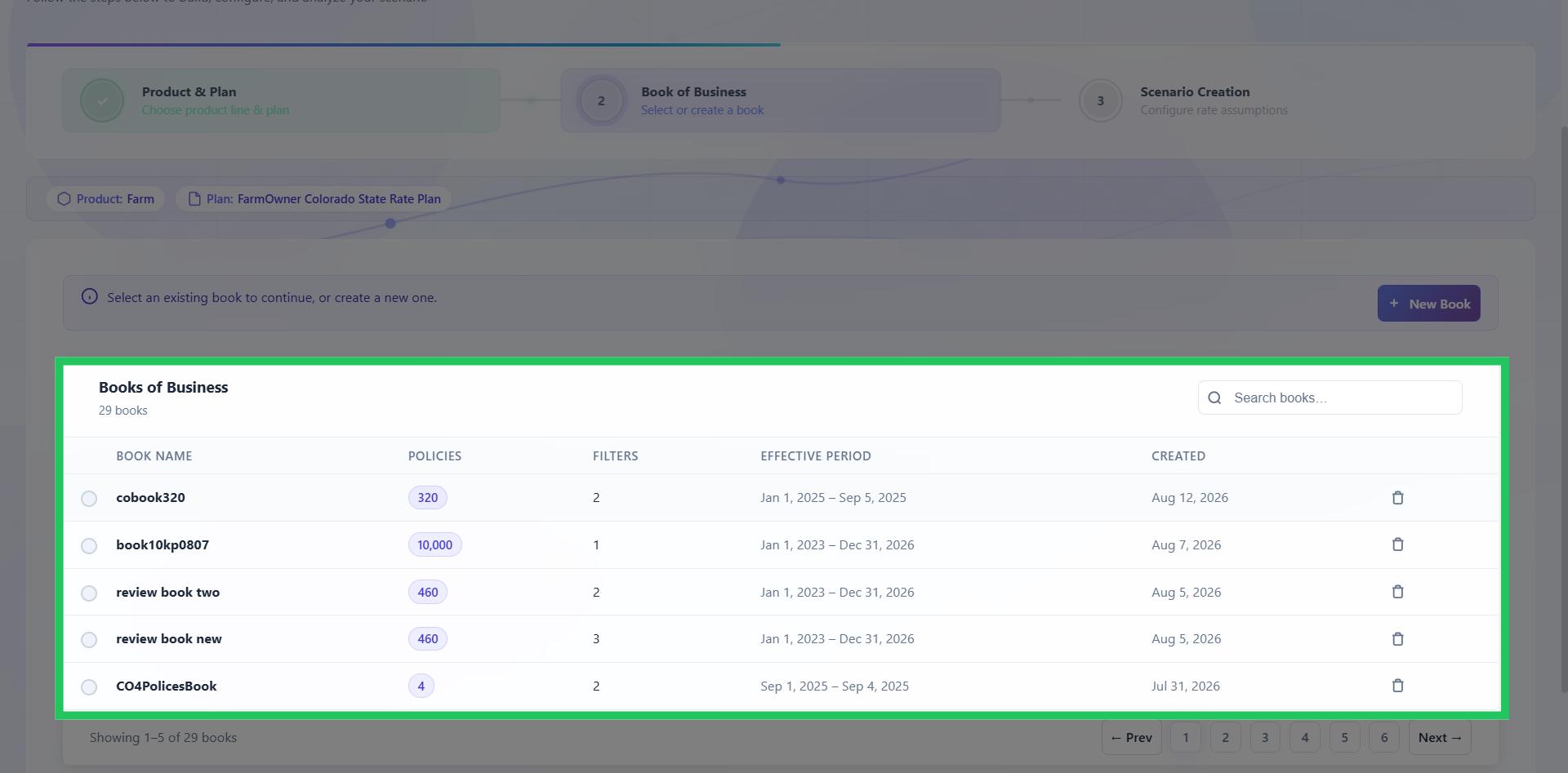
Select or Add a Book of Business
Select an existing Book of Business from the list, or add a new one if required. Click "Continue to Scenario Creation" to proceed.
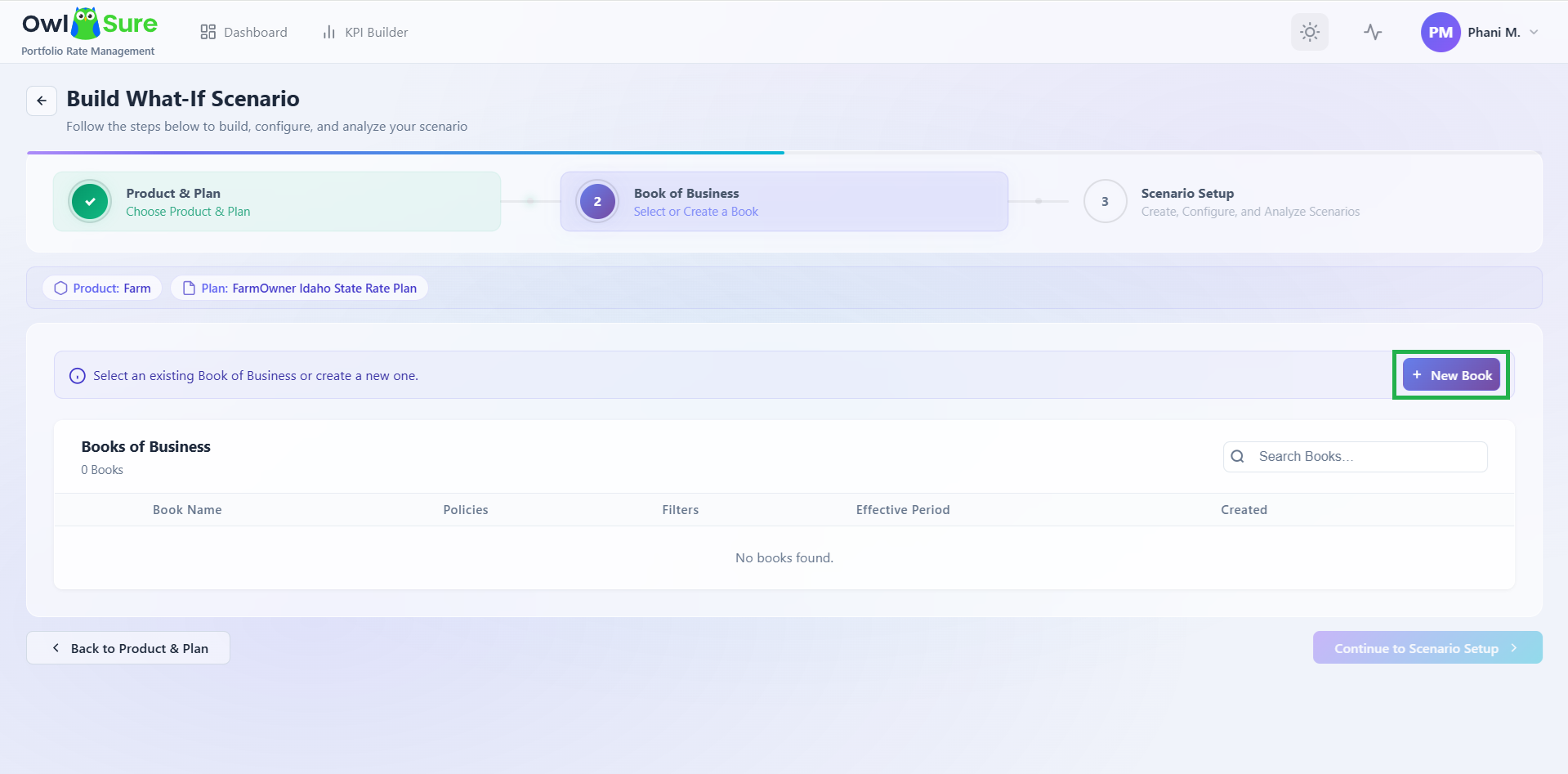
Adding a New Book of Business
To create a new book, click Add Book of Business. A configuration page appears where you define the book name and apply filters to scope the policy population.
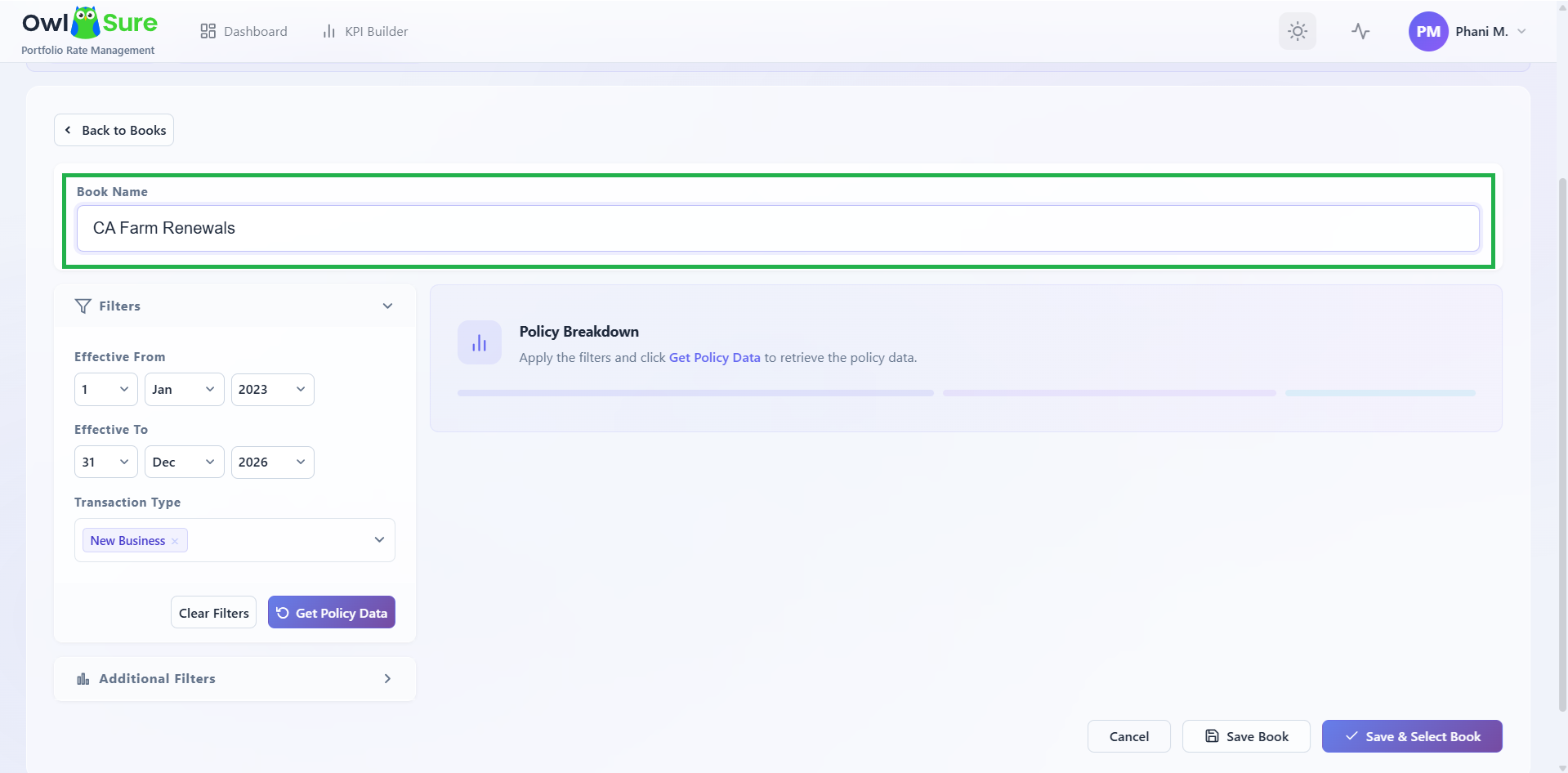
Enter a Book Name
Enter a descriptive name for the book. Use a name that clearly identifies the product, scope, and date range so the book is easy to recognise when reusing it across scenarios.
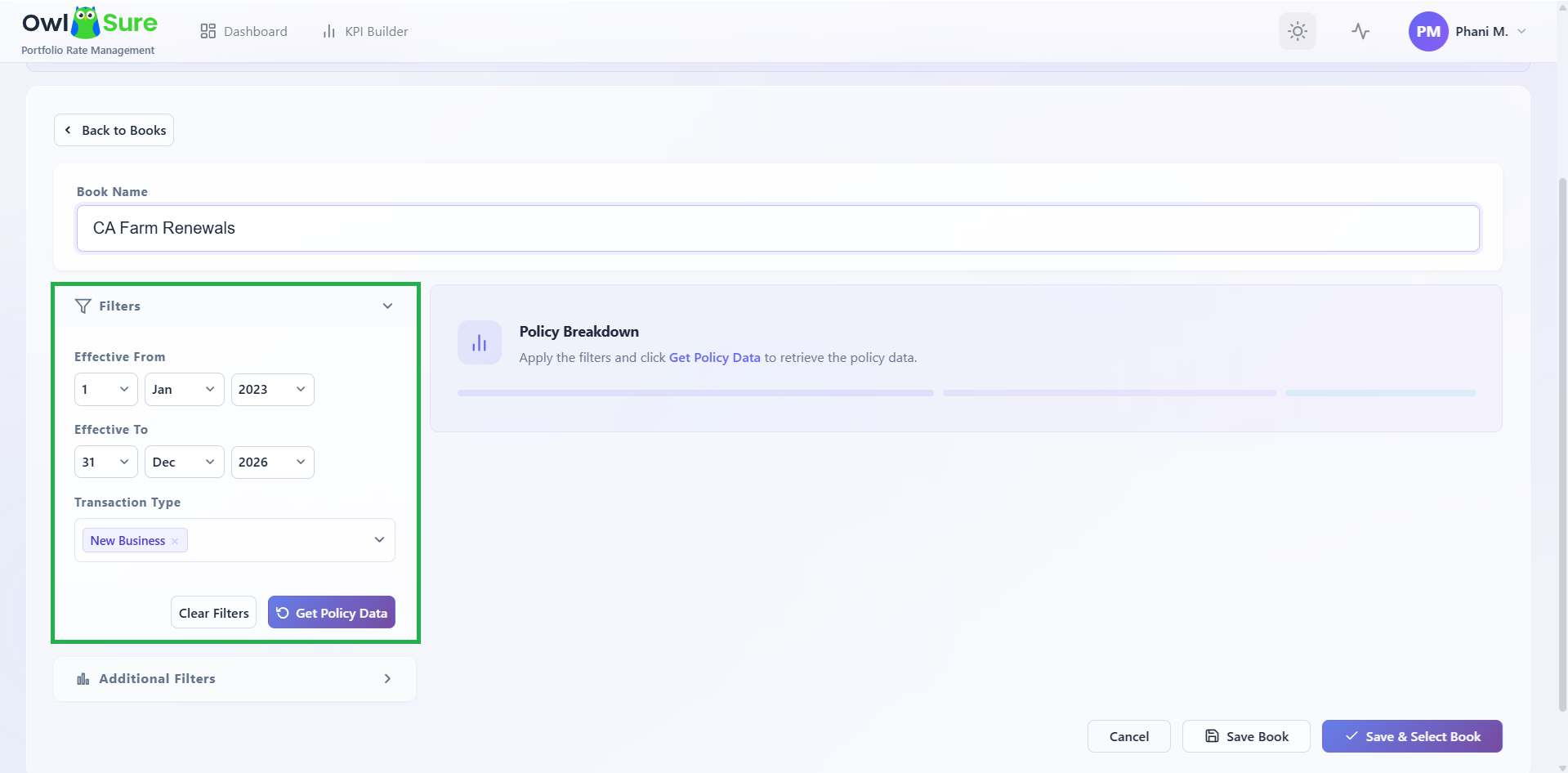
Apply Core Filters
Apply the following filters to define the policy population:
| Filter | Description |
|---|---|
| Effective From | The start of the policy effective date range to include. |
| Effective To | The end of the policy effective date range to include. |
| Transaction Type | Filter by transaction type: New Business, Renewal, Endorsement, or Cancellation. Select one or more as required. |
Once filters are set, click Get Policy Data to retrieve the matching policy count. Click Clear Filters to reset all selections and start again.
Apply Additional Filters
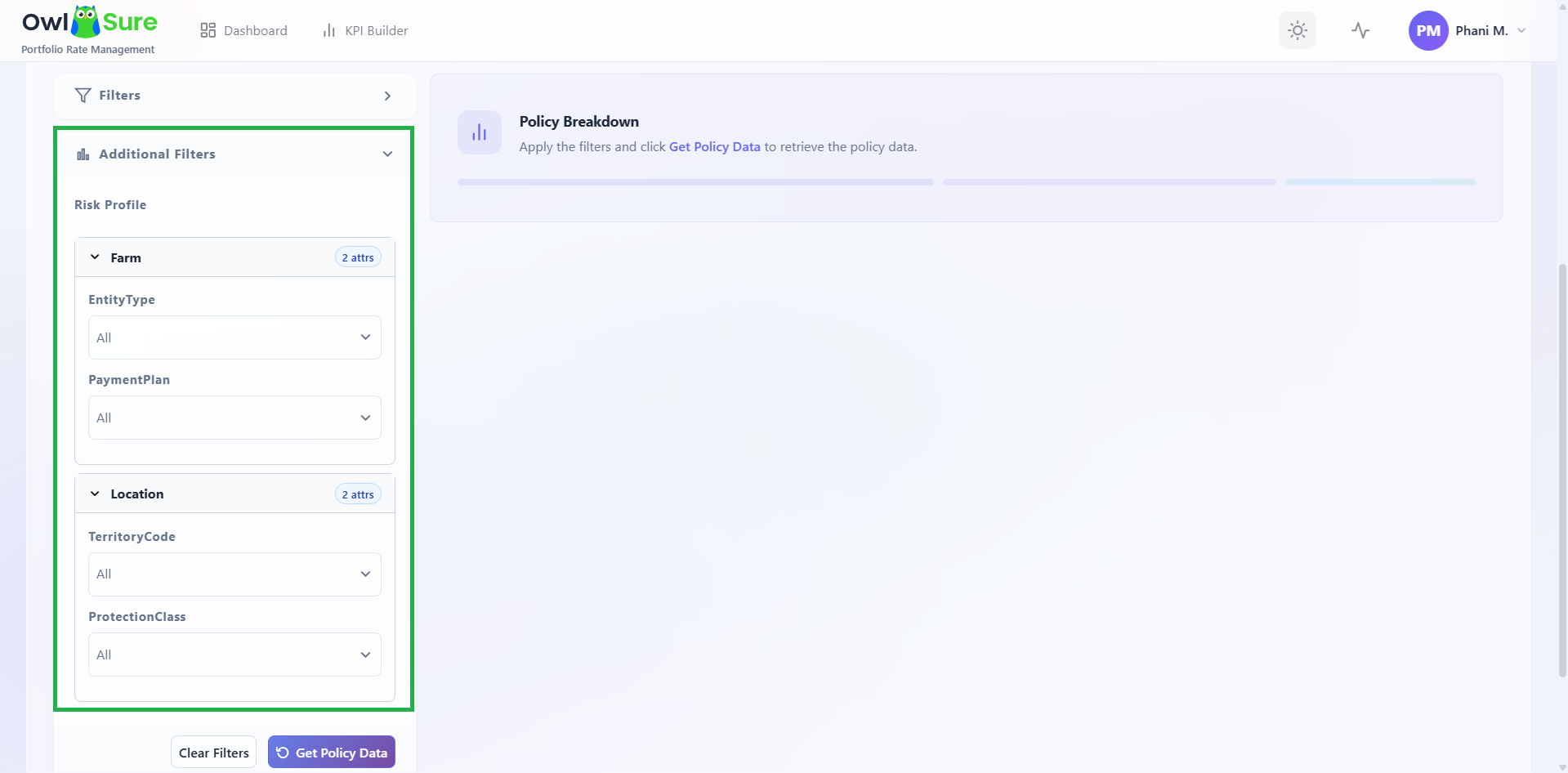
Depending on the product and rate plan selected, additional filter groups may be available to further refine the portfolio. For example, for a Farm product on the FarmOwner Idaho State Rate Plan, the following groups may appear:
- Risk Profile - Entity Type, Payment Plan
- Location - Territory Code, Protection Class
The available additional filters vary by product and plan configuration. After applying additional filters, click Get Policy Data again to refresh the policy count, or Clear Filters to remove them.
Save the Book
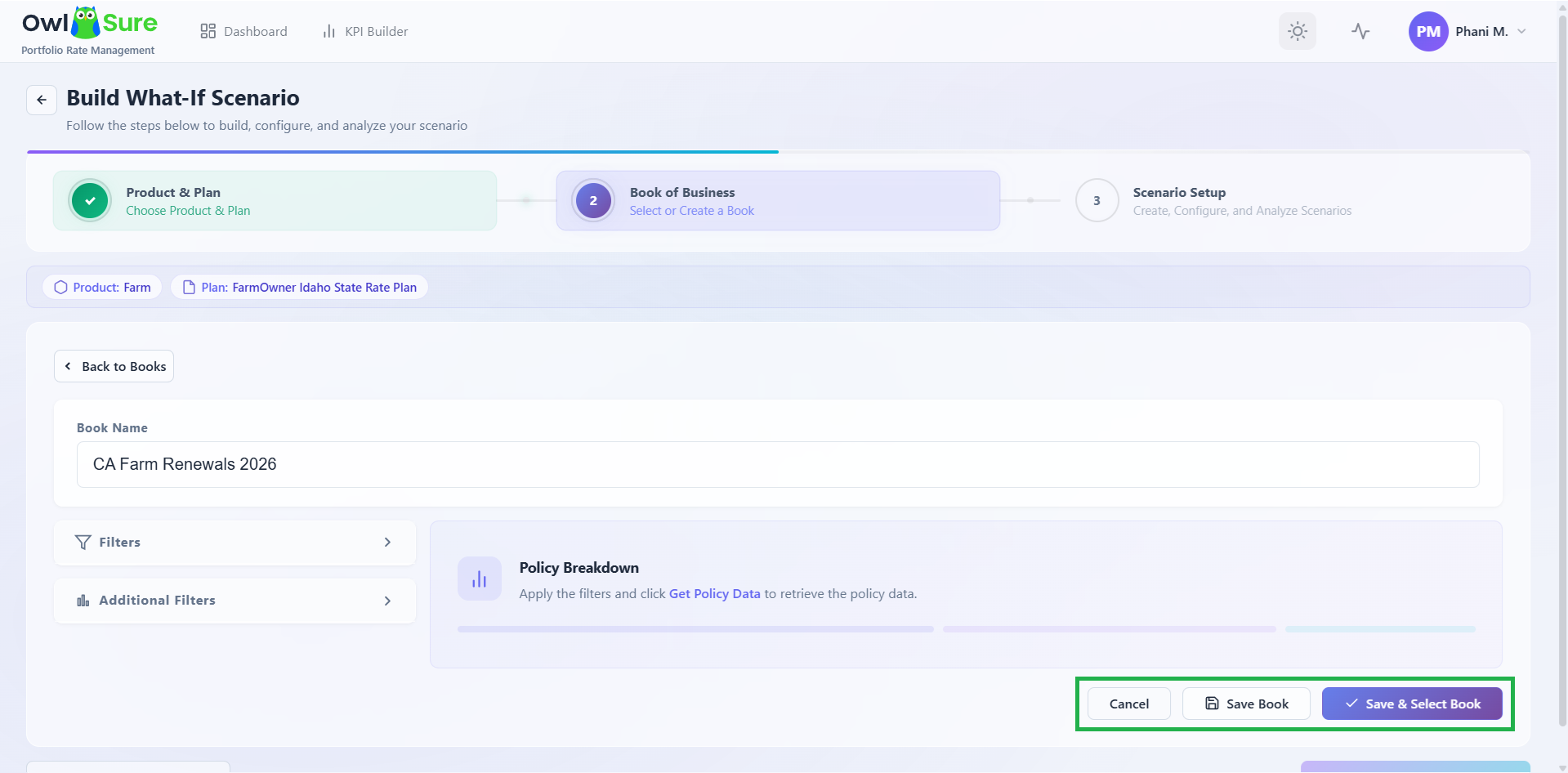
Once the policy population looks correct, you have the following options:
- Save and Select Book - Saves the book and immediately selects it for the current scenario, proceeding to scenario configuration.
- Save Book - Saves the book without selecting it, returning you to the book list.
- Cancel - Discards the new book and returns to the book list without saving.
Once a book is saved and selected, click Continue to Scenario Creation to proceed to the scenario configuration step.
Having trouble? Refer to our FAQs or Troubleshooting guide to know more.